8.5 Welding process
1 Preparation
Before using the welding process, prepare the related components and correctly connect the circuit

1.1 Prepare RS485 communication analog module, analog welder and its complete equipment 1.2 Prepare digital welder and its complete equipment Note: Currently only support RS485 communication analog module [Please refer to the download link of RS485 communication analog module: https://item.taobao.com/item.htm?spm=a1z10.5-c.w4002-154739616.26.Y0mH4t&id=534582865102】
2 Component connection
Refer to the corresponding port instruction manual for connection
2.1 Robot system analog IO definition and RS485 communication analog module and analog welder connection
Electric box of robot 485 analog module Welder end DB15 terminal pin
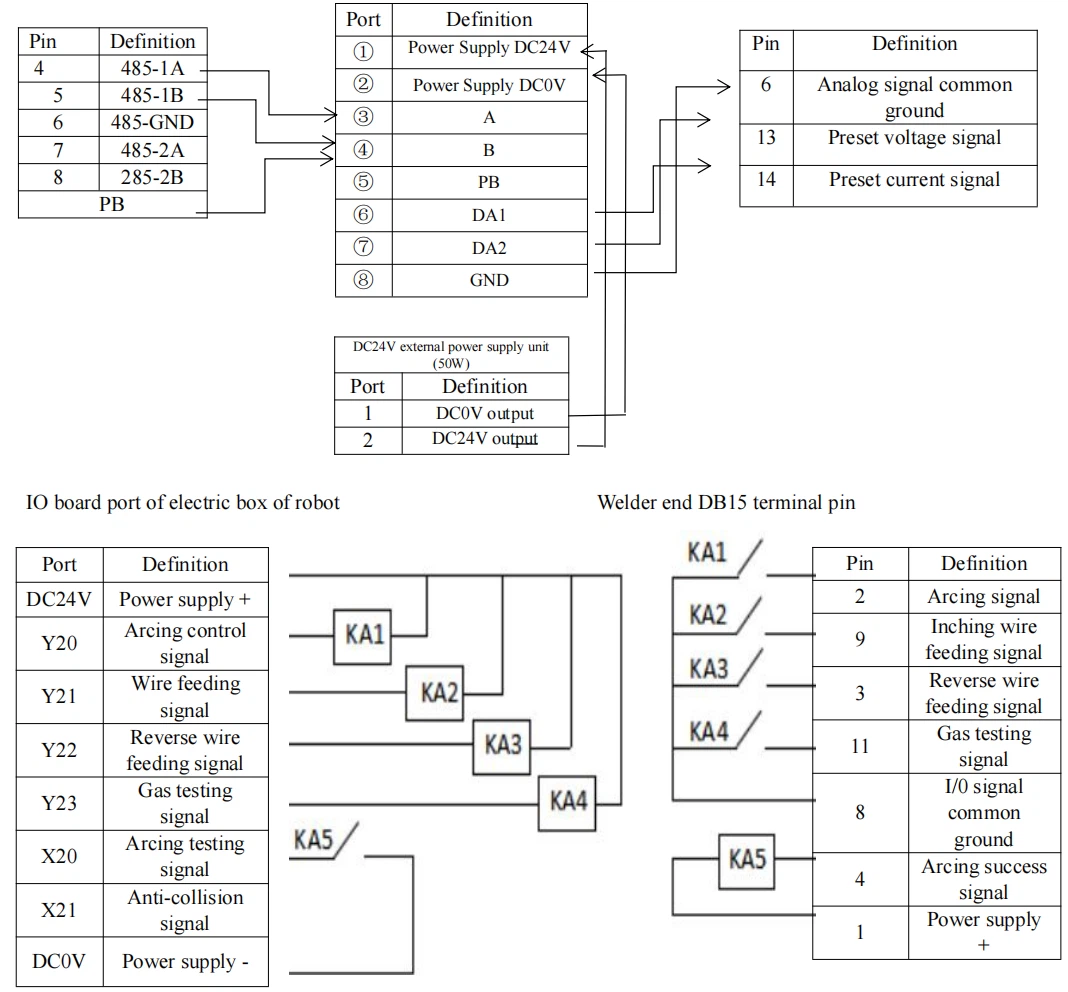
Connection diagram of 485 analog module and Megmeet Ehave CM350 configured for HUACHENG drive and control integrated control system
Remark: Input terminals X10-X47 of HUACHENG drive and control integrated control system are connected to negative pole of 24V power supply (0V) to be effective, and their electrical characteristic is conductive optocoupler. Output terminals Y10-Y47 are connected to 24V power supply through load (protection current: 500mA, withstand voltage: 65V, electrical characteristic: MOS tube ON leakage output).
DB15 terminal pin sequence color definitions

Megmeet analog welder Ehave CM350 (DB15 interface)
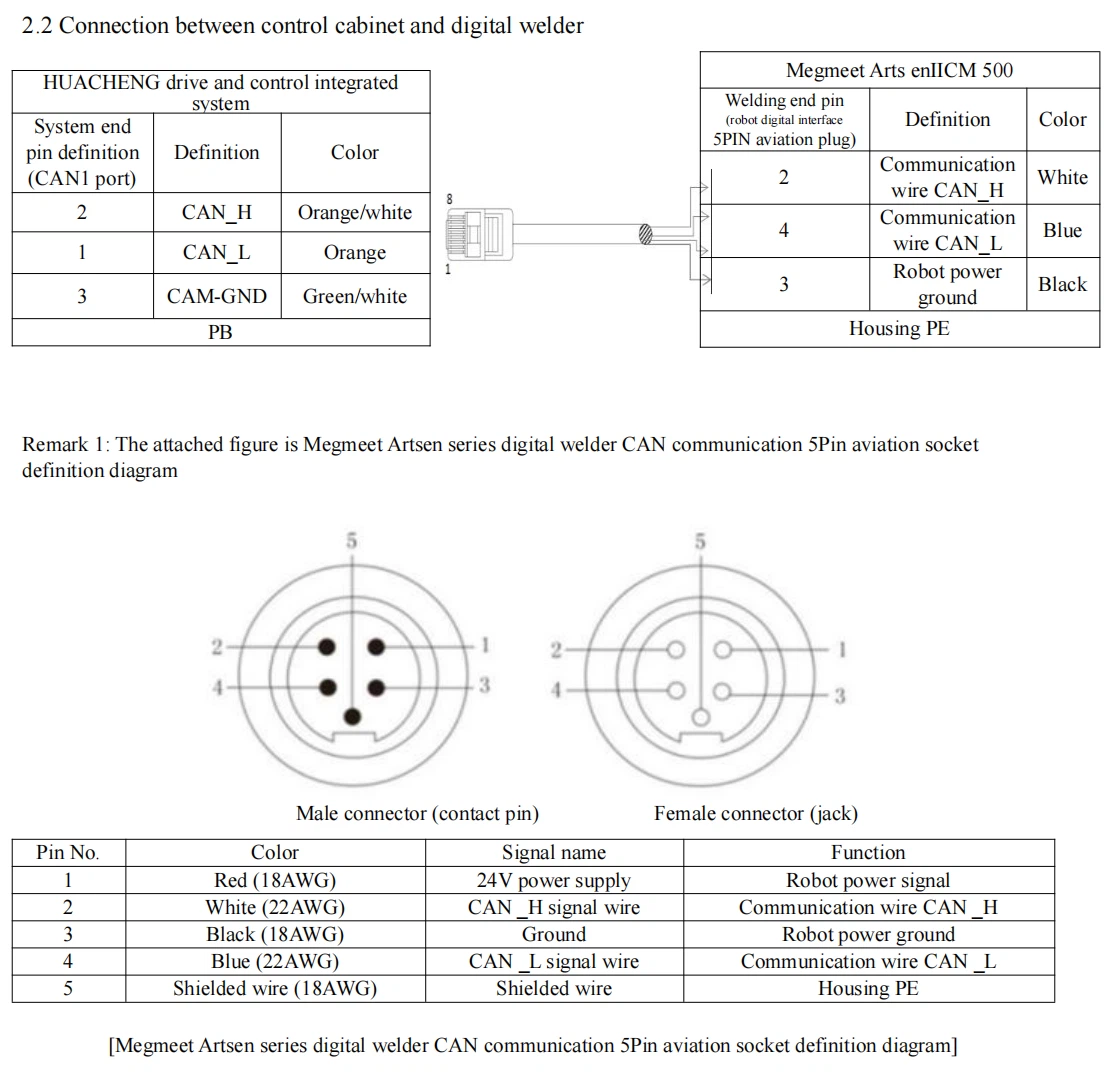
Remark 2: The welding source supplies 24V power, and is not connected because the robot has had 24V power. One 120ohm resistor is recommended for parallel connection between high and low levels at digital port, to improve anti- interference ability in communication. Remark 3: If Outsidi and Insidi are optional for welder communication port, please use "Outsidi" port for connecting to the robot.
Remark 4: One end of the connecting wire of the robot is R45 standard registered jack which needs to use shielded twisted-pair cable, and the other end is 5Pin aviation plug which connects the welding end.
3 Welding process setting steps
3.1 Setting steps for connection between system and analog welder
(Remark: The above examples are setting steps for connection between system and analog welder)
3.1.1 Parameter meaning
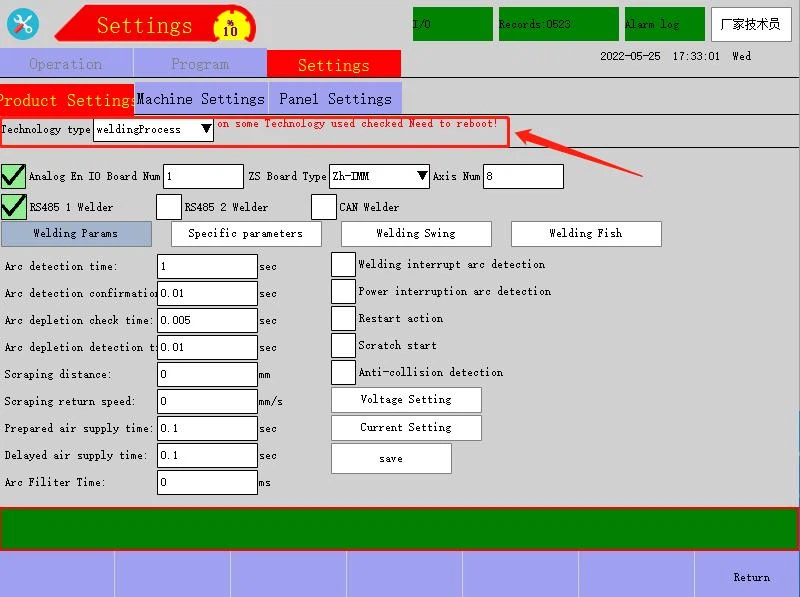


Definition explanation:
① RS485 port 1 function selection: The connection definitions of corresponding electrical cabinet "CAN1" port pins 4, 5, 6 are respectively 485-1A, 485-1B and 485-GND
② RS485 port 2 function selection: The connection definitions of corresponding electrical cabinet "CAN1" port pins 7, 8, 6 are respectively 485-2A, 485-2B and 485-GND
③ Use: specify the use of CAN port.
④ ID config: When analog welder is used, this parameter does not need to be set; when digital welder is used, this parameter should be set to 1
⑤ Baud Setting: When analog welder is used, this parameter does not need to be set; when Megmeet digital welder is used, this parameter should be set to 125kbps
⑥ Manufacturer: When analog welder is used, this parameter does not need to be set; when digital welder is used, corresponding manufacturer should be selected
⑦ Model: When analog welder is used, this parameter does not need to be set; when digital welder is used, corresponding model should be selected
Note: As for digital welder manufacturer, currently only support Megmeet Artsen series
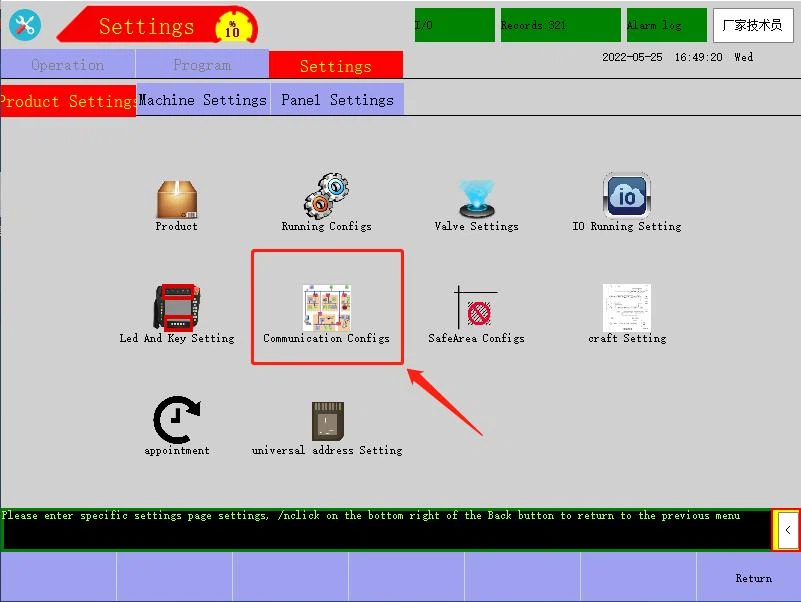
3.1.2 Setting steps When the knob switch is in the Stop mode/state, for parameter setting, select "Product Settings", select "craft Setting" → select "Welding Process" → then go to set port function, and select "RS485 Setting" in "Communication Configs" → "RS485 port 1 function selection" is RS485 analog module → power off and restart → open craft Setting → tick Analog En → the setting of analog welder connected to robot system is finished.
3.2 Meanings of parameters set for welding process
3.2.1 Welding process - meanings of welding process parameters

Definition explanation:
① Analog En: If ticked, analog module is enabled; if not ticked, analog module is disabled
② Arc detection time: Used to set how long the system will delay in detecting after arcing.
③ Arc detection confirmation time: Used to set the duration for the system's detecting the arcing success signal, namely only after the system continuously detects the arcing success signal for this parameter time will the arcing is considered successful.
④ Arc depletion detection time: Used to set the duration for the system's detecting the arc quenching signal, namely only after the system continuously detects the arc quenching signal for this parameter time will the arc quenching is considered successful
⑤ Prepared air supply time: Used to set how long in advance should the protective air be supplied when the system is ready for art starting
⑥ Delayed air supply time: Used to set how long the protective air should be delayed to be turned off when the system is ready for arc quenching.
⑦ Welding interrupt arc detection: Used to set whether the arc interruption detection function is available. When the function is effective, in case arc interruption during welding, the system will stop welding and save the arc interruption point; when restarting next time, the robot will return to the arc interruption point for arc restarting before running
⑧ Anti-collision detection: Used to set whether the anti-collision function is available. When the function is effective, if anti-collision sensor is activated, the system will stop welding, and cut off the power of servo
⑨ Voltage Setting: Clicked to set the voltage matched between robot and analog welder
⑩ Current Setting: Clicked to set the current matched between robot and analog welder
⑪ save: After clicking "save" on Welding Process page, written-in parameters will be effective; otherwise, they will not be effective
⑫ Restart action: After being ticked, restart speed and restart distance among "welding parameters" will be effective
⑬ Arc depletion check time: Used to set the duration for the system's detecting the arc quenching signal (X20 OFF), namely only after the system continuously detects the arc quenching signal for this parameter time will the arc quenching is considered successful.
⑭ Arc Filter Time: If there is arcing signal within this time, no alarm will be given; if the interval between ineffective and effective is less than this time, it is considered effective.
3.2.2 Welding process - welding process parameters - current/voltage matching setting
Note: The matching effect will directly affect the actual welding effect, so please follow the set steps to perform the operation.
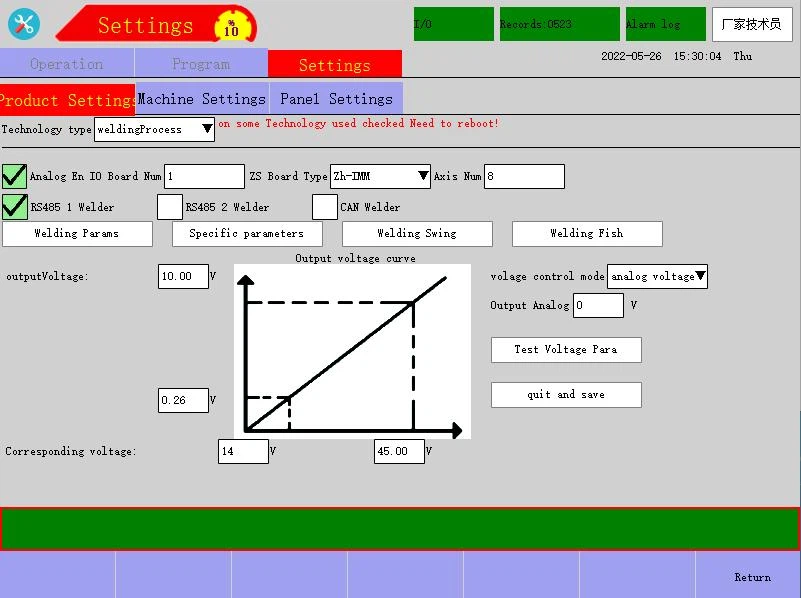
DA2 voltage matching setting: enter "Voltage Setting" page → fill in the voltage to be tested at "outputVoltage" (this value is analog, namely the voltage outputted to welder DA2, to be tested from 0V until the welder voltage monitoring panel page changes, with the tested change in this value as the minimum; to be tested from the minimum until the welder voltage monitoring panel page does not change, with the tested maximum change in this value as the maximum) → click "Test Voltage" so that the analog module begins to output corresponding voltage to welder ("Test Voltage" is effective by long press, and is automatically reset after release) → Fill in the maximum 7.950V and minimum 0.500V obtained by testing respectively at the highest curve point and lowest curve point of "outputVoltage" at the top left, and fill in the monitored voltage value on the welder panel corresponding to the outputted analogy voltage at "Corresponding voltage" → DA2 voltage analog matching is finished.
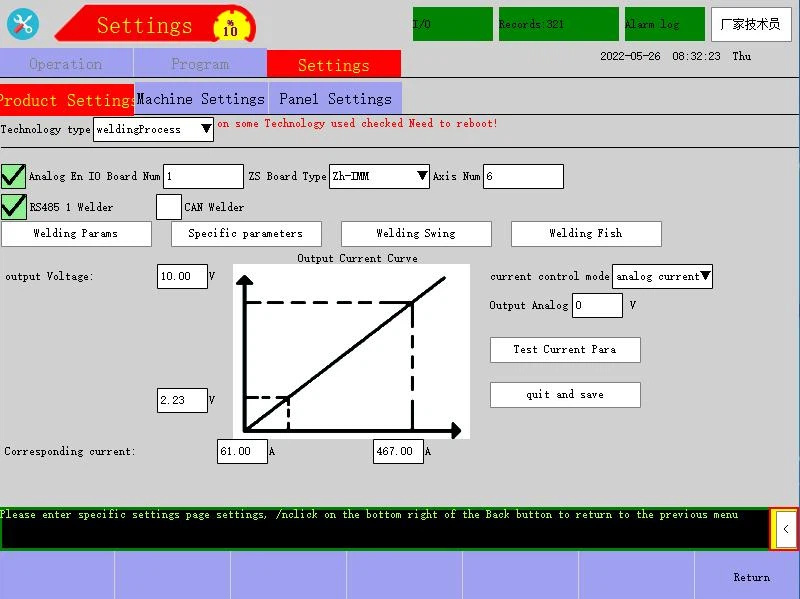
Note: After the matching is finished, please test the preset "Actual voltage", and inspect whether the displayed value on the welder panel meets the usage requirements.
DA1 current matching setting: enter "Current Setting" page → fill in the current to be tested at "outputCurrent" (this value is analog, namely the current outputted to welder DA1, to be tested from 0V until the welder current monitoring panel page changes, with the tested change in this value as the minimum; to be tested from the minimum until the welder current monitoring panel page does not change, with the tested maximum change in this value as the maximum) → click "Test Current" so that the analog module begins to output corresponding current to welder ("Test Current" is effective by long press, and is automatically reset after release) → Fill in the maximum 7.800V and minimum 0.050V obtained by testing respectively at the highest curve point and lowest curve point of "outputVoltage" at the top left, and fill in the monitored current value on the welder panel corresponding to the outputted analogy voltage at "Corresponding current" → DA2 voltage analog matching is finished.
Note: After the matching is finished, please test the preset "Actual current", and inspect whether the displayed value on the welder panel meets the usage requirements.
3.2.3 Welding process - meanings of welding parameters
The analog is shown in the figure below
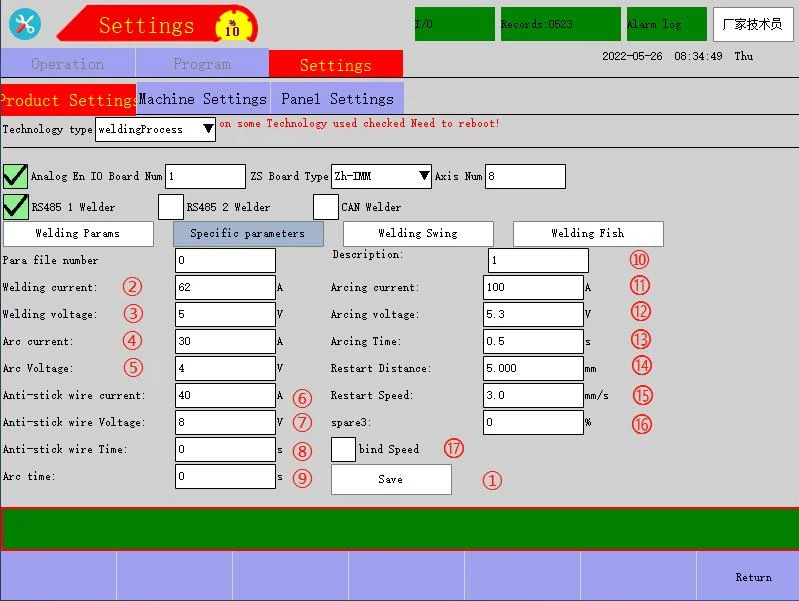
Definition explanation:
① Para file number: Used to store the welding parameters of multiple different products, with a set range of 0~9
② Welding current: Used to set the output current of the welder
③ Welding voltage: Used to set the output voltage of the welder
④ Arc current: Used when the arc is not full, smaller than the value during welding
⑤ Arc Voltage: Used when the arc is not full, smaller than the value during welding
⑥ Anti-stick wire current: Only used when any welding wire is stuck at the arc extinguishing point; generally, the current value is 0, while the voltage value is a little higher than the value during welding
⑦ Anti-stick wire Voltage: Only used when any welding wire is stuck at the arc extinguishing point; generally, the voltage value is a little higher than the value during welding
⑧ Anti-stick wire Time: Used to set the retention time of anti-stick wire voltage/current
⑨ Arc time: Used to set the retention time of arc voltage/current (if this value is set too large, it will cause surfacing at the end of the weld joint; if this value is set too small, it will cause cratering at the end of the weld joint; therefore, this value needs to be set according to the actual situation.)
⑩ Description: User can set a custom name for the current file number
⑪ Arcing current: Used to set the arcing current for welding
⑫ Arcing voltage: Used to set the arcing voltage for welding
⑬ Arcing Time: Used to set the retention time of arcing voltage/current (if this value is set too large, it will cause surfacing at the origin of the weld joint
⑭ Restart Speed: Used to set the running speed when the restart distance is executed
⑮ Restart Distance: The distance of the return path after the robot runs to the welding arc interruption point
⑯ spare3 (percentage of multiple rate) : with a set range of 1-100
⑰ bind Speed: enabled if ticked (after enabled, welding speed = welding command speed x percentage of multiple rate) * Two hidden parameters will be additionally displayed for digital communication welder
3.2.4 Welding process - meanings of welding swing parameters
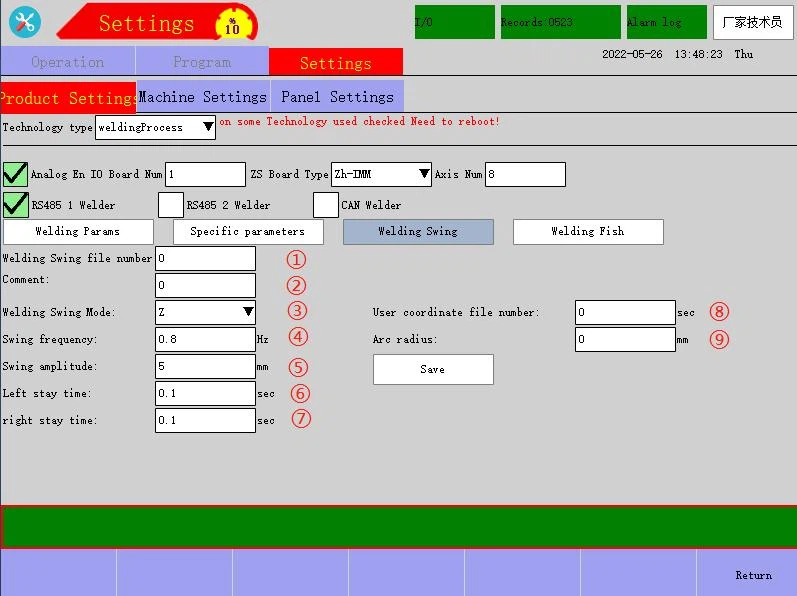
Z-shaped and circular arc-shaped swing definition explanation:
① Welding Swing file number: Used to store the welding parameters of multiple different products, with a set range of 0~9
② Comment: User can set a custom name for the current file number
③ Welding Swing Mode: Support Z-shaped and circular arc-shaped welding swing modes
④ Swing frequency (Hz): Number of swing times per second
⑤ Swing amplitude (mm): Distance of unilateral swing
⑥ Left stay time (s): The stay time when swinging to the peak on the left
⑦ right stay time (s): The stay time when swinging to the peak on the right
⑧ acceleration and deceleration time (s): Used to plan the time of acceleration and deceleration in swing direction, with the purpose of reducing the shake during track swinging, the larger the more stable, the smaller the more shaky
⑨ Arc radium (mm): Used to set the radius distance of arc swing
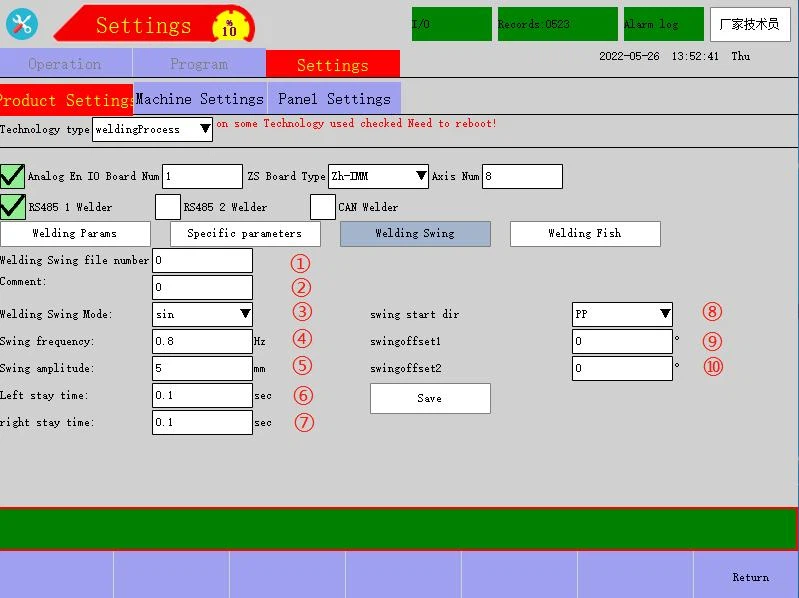
Sinusoidal swing definition explanation:
① Welding Swing file number: Used to store the welding parameters of multiple different products, with a set range of 0~9
② Comment: User can set a custom name for the current file number
③ Welding Swing Mode: Support Z-shaped and circular arc-shaped welding swing modes
④ Swing frequency (Hz): Number of swing times per second
⑤ Swing amplitude (mm): Distance of unilateral swing
⑥ Left stay time (s): The stay time when swinging to the peak on the left
⑦ right stay time (s): The stay time when swinging to the peak on the right
⑧ swing start dir: forward and reverse (if set to forward, first go up from the start point and then go down for periodic swing; if set to reverse, just the opposite)
⑨ Horizontal deflection angle: with a set range of 180~-180 (after setting, the rotation track is offset in a horizontal deflection angle from the original swing track center)
⑩ Vertical deflection angle: with a set range of 180~-180 (after setting, the rotation track is offset in a vertical deflection angle from the original swing track center)
3.2.5 Welding process - meanings of welding fish parameters

Definition explanation:
① Welding Fish file number: Used to store multiple welding fish process parameters, with a set range of 0~9
② Comment: Name for the current file number
③ Welding Fish Mode: Support time and distance modes
④ Welding stay time (ms): Welding delay time Remark: When selecting "Distance" as Welding Fish Mode, please set corresponding "welding distance", which should be the running distance for executing welding.
⑤ Welding Space (mm): Used to set the welding space
3.3 Digital welder setting description
Robot Communication Configs are as follows:
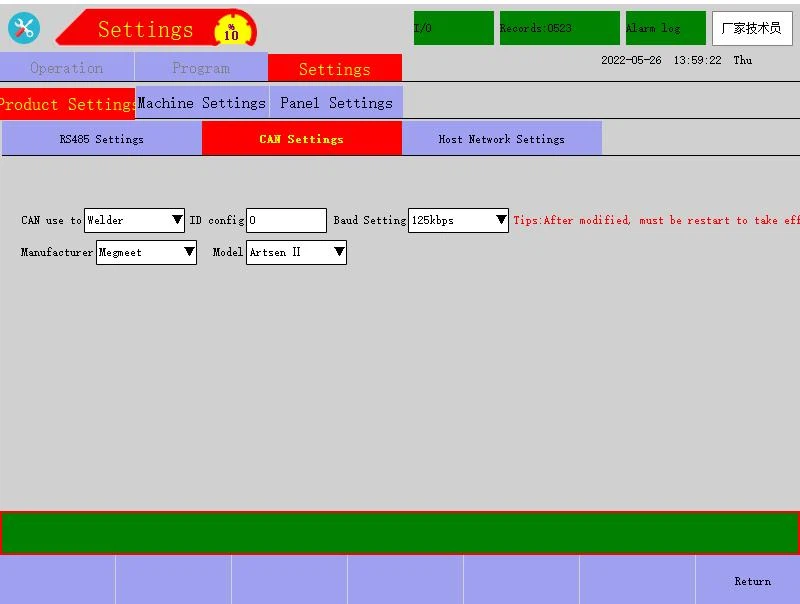
Megmeet Artsen series digital welder communication configs are as follows:

Remark: For detailed settings and meanings, please refer to corresponding specifications of Megmeet.
After the above parameters are set, the robot can establish communication with the welder.
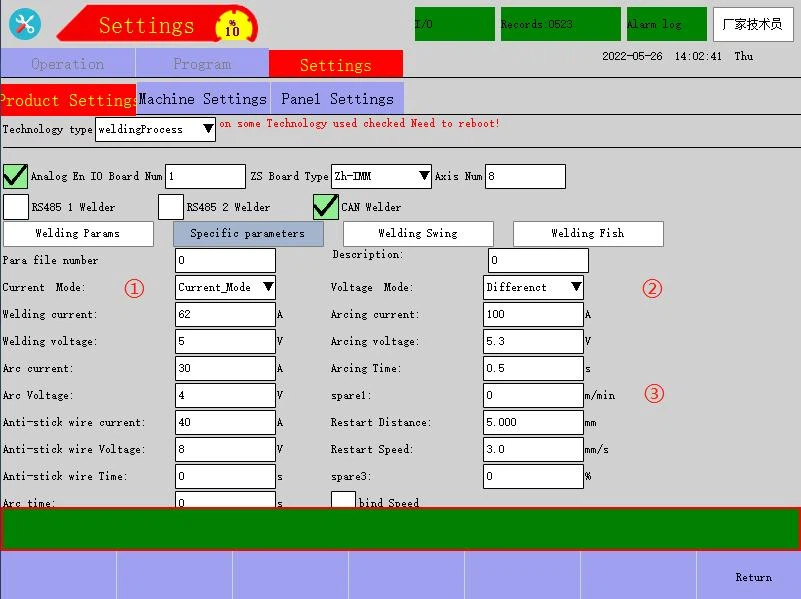
For setting "Welding Params" in "WeldingProcess", please refer to 3.2.3 WeldingProcess - Welding Params Meaning. After setting, they can be used. "(Preset) Current Mode" and welder "Unitary/Different" are added to "Welding Params", as follows:
① (Preset) Current Mode: After select Current_Mode, the robot will directly send the current data to the welder. Preset current mode is generally selected by default.
② Unitary/Different: Unitary/Different mode is selected for switching the current/voltage mode of preset welder. Unitary mode explanation: During parameter adjustment, only current needs to be adjusted, and voltage will be automatically matched with the welder Different mode explanation: During parameter adjustment, welding current/voltage is adjusted separately.
③ spare1 (wire feeding speed): This parameter is reserved and temporarily does not become effect.
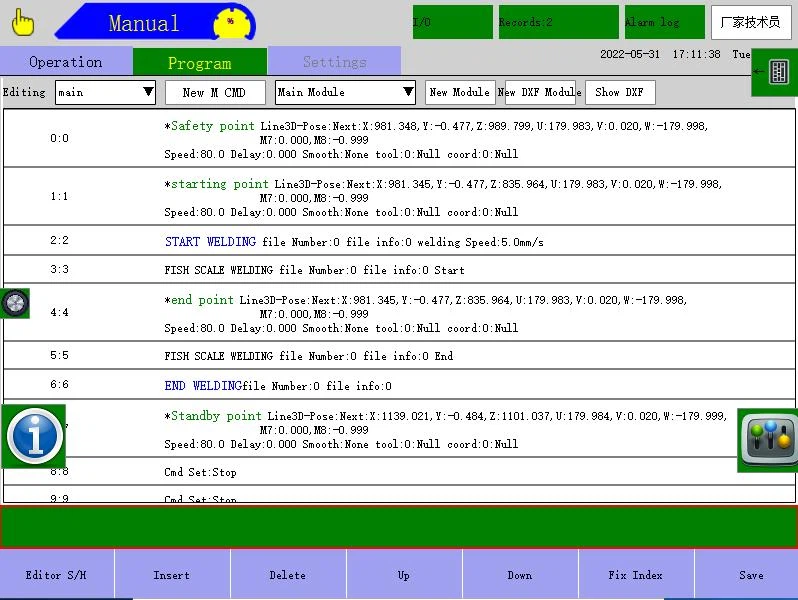
3.4 Action menu - Welding process command meaning

Definition explanation:
① Process (order): The optional scope is basic order, welding swing and welding fish. Please select according to the welding mode needed.
② Welding speed (mm/s): Used to set the track speed between the start of welding and the end of welding, being the fixed speed at which this parameter is executed when running. It is not affected by module number global speed, and program command line percent speed adjustment.
③ Current file number information: Display the annotation text in the corresponding process file number.
④ fileNumber: File number selection under corresponding process order
⑤ Start welding - Stop welding: Welding mode in corresponding process command, changing relatively as the process command changes, with the middle part inserted between Start welding and Stop welding as the area for performing the welding logic.
⑥ Shortcut bar window - welding try run selection: if ticked, welding enabled is effective; if not ticked, welding enabled is ineffective
⑦ Shortcut bar window - reset arc break point: After the restart function is enabled, it will store a point when arc breaks in welding and turn green; after manual click, the position can be cleared, detailed in Restart Function Instruction.
⑧ Shortcut bar window - Manual Wire Feed - Manual retraction - Manual Gas: Continuous wire feeding and retracting by long press on Manual Wire Feed and Manual retraction, inching wire feeding by inching Manual Wire Feed and Manual retraction; Manual Gas is triggered by clicking, and is closed by releasing
⑨ Welding try run state icon: Yellow for welding try run not ticked and welding effective, blue for welding try run ticked and welding ineffective.
4 Other settings 4.1 Six-point tool calibration
To make the robot perform correct linear interpolation, circular interpolation and other interpolation actions, it is necessary to enter the tool size information correctly and define the control point positions. The 6-point method tool coordinate is established by setting six groups of different robot terminal data and (the system) automatically computing the toll control point positions. The specific operation flow is as follows: (1) On the demonstrator's Manual mode page, select "Tools Calibra" → click "newBtn", select "Tool Type Sel" Six Point, enter "toolName", and click "OK". Then, a new blank tool number is created successfully.
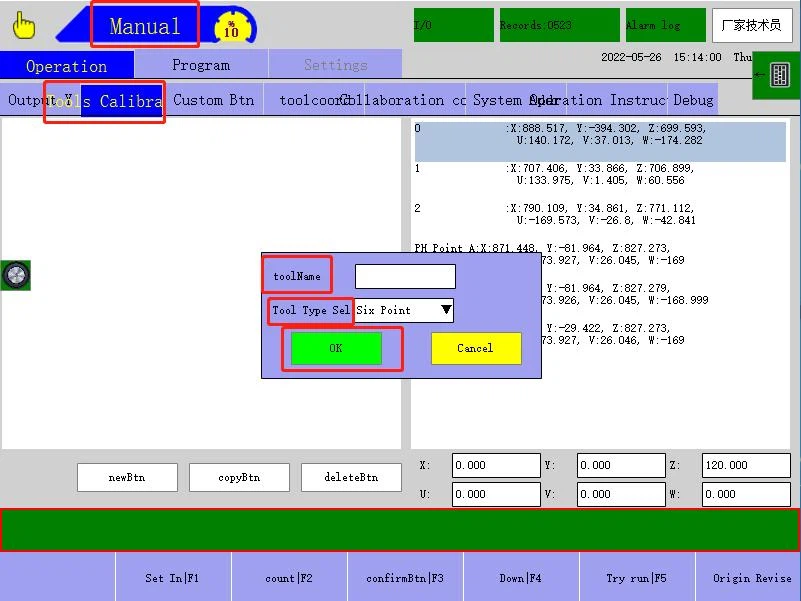
(6)* [Before a log point is operated, it is necessary to arbitrarily define 1 control point, which is a sharp point, on the current end tool of the robot, and prepare a calibration lever with a sharp point, which is stably placed on the front of the robot. The robot end welding gun is taken as an example as follows]
(7)After reaching the points one by one in the correct logging mode, click the "Log Point" button to log the positions of the points P0, P1, P2 and the pose holding points A, B, C. Requirements for P0, P1, P2: They are three points with different poses at the end of the tool, whose end control points are aligned with the calibration lever tip as the same reference point, and the angle difference of each point is about 30° or more. Requirements for pose holding points A, B, C: Pose holding point A is the vertical reference point of the tool in the Z direction of the tool; pose holding point B is logged in the X+ direction of the tool after some distance towards the X+ direction after aligning the reference point; pose holding point C is logged in the world coordinate Y + direction after some distance towards the Y + direction after aligning the reference point. The above are requirements for 6 log points. The diagram is as follows:
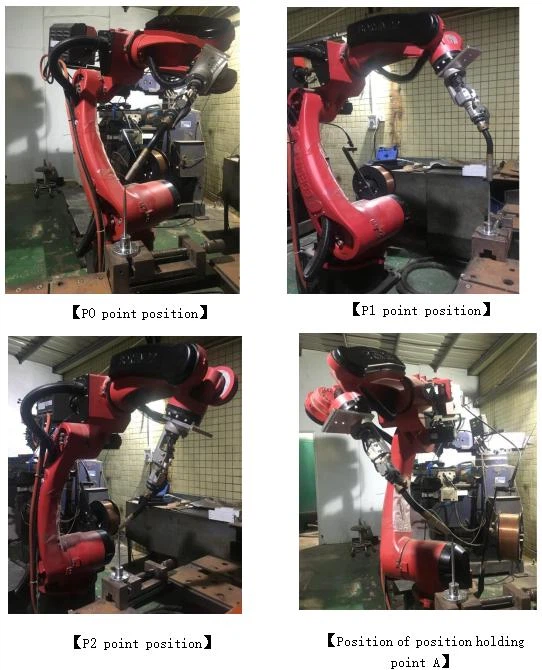
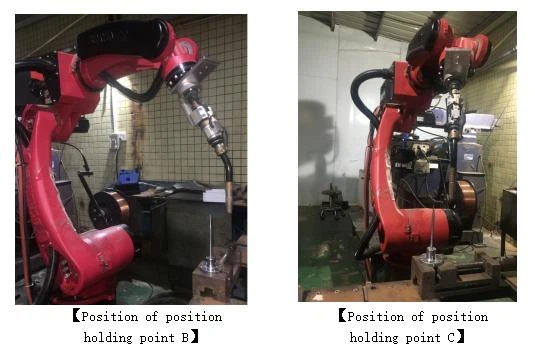
(8)Click the "count|F2" button below → click "confirmBtn|F3" → six-point tool calibration is finished

4.2 Twenty-three-point tool calibration
Twenty-three-point tool calibration can be used to compute the center point of the end tool of any shape and display calibration accuracy and tool length, has the function of correcting its own zero position to improve track accuracy and TCP accuracy.
The specific operation flow is as follows:
(4)* [Before a log point is operated, it is necessary to arbitrarily define 1 control point, which is a sharp point, on the current end tool of the robot, and prepare a calibration lever with a sharp point, which is stably placed on the front of the robot. The robot end welding gun is taken as an example as follows]
(5)Create a new blank module number without program. →create 23 new joint points with "free path".
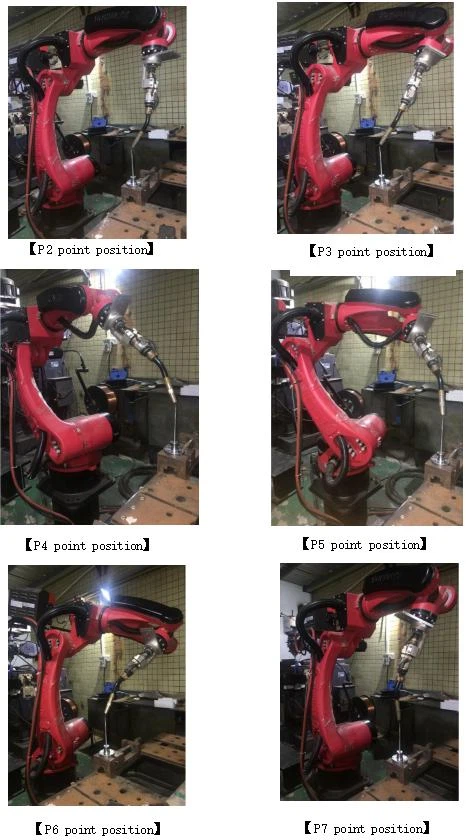
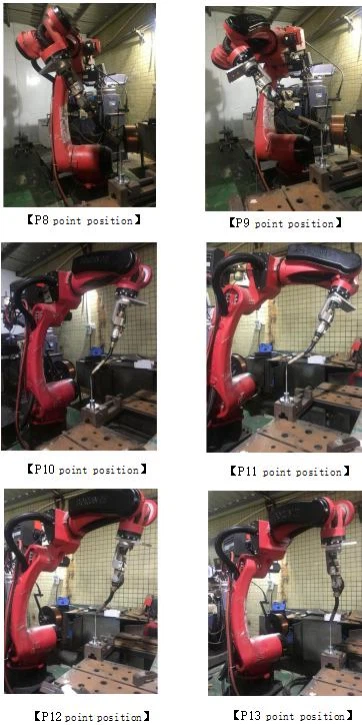
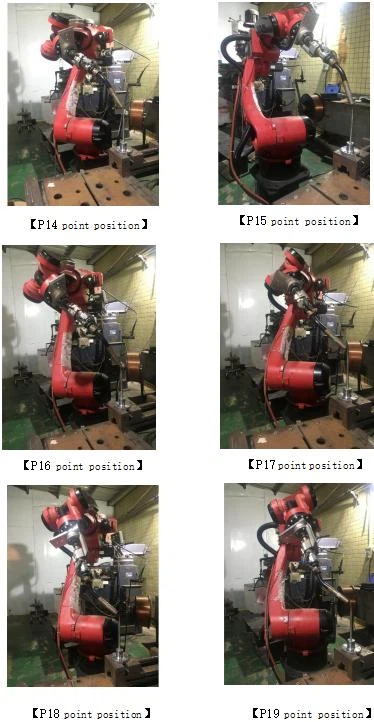
(6)Requirements for points: The first 20 points (P0-P19) in the module number program are the 20 positions (P0-P19) of the same reference point but with different positions and poses when the end control point tip on the current robot welding gun tool is aligned with the calibration lever tip. The last three points P20, P21, P22 are the pose holding points A, B, C (3 points) of the welding tun perpendicular to the calibration lever tip. P20 refers to that the welding gun is perpendicular to the calibration lever tip, and P21 refers to that the welding gun is perpendicular to the X+ direction behind the calibration lever tip. P22 refers to that the welding gun is perpendicular to the Y+ direction behind the calibration lever
The diagram is as follows:

[Create a new blank module number without program]
* The 23 point positions are logged in the module number in the command form of "free path"

*Twenty-three-point diagram is as follows:
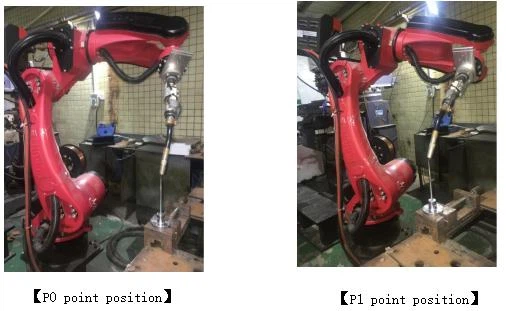

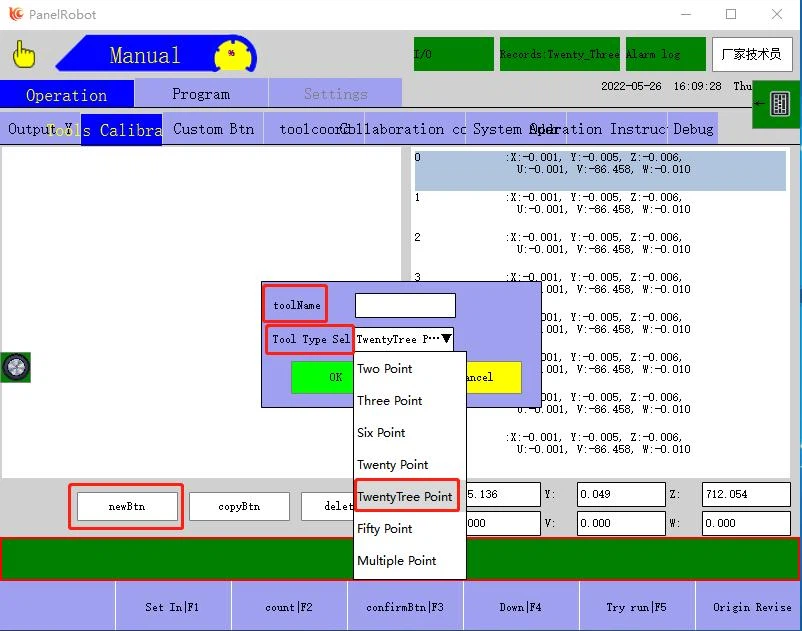
(1) On the demonstrator's Manual mode page, select "Tools Calibra" → click "newBtn", select "Tool Type Sel" to TwentyThree Point in the pop-up box, enter "toolName", and click "OK". Then, a new blank tool number is created successfully
Description: After finish of creation 23 new points tool number, the system will automatically import the currently loaded module number program point to the right point on the "tool calibration" page
(3)After importing the 23 points on the left, perform the following operations: click "count|F2" → click "confirmBtn" → (login manufacturer technician rights displayed) click "Origin Revise" → click "OK". The origin revision is finished, and the system automatically imports the computed zero digit. The zero bit correction is finished, and twenty-three-point tool calibration is finished (if Cancel is clicked, nothing will be written in; the current zero bit will not be modified; this step is abandoned) → twenty-three-point tool calibration is finished.
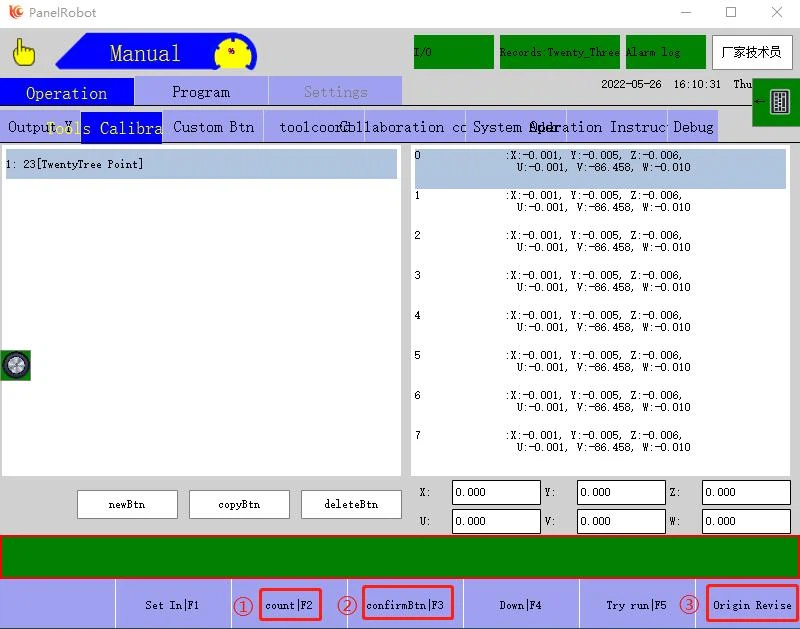
Remark: ① After clicking "count|F2", the following image will appear; after clicking "OK", this step is finished.

② After clicking "confirmBtn", the following image will appear; after clicking "OK", this step is finished.
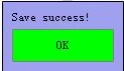
③ After clicking "Origin Revise", the following image will appear; after clicking "OK", start to write the computed null point in controller; then this step is finished. If "Cancel" is clicked, nothing will be written in; the current zero bit will not be modified; this step was abandoned.

4.3 Additional axis collaboration table calibration
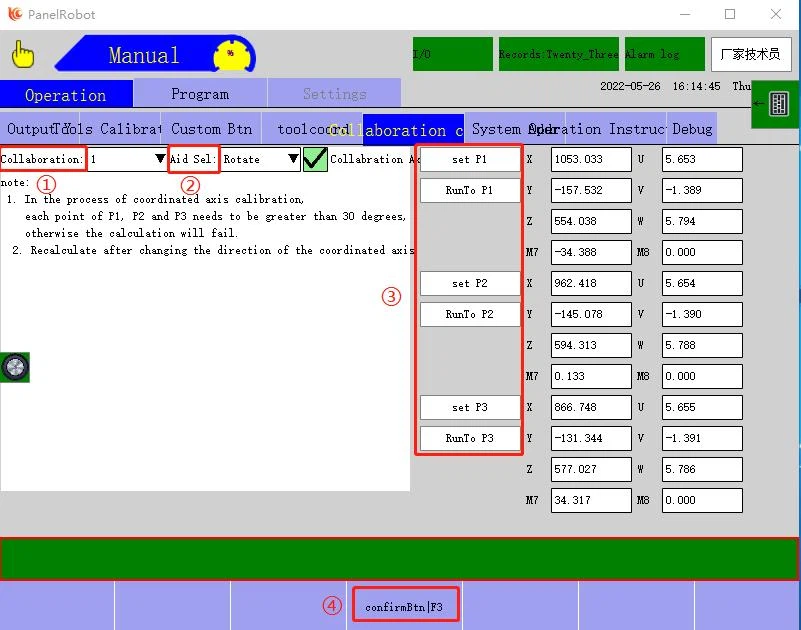
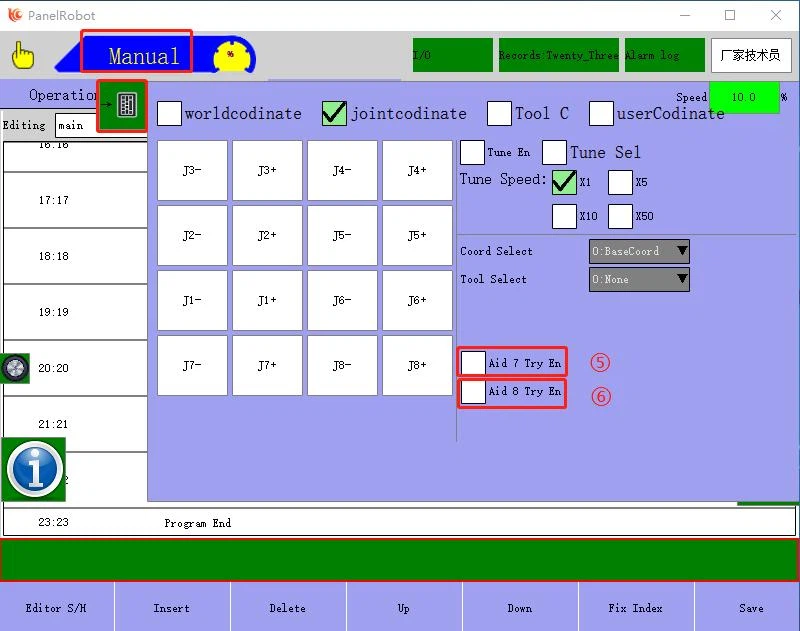
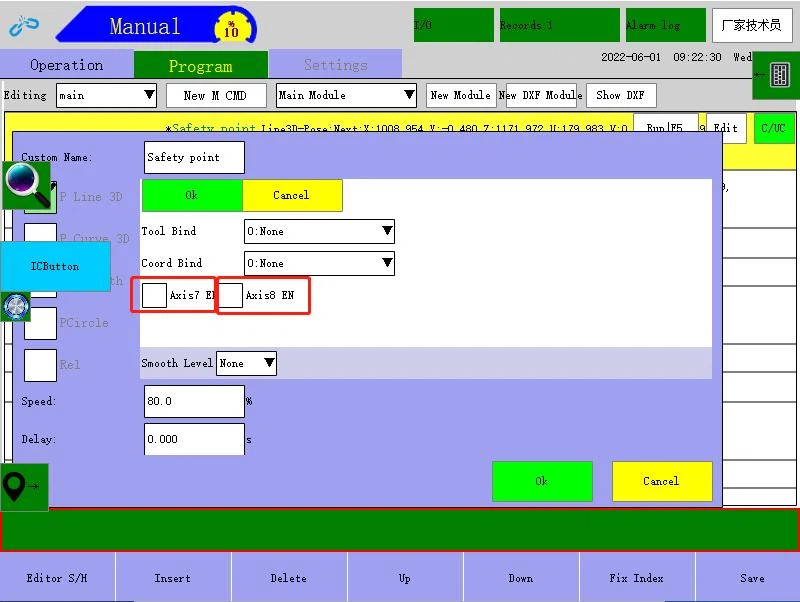
Definition explanation:
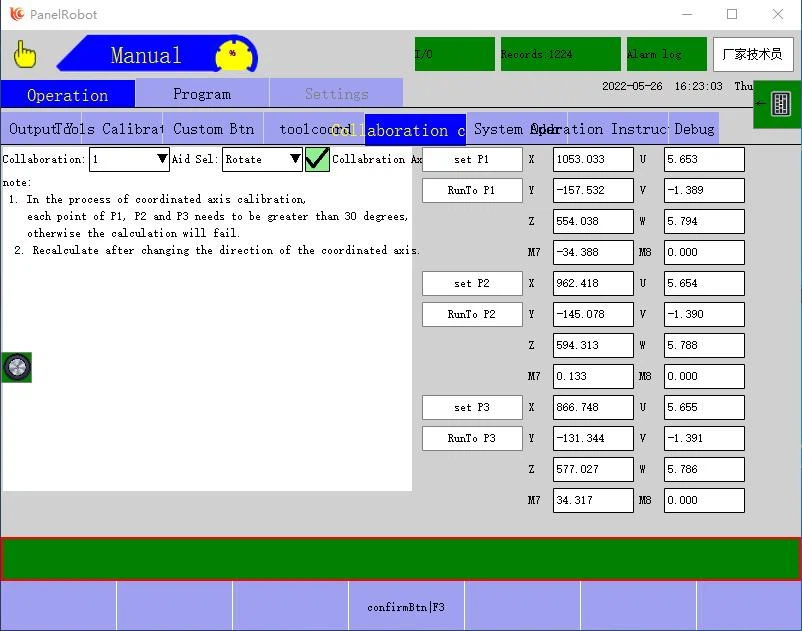
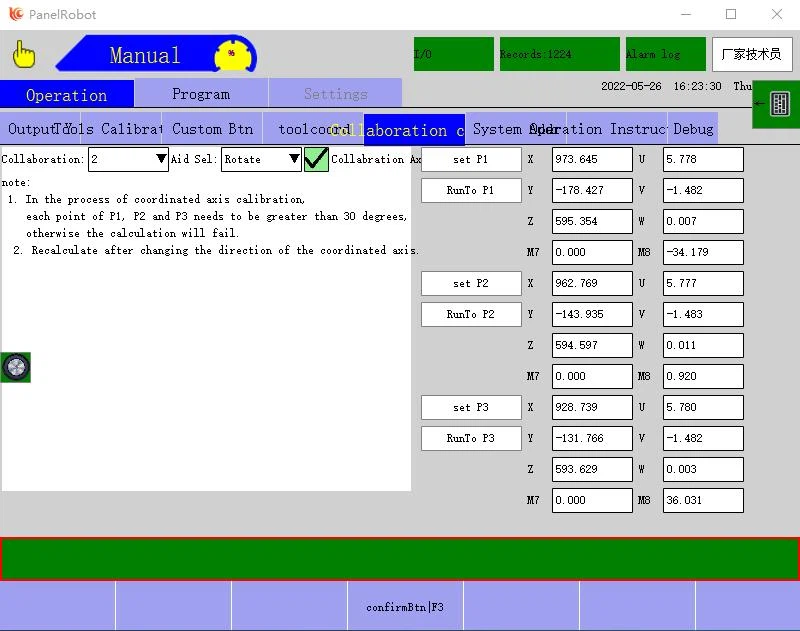
① Collaboration axis: Set corresponding collaboration axis parameters in 1 and 2. (1 represents the extended axis - the 7th axis, and 2 represents the extended axis - the 8th axis; select the axis needing to be set and set the parameters)
② Aid Sel: Rotate/Translate. (Please select the setting according to the actual motion type of the 7th axis and the 8th axis. select the axis needing to be set and set the parameters)
③ set P1-P3: Run to P1, P2, P3, and log the positions one by one.
④ confirmBtn|F3: After clicking confirmBtn|F3, all settings modified are effective
⑤ In Manual mode, open "synergetic-1" with keypad: if ticked, Axis7 manual synergy (Aid 7 Try En) is enabled; if not ticked, Axis7 manual synergy is disabled
⑥ In Manual mode, open "synergetic-2" with keypad: if ticked, Axis8 manual synergy (Aid 8 Try En) is enabled; if not ticked, Axis8 manual synergy is disabled
⑦ In the module number program, the command line "synergetic-1": if ticked, after running to this line, Axis7 synergy is effective; if not ticked, Axis7 synergy is ineffective
⑧ In the module number program, the command line "synergetic-2": if ticked, after running to this line, Axis8 synergy is effective; if not ticked, Axis8 synergy is ineffective For example, the 7th axis is the roll-over table axis, and the 8th axis is the rotation axis (the rotation axis installed on the 7th axis). The specific steps and settings are as follows:
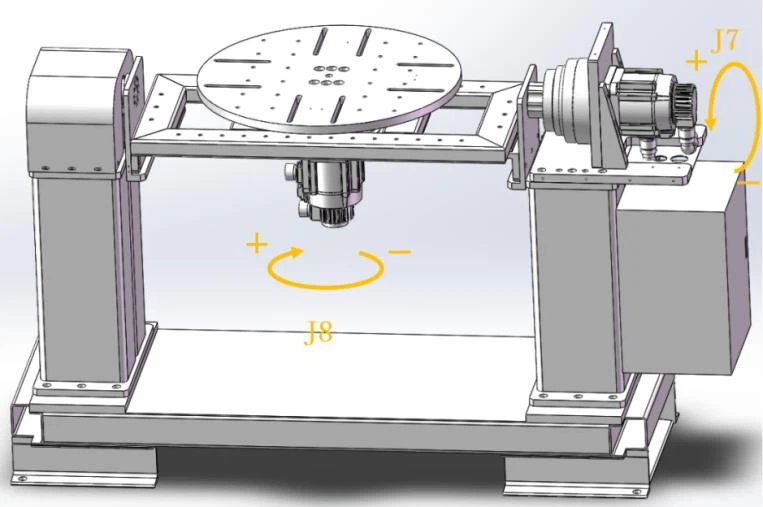
(1) Confirm that each axis positive direction and reduction ratio of the positioner are set correctly
(2) Perform collaboration axis calibration
On the demonstrator's Manual mode page, select "Collaboration axis calibration" → click "Collaboration axis" and select "1" because the ID of Axis7 corresponds to 1 → click "Aid Sel" and select "Rotate" → first return the two-axis positioner to zero state, find a reference point on J7 axis, and set the positions of P1, P2, P3 according to the prompted point requirement that (P1, P2, P3) each point difference joint angle is greater than 30° (Note: When setting the points P1, P2 and P3, the pose must be consistent, and Axis8 should not move) → click "confirmBtn|F3" → collaboration axis "1" calibration is finished
Continue to calibrate collaboration axis → click "Collaboration axis" and select "2" because the ID of Axis8 corresponds to 2 → click "Aid Sel" and select "Rotate" → first return the two-axis positioner to zero state, find a reference point on the J8 axis, and set the positions of P1, P2, P3 according to the prompted point requirement that (P1, P2, P3) each point difference joint angle is greater than 30° (Note: When setting the points P1, P2 and P3, the pose must be consistent, and Axis7 should not move) → click "confirmBtn|F3" → collaboration axis "2" calibration is finished
4.4 Hide button related functions and settings
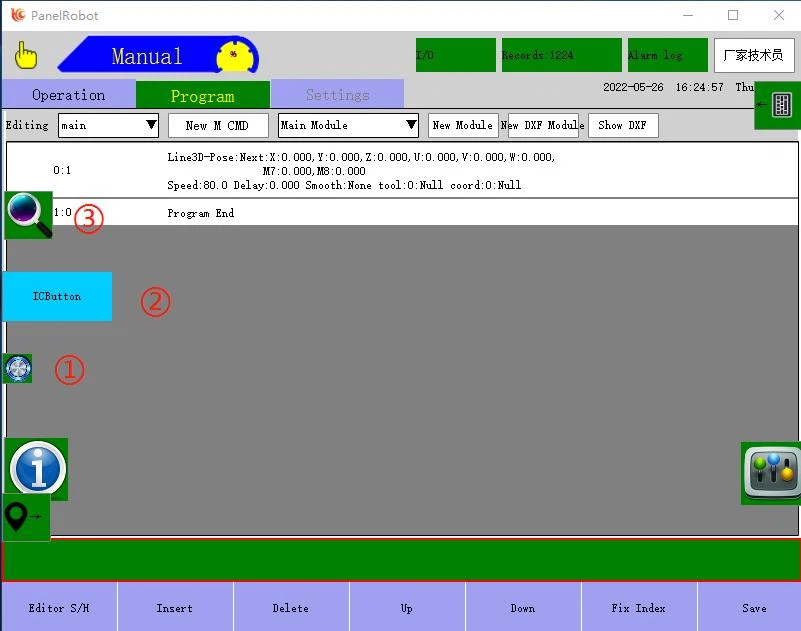
Definition explanation:
① Hide button: After clicking, 4 small icons displayed in the left area will be hidden, and only Hide button is displayed; after re-clicking, 4 small icons will be displayed.
② Workbench and tool status window: After clicking, directly select the needed tool and workbench. * Remark: This window displays the real-time state of workbench and tool; the robot moves according to the coordinates along with tool when performing manual movement operation. Definition explanation:
③ Search window: After opening as shown in the figure above, enter this window to realize corresponding range search and replacement. The use steps of the search function are: Fill in the top right corner → select the search range → click "search" → finished. (After the search is finished, view the content. Select a line and click to jump to the current line. If not cleared, the content will not disappear during the search)
The use steps of the replacement function are: Manually select the search range → select the replacement range (range or single line can be set) → select the replacement content (currently only support delay, smoothing level, speed, welding speed and other parameters in program command) → set replacement parameters → click "Replace" → finished
* Remark: After opening the search window, directly enter the program step number at the bottom right, click to jump to the command position for entering the line number in the program, achieving fast jump effect.
5 Extended Axis7 & Axis8 added to Robot QC-R6
5.1 Select Axis7 & Axis8 modules to be added
5.1.1 Servo module selection description
(1) At present, the total power of drive and control integrated system is designed to be 7.5KW, and the maximum power of a single module is 1.8KW+400W and below.
(2) HUACHENG DB9 integrated system only supports a maximum of 6 axes (drive and control integrated system manufactured before October 2019). If you need to support J7-J8 or modify rectifier board parameters, please send the power board module back to the manufacturer for modification. The following is the physical image of the power board module.
Rectifier control board control input


5.1.2 Servo module model selection
Select appropriate additional axis modules according to the power requirements
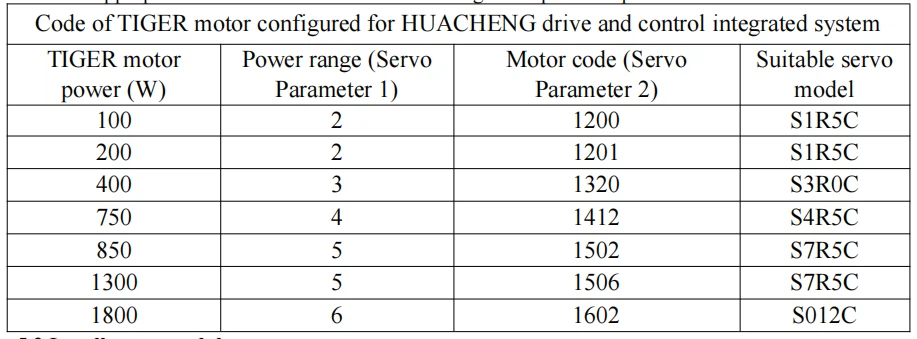
5.2 Install servo module
(1) The robot returns to the null point To avoid accidental loss of the origin of the robot, the robot should return to the origin before removing the module.
(2) Move the IO module Cut off the power, remove the screws that fix the IO module, and move the IO module one module distance towards the power wire.

(3) Install Axis7 & Axis8 modules
Install Axis7 & Axis8 modules properly as shown in the image Axis power wire
Axis power wireAxis encoder Axis encoderAxis encoder Axis
module

(4) Connect module connecting wires and install cooling fans
Connect the wires between modules in sequence (EtherCAT communication wire sequence can not be wrong), move the original two fans to the right, and add a fan below DC24 0.24A on the left side. (DC+,DC- voltage is above 300V. If removal and replacement are required, it needs to wait about 5 minutes after the power is cut off and the module is fully discharged)

111111As shown in the image, insert the module connecting wires in sequence, and ensure that the sequence of network wires is correct Fan interfaceInternal communication
5.3 Axis7 & Axis8 motor connection
(2) Weld Axis7 & Axis8 power wires and encoder wires properly according to the definition table
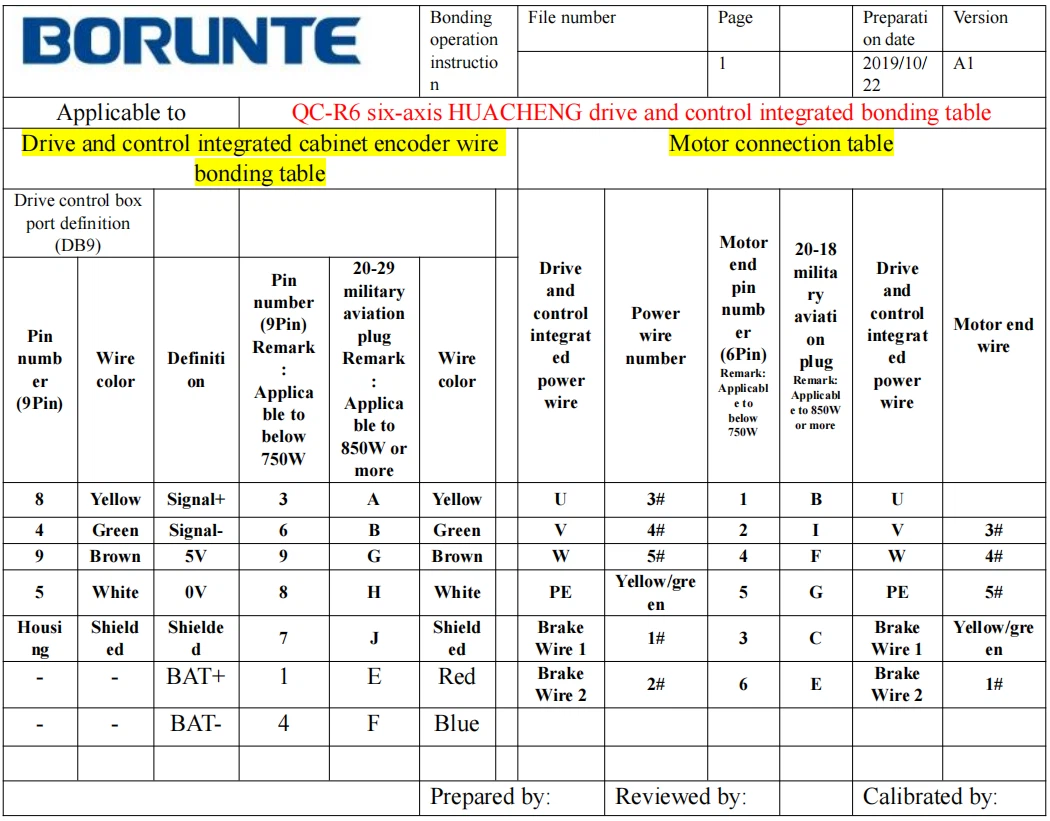
(2) Installation and connection of Axis7 & Axis8 brake relays

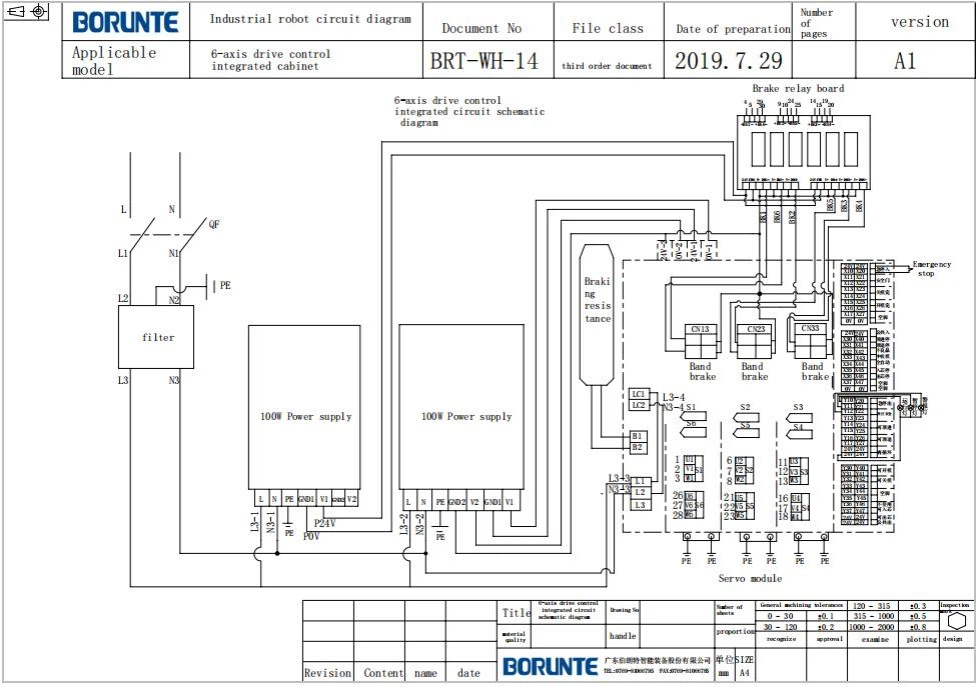
(3) Plug/connect Axis7 and Axis8 power wires and encoder wires properly

5.4 Robot system set to Axis8
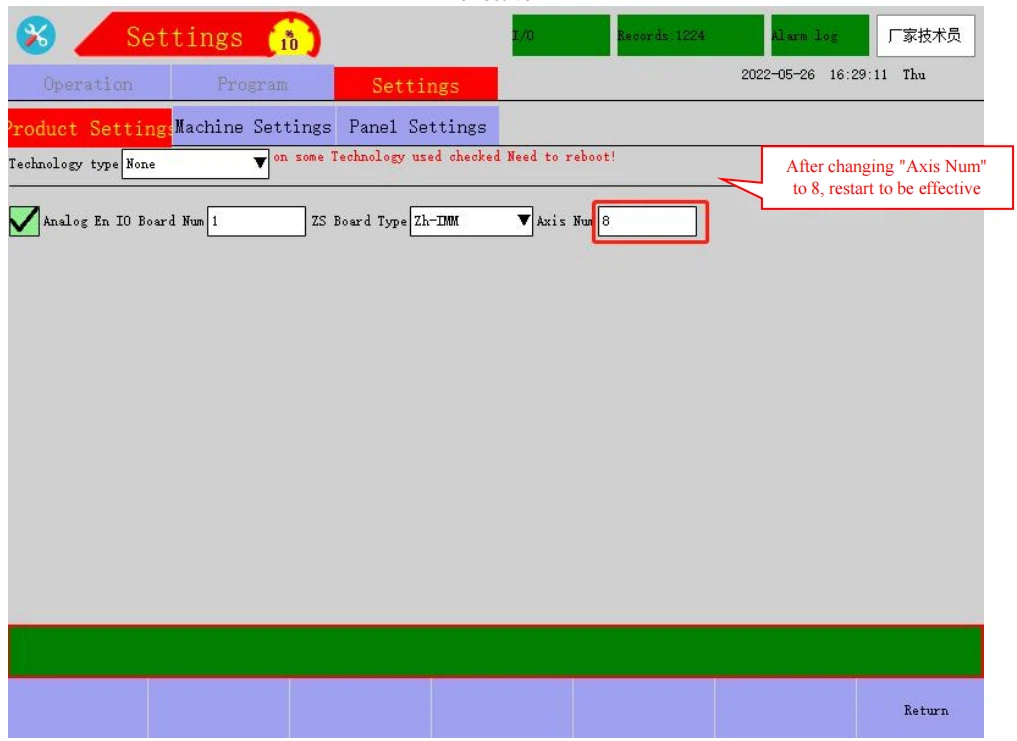
(1) Set "Axis Num"
Login permission → Settings → Product Settings → craft Setting → set "Axis Num" to 8 → power off and restart the drive and control integrated electric box, and restart to be effective
5.5 Set motor parameters
5.5.1
Axis7
motor
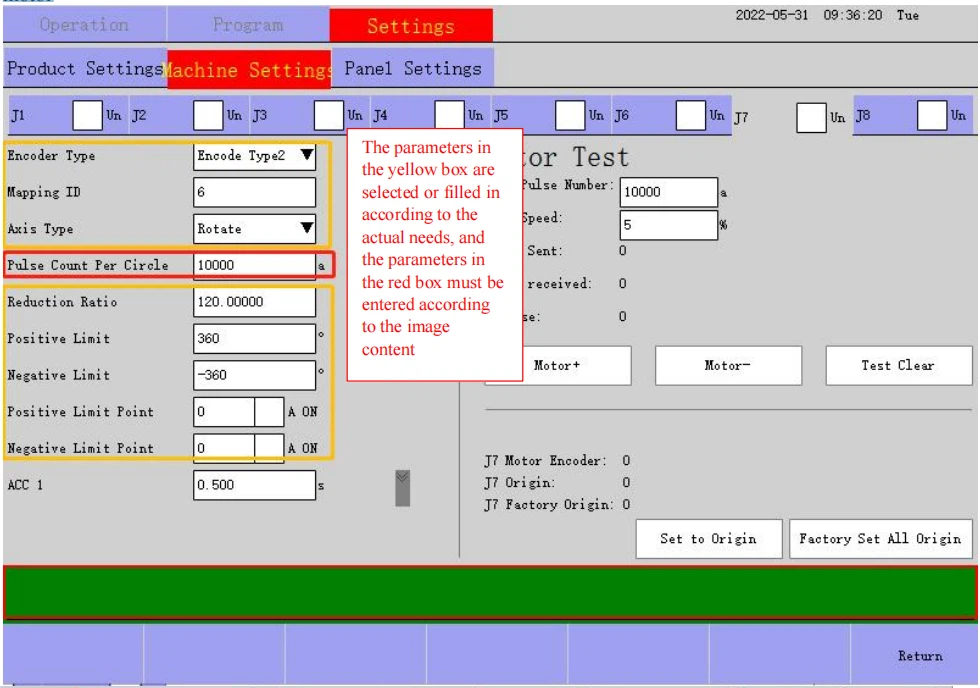

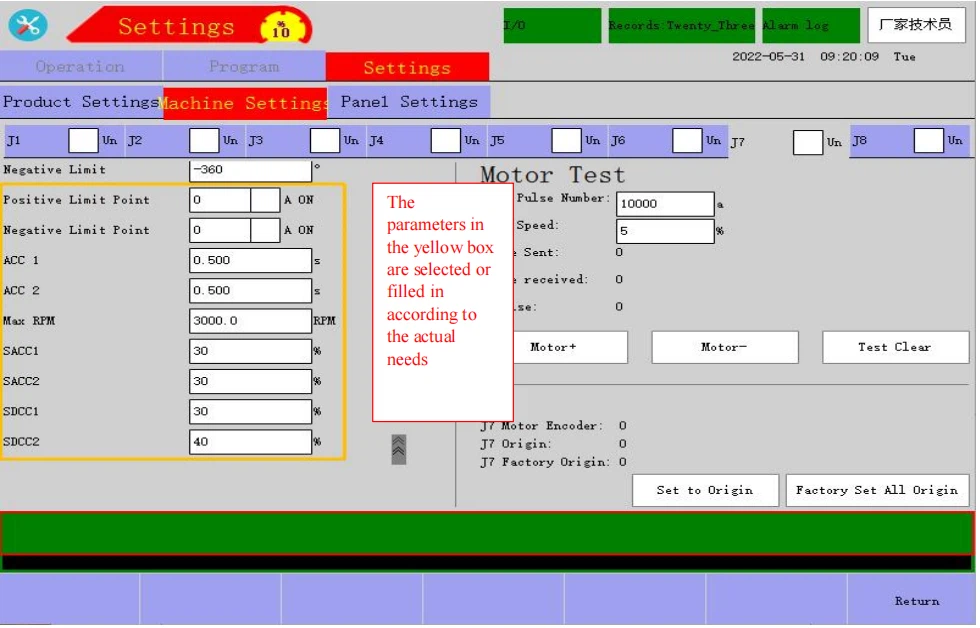
5.5.2 Axis8 motor parameter setting

5.6 Match mapping of each axis
5.6.1 ResetSII
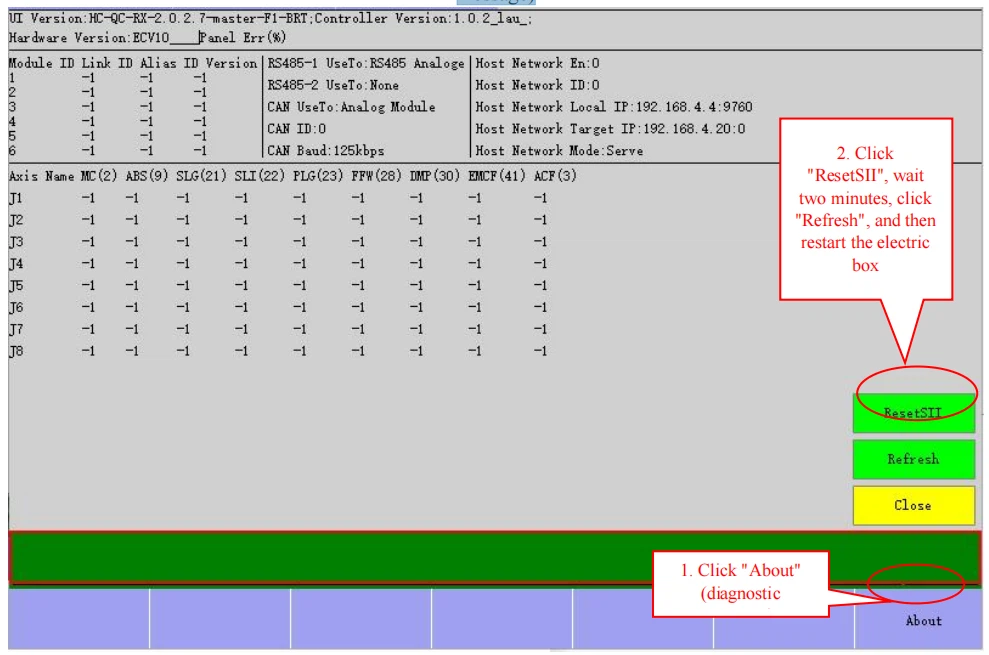
After setting the motor parameters, turn the demonstrator key to the stop position → click "About" (diagnostic message) at the bottom right of the motor demonstrator screen → click "ResetSII" (only support version 7.8.0.5 or higher; a version lower than 7.8.0.5 needs to reset SII by update package) → restart the drive and control integrated electric box.
For SII update package, please contact our company. Update package: HCRobotHostRX_LX_ES2ASIIV2.0.tar.bfe Restart the electric box, and click "About" (diagnostic message)
5.6.2 Set motor mapping
(1) Sequence of Axes 1~8 (except that a special model needs to change the sequence of axes).

(2) Mapping address (the mapping address is fixed when the sequence of EtherCAT communication wires remains unchanged)

(3) The mapping address corresponding to each axis is filled in the demonstrator (J1:0; J2:2; J3:4; J4:5; J5:3; J6:1; J7:6; J8:7). As shown in the image below, Axis7 mapping is 6

(4) After the sequence of axes is changed, the mapping corresponding to each axis will also need to be changed. For example, 0805 is added with two 1.8KW additional axes; single module only supports a max of 1.8KW+0.4KW, so J3 0.4kW and J4 0.2kW can be respectively added to additional Axis7 & Axis8 modules, as shown in the image.

5.7 Set servo parameters
(1) Inspect whether the motor code and servo version of J1-J8 motors are correct

(2) Set Axis7 & Axis8 servo parameters
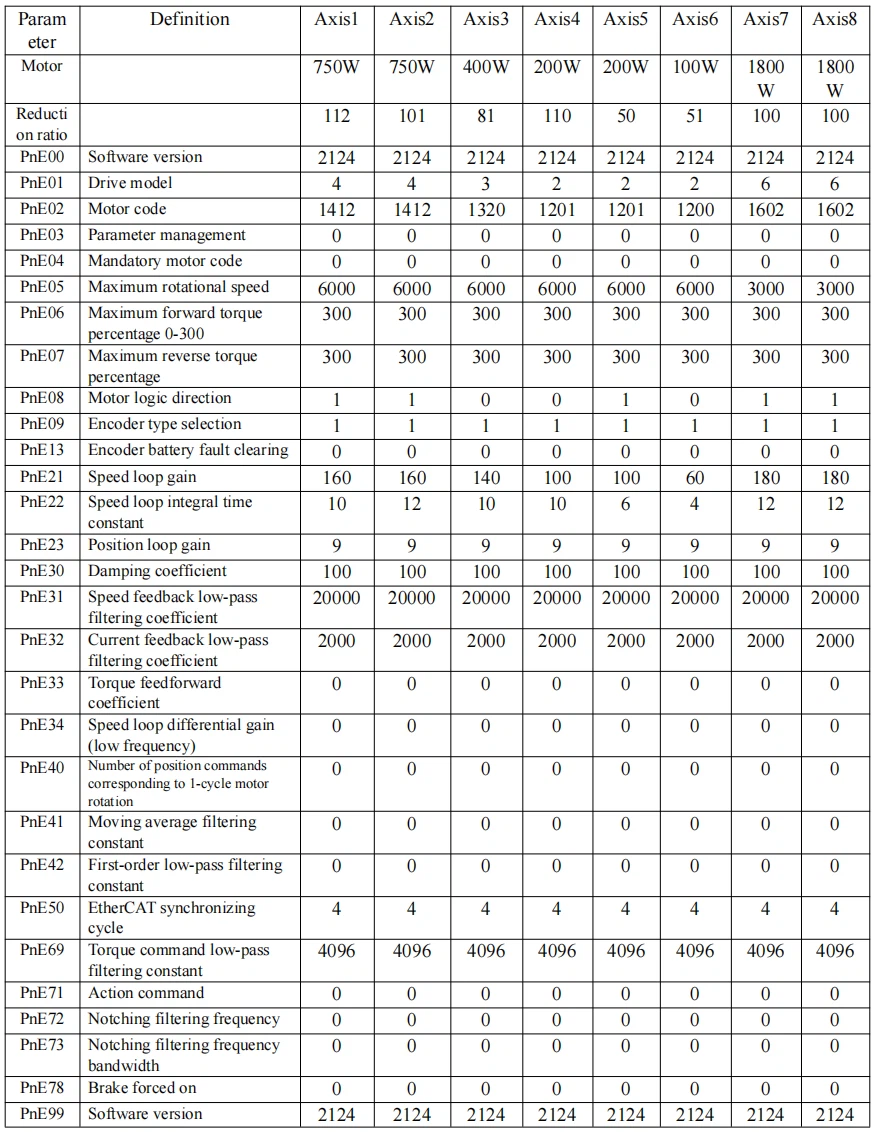
The following is the list of servo parameters for 0805 with additional 1.8KW Axis7 & Axis8 (For reference only. Reduction ratio, gain and other parameters need to be adjusted according to the actual situation on the site).

5.8 Restart test
Please power off and restart the robot for the following testing
(1) Move each axis manually and inspect the direction of each motor
(2) Inspect whether the reduction ratio of each additional axis is set correctly
(3) Set the origin of each additional axis
(4) Debug the acceleration and deceleration time of each additional axis
(5) Debug the servo gain of each additional axis
6 Instruction mold program
6.1 Welding process instruction mold program
6.1.1 Welding process - basic command instruction mold program

6.1.2 Welding process -welding swing command instruction mold program
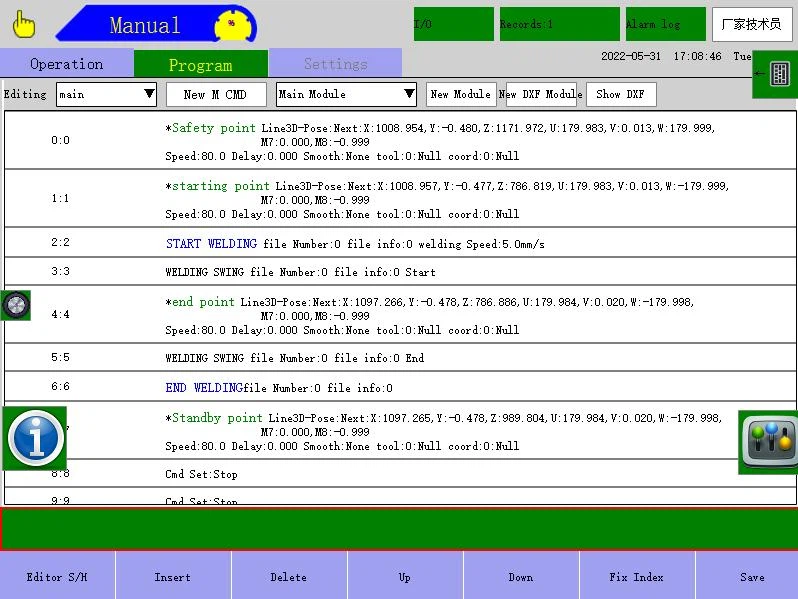
6.1.3 Welding process -welding fish command instruction mold program