


BORUNTE Industrial robot English (HC)instruction manual——Manual Status
The manual knob on the third gear hit the "manual" into the manual state, the state can be carried out on the robot to teach action. As shown below:

1、Program
Modulus of the composition: a set of molds contains a main program and eight subroutines can be selected according to their actual use.

Program selection method: Pull down the "Edit" menu, select the program (click once that means selected).
Special subroutine: Subroutine 8(Sub-8), the program itself in the default Subroutine 8(Sub-8), regardless of the state (auto / manual / stop) will automatically run.
Tip: In the case of the program to teach to run automatically when the subroutine and the main program is running at the same time.

"Programmable Keys(New M CMD)": You can program in a self-defined key name. New Programmable Keys(New M CMD): Click "New Programmable Keys(New M CMD)" → edit the name of the button. Click OK → pull down the "Edit" menu. Move the page up and down to find the programmable key. Click once to edit the name of the button to enter the instruction page. teach.
Special Programmable Keys(New M CMD):
"Origin" If you perform homing in the stop mode (pressing the home key again to start), the system will execute the program that has been edited in the "Origin" key if the sequence of homing or other actions is instructed in this key.
"Reset" Pressing the [Reset] key once in the stop state, the system will execute the program which has been edited in the reset button.
Deleting Programmable Keys(New M CMD): Select the name of the button in the drop-down "Edit" and then click the [Delete Programmable Keys(New M CMD)] button. New programmable key flow chart:

"Trial": press this button, the robot will go to run this step.
"Up": Click on the program to move to the previous line.
"Down": Click to move to the next line.
"Copy”: Click the [Copy] button to pop up the contents of the selected copy of the selection box as shown below:
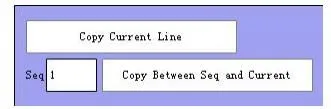
NOTE: The number entered in the "Selected Line" edit box indicates the program number.
Copy the use case: Suppose you want to copy the sequence number 0 and 1 to wait for the program X011 pass the following steps are as follows:
Step 1: Click the Copy button, enter 1 in the "Selected Row" edit box and then click the [Copy Selected Row to Current Row] button.

Step 2: Select the next line you want to paste the program Click the [Paste] button.

Note: If the copy of the "end of the module," this sentence is pasted into the program is invalid, the module must be the end of this sentence in the final step.
"Paste": Paste the copied program in a single click.
"Edit": Click [Edit] button to pop up the edit dialog box to edit the program content.
“Shield”: click that shield, if you want to cancel and then a "shield" can be. "Delete": Click delete to delete the program.
"Fix index.": Click the number in the auto-finishing sequence.
2、Action menu
Click "Editor S/H" to enter the action type interface to teach, this interface a total of 17 actions, click the corresponding action button to enter the action editor interface to set. As shown below. Click once for the Open menu, and a second for the Close menu.

2.1、Axis action
Click the button  to enter the following interface.

Insert: In the instruction page, select the location where you want to insert the action and choose to teach the action. Click Insert to insert the action into the program.
Insert: When the axis and the target location click "set" and then click "Insert" to teach the location of the target point to the program.
Sync: Select several axes and then select "Synchronize" the axis will be in motion at the same time movement.
Rel point: Check the coordinates of the axis after the point of the optional use of the edited reference point.
Early End Pos: Inserting this step into teaching indicates that the next movement has started when the axis has not reached the target position when it reached the end position.
Use case: If the advance position is set to 200 and the position is set to 1000, the axis moves to the position of 800 (1000-200) and the next step is carried out, and the procedure continues to 1000.
ESD POS: Insert this step in the teachings to indicate that the axis will decelerate at the set speed when it reaches the advanced deceleration position.
Use case: If the advance position is set to 200, the advance deceleration rate is 5%, the position is set to 1000, and the speed is set to 80%. Then the axis from 0-800 to 80% of the speed of operation, 800-1000 to 5% speed. Signal stop or Fast stop: When the input signal is detected, it will decelerate to stop or stop immediately.
Rel(Relative): Moves the set distance relative to the current position.
Stop: When selecting an axis and selecting "Stop", the program will stop immediately when running.
2.2、Path
Click the button  to enter the following interface.

Area 1 is the type of action to insert:
Line 2D (Line XY, Line XZ, Line YZ): Holds the position in a plane from the current position to the "end point" position.
Line 3D: In the space, from the current position to "set to end" position to maintain a position to go straight.
Curve 2D (Curve XZ, Curve XZ, Curve YZ): Holds the arc in a plane from the current position to the position set to the intermediate point and the position set as the end point.
Curve 3D: In the space, from the current to "set to the middle point" position and "set to the end of the" position to maintain a position to take a curve
Posture: from the current position into the target position.
Relative line: The current point as a starting point, the direction of the offset coordinates.
Relative Curve: The current point as a starting point, the direction of the offset coordinates.
Posture straight line: from the current point of conversion into the target position to "set the end" of the location of a straight line.
Pose curve: from the current point of change into the target position to "set to the middle point" and "set to the end" of the position to take the curve.
Pose full circle: from the current point of conversion into the target position to "set to the middle point" and "set to the end of the" circle.
Free path: no track movement, the movement of the axis at the same time moving simultaneously.
Relative Joint: Offset in the axial direction relative to the joint. Relative posture line: Starting from the current point, U, V, W keep a posture in the direction of coordinate offset.
Relative posture curve: from the current point as a starting point, U, V, W to keep a posture in the direction of coordinate offset.
Full circle: Draws a circle with three known points.
Area 2 is to set the coordinates of the location method, set in two ways:
The first one: If it is the current manual control to display the coordinates of the coordinates of the edit position to edit the box you need to first hit the [set] button and then click [set the end] can be, if you want to zero is a direct click [Zero] button. Second: use the reference point, check the reference point selection box 111 drop-down triangle arrows to select "point", and then click "set to the middle point" or "Set the end point(Set Epos)" button to replace the coordinates of the target point Coordinate value can be.
Reference point button Edit method:
Step 1: Check the box to use it.
Step 2: Click this icon in the lower left corner to open the reference point edit button interface, as shown below:

Reference point role: to facilitate the user for the location of a point to re-use. Note! : The free path can only refer to the joints, and the relative joints can only refer to the offset points. The rest of the action types can only refer to path points.
Points of the editing process:
Step 1: Position Instruction: Edit the value directly Move the axis to the target point and then click "Set World Position or "Set Joint Position" (choose according to the type of new point).
Step 2: Create a new point name in the Point Name dialog box.
Step 3: Click once to create a new type point (new node, the new path, the new offset point) to edit the point of editing a blank point to the dialog box. Delete method: select the point you want to delete into a light blue and then click the "Delete" button.
Replace Location Method: Edit the "New Location" and click the "Replace Location" button to complete the replacement.
2.3、Signal output
Click  button enters the following interface:

Output signal insertion method: Select the output point type (□Y/□ board output/□ intermediate variable/□ time output Y/□ interval output Y/□ interval output M)→select the output point on/off (□on/□off) → Set the delay time → click the [Save] button → select the position you want to insert on the teaching page and click [Insert]. Note: Clicking on an output button turns green and the output point outputs a signal.
Y: Y is turned on or off after waiting for the delay.

Board output: By selecting the board type as IO board or M board, the board ID is the number of IO boards or the board waiting for the delay to output, as shown below:

Intermediate variable: A variable value that can be changed.

Example of intermediate variable use: In the main program, teach the intermediate variable output of M027 (alarm status) and wait for the intermediate variable M027 (alarm status) in the subroutine. Teaching of the main program:
 Subprogram teaching:
 Time output Y: When the program is executed to this step, the Y output will be turned on and then automatically turned off according to the set time. The next action will be executed while waiting.

Interval output Y: The modulus set by the interval is output and Y is output according to the operation time.


2.4、Signal Detection
Click  button enters the following interface:

The insertion start detection and the end detection operation are performed to detect the presence or absence of an input signal from the start of the detection operation to the end detection operation, and the alarm is immediately satisfied when the condition is satisfied.
2.5、Conditional jump
Click  button enters the following interface:

Label usage:
1、Select“ Define Labels option, click the label edit box "Label ”Pop up keyboard edit name.
2、Insert the label name from the previous step in the position where you need to jump in the program.
3、select“ Define Labels option”Enter the condition selection interface:
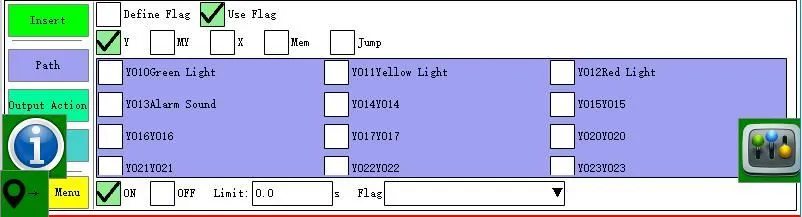
4、After editing the conditions, click the [Insert] button at the position you want to insert.
Note: Always use the conditional jump to insert the label first.
2.6、Wait
Click  button enters the following interface:

Wait signal insertion method: Select the wait point type (X or intermediate variable) → select the wait for on or off or the rising or falling edge signal type → set the delay time → click the [Save] button → the position to be inserted on the teach page Next click [Insert].
Simple delay: After inserting a simple delay action, the run automatically runs until the action waits for the set delay time before continuing to run the next action.
Rising edge: The signal is from nothing.
Falling edge: Signals from yes to no.
Remark: When the action is executed after inserting, the system will alarm when the set waiting time condition is not reached.
2.7、Counter
Click  button enters the following interface:

The counter can be edited under this interface.
Counter classification: 1 1 type counter Clear type counter Set the current value counter.
Counter new method: Select counter type → New counter name → click the [New] button → click the [Save] button → Finish.
Current: The count value of the current counter. The value can be set according to the actual situation of the user.
Use case for current value setting: If the counter used when defining the stack is a self-defined counter, assuming that the current value of the self-defined counter is set to 2, then the robot will start stacking things from the second item when running the first model. .
Target: The target yield of the counter count.
Set the current value counter: If you select the current value and input the value directly in the input box under the address, it means the value is the current value of the counter; if you select the current value and check the use address, the input box The value entered in the value is the current value of the counter under the value address.
2.8、Timer
Click  button enters the following interface::

If the timer is selected to start, it means that the automatic first mode starts to count when the action is reached, and the timer does not count or clear after reaching the target value;
If the reset is selected, it means that the timer is cleared and re-timed when the timer reaches the target value and runs to the action.
When the auto reset function is selected, the timer reset is automatically performed for the time in the timer and the timer is reset. When the action is reached, the retime is started.
Single-point output: Outputs or disconnects a Y value on the IO board after the timer expires.
Whole board output: After the chronograph time in the timer, select an IO board in the IO board to output or disconnect all Y values on the whole IO board.
EU output: Output or on/off at an EU point on the EU board after the timer expires.
M point output: When the timer expires, the M value point on the M board is output or disconnected.
M board output: Select one M board in the IO board bar to output or disconnect all M values on the whole M board after the timer expires.
Detection input: Whether there is a signal on an X input point on the IO board after the timer expires, and if it detects that the condition is not met, it will alarm immediately. If the target value of the timer is 5, the detection input X25 is activated. When the automatic running timer reaches 5s, the X25 signal is detected. If there is no signal input for X25, it will alarm immediately.
Reset timer: resets when running to the action timer (only re-times when running to start timer action)
Pause timer: running to the action timer will pause the timer (only when running to the start timer action will continue to count)
2.9、Sync
Click  button enters the following interface:

Inserting a sync start and a sync end before and after a program indicates that the program is combined and moved at the same time.
Note:
1. Synchronization cannot be nested with each other.
2. The jump cannot use the sync function.
3. A certain combination of synchronization start and synchronization end occurs. When synchronization starts, it is necessary to teach another synchronization end.
4, conditions can use the synchronization function.
2.10、Comment
Click  button enters the following interface:
The comment is the meaning of the mark. When the user teaches a lot of programs, if too many looks seem messy, then the different comments can be made before and after the different programs to find the problem.

Comment editing method: Open the text edit box in the blank click → edit the name and click the [Save] button → select the next line of the position to be inserted and click [Insert].
2.11、Stack
Click  button enters the following interface,
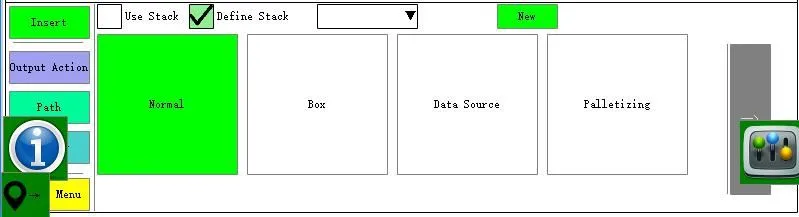
The stack types are classified as: general stacking box and stacking in the box data source stacking 4 yards four categories.
Generally, the general stacking of stacks can be divided into two categories: a rectangular shape, and as the name implies, a square object can be stacked;
Offset stacks can be stacked in a diamond shape or stacked on a slope (Z-axis offset).
Stack out the rectangular operation method:
1. First click the "New" button to create a new stack name or open a built file name.
2. Click “→” to enter the stack editing interface.
3. Set the starting point coordinates and spacing. There are two ways to set it up:
Use the three-point method to set up: The three-point method is to automatically calculate the offset and spacing using the three points that have been set.
The stack types are classified as: general stacking box and stacking in the box data source stacking 4 yards four categories.
Generally, the general stacking of stacks can be divided into two categories: a rectangular shape, and as the name implies, a square object can be stacked;
Offset stacks can be stacked in a diamond shape or stacked on a slope (Z-axis offset). Stack out the rectangular operation method:
1. First click the "New" button to create a new stack name or open a built file name.
2. Click “→” to enter the stack editing interface.
3. Set the starting point coordinates and spacing. There are two ways to set it up:
Use the three-point method to set up: The three-point method is to automatically calculate the offset and spacing using the three points that have been set.

In the second step, move the robot to the starting position of the stack and then click the “Set In” button to set the current coordinate value into the coordinates edit box of each axis.
In the third step, move the manipulator to the next point in the X1 axis direction and then click the [Set] button to set the coordinate value to the X1, Y1 coordinates edit box. Then move the robot to the next point in the Y1 axis direction and then click the [Set] button to set the coordinate value to the X1, Y1 coordinates edit box.
Step 4 Click the [OK] button to return to the previous page for other settings.
Do not use the three-point method: Calculate the spacing manually.
In the first step, enter the interface as shown in the figure below. Move the robot to the stacking start point manually and then click the [Set] button to set the current coordinate value to the coordinate edit box of each axis.
In the second step, manually measure the spacing between the points in each axis and edit the spacing values into the corresponding edit boxes.
In the third step, set the direction of stacking of each axis, and the positive direction refers to the direction of the axis position + (press the axis button on the hand controller to identify the direction of the axis position).
4、 set the stack count, order, counter and run the order, the interface as shown below::

Arm selection: When using XYZUVW six axes, arm 1 is XYZ axis stack, arm 2 is UVW axis stack, arm 3 is ZUV axis stack, arm 4 is XYW axis stack, and the arm to be stacked can be selected according to the situation. Count: Set the number of heap points on the axis.
Run Sequence: Sets the order in which each axis is stacked.
Counter selection: "self" means that the program runs a mode, the system default counter has been increased by 1; custom counter (in the action menu -> [counter] to set).
6, edit the data and click [Save] button.
7, playing √ "using the stack" in the "stack" in the choice of using the stack, and set the stack speed, choose a good location in the program click on "set" to edit the stack to teach.
8, if the use of custom counters to be inserted in the process of teaching the stack counter plus 1 otherwise the counter does not count.
The offset heap method of operation:
The use of offset stacks can be piled into a diamond shape or stacked on a sloped surface (Z-axis offset)
1, first click the "New" button to create a new stack name or open the file name has been built.
2, click "→" to enter the stack editing interface.
3. Check the [Use Offset] option
4, Set the starting point coordinates and spacing.
Diamond-shaped heap when the starting point and spacing of the set there are two ways:
Use the three-point method to set: three-point method is to use has been set to automatically calculate the three points offset and distance.
The first step, in the manual state click "three-point method set" button to enter the edit page shown below.
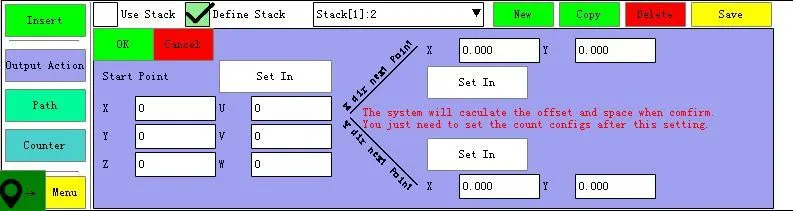
In the second step, move the robot to the starting position of the stack and then click the [Set] button to set the current coordinate value into the coordinates edit box of each axis.
In the third step, move the manipulator to the next point in the X1 axis direction and then click the [Set] button to set the coordinate value to the X1, Y1 coordinates edit box. Then move the robot to the next point in the Y1 axis direction and then click the [Set] button to set the coordinate value to the X1, Y1 coordinates edit box.
Step 4 Click the [OK] button to return to the previous page for other settings.
Not using the three-point method: manually calculate the offset distance and spacing of the axis.
In the first step, enter the interface as shown in the figure below. Move the robot to the stacking start point manually and then click the [Set] button to set the current coordinate value to the coordinate edit box of each axis.
In the second step, manually measure the distance and offset between points in each axis and edit the spacing and offset values into the corresponding edit boxes.
The third step is to set the stacking direction of each axis, and the positive direction refers to the direction of the axis position + (press the axis key on the hand controller to identify) the reverse refers to the direction of the axis position.
X, Y offset effect map:
The effect of the X offset is shown below, with the left unbiased and the right shifted by the X offset.

Before unbiased After the offset
The effect of the Y offset is shown below, with the left unbiased and the right shifted by X offset.

Before unbiased After the offset
Inclined pile starting point, pitch setting mode:
The first step is to move the manipulator to the stack start position manually and then click the [Set] button to set the current coordinate value to the coordinates edit box for each axis.
In the second step, set the offset distance in the Z direction (default is Z in the X direction). If you want to offset Z in the Y direction, check the [Y direction offset Z] option.
The third step, set the stacking direction, count, order, counter and run the order.
Direction: Direction, direction of axis position +, direction of minus axis, axis direction.
Count: Sets the number of points to be stacked on the axis. Run Sequence: Sets the order in which each axis is stacked.
Counter selection: "self" means that the program runs a mode, the system default counter has been increased by 1; custom counter (in the action menu -> [counter] to set).
The fourth step, edit the data and click [Save] button.
The fifth step, playing √ "using the stack" in the "stack" in the choice of using the stack, and set the stacking speed, choose a good location in the program click on "Settings" to edit the stack to teach.
The sixth step, if you use a custom counter to be inserted in the process of teaching the stack counter plus 1 or counter does not count.
Slope offset Stacking Example:
Suppose you need to pile up four circles in the following heap position

Teaching Page Setup:

Note: 1, because the counter is selected from the definition of the technology will need to teach more than one stack after the counter plus 1
2, if the counter is full, such as after the start of the new conditions, the need to use conditions to clear the jump, conditional Jump page settings as shown below:

General stacking usage example: Known conditions:
1. The size, width and height of the small square of the item are: 100*100*100(mm)
2, need to stack 3 products in the positive direction of XYZ
3, the product front and rear left and right distance 20mm each
4. The counter uses a custom counter, and a new counter called “stack counter” is added to the counter. The specific settings are as follows:
The first step: first customize a counter.

Step 2: Enter the stack page and make the settings as shown in the figure below. Set all coordinates of the stack start point to 0.
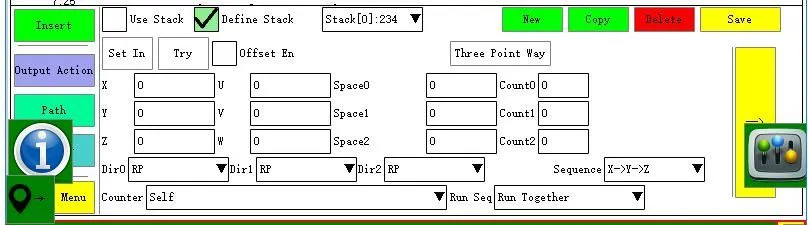
The final heaping effect is shown in the following figure: Note: The serial numbers marked in the figure below indicate the order of the stacked products.

Stacking Original Point
Packing and stacking in the box and stacking in the box:
1. Select the “Packing and stacking in box” option.
2. Click “→” to enter the stack editing interface.
3. First click the "New" button to create a new stack name.
4. Set the spacing, quantity, order, direction and counter selection between the products in the first box under this interface.
5. Click “→” to enter the next editing interface. This interface sets the spacing, quantity, sequence, direction and counter selection between each stacking box.
6. Set all the data and click the Save button.
7. Hiccup [Use Stack] Select which stack to use in [Stack], and set the stacking speed. Select the location in the program and click “Set” to edit the stack into the teaching.
[Use Offset]: After checking, the set distance is offset from the previous stack point.
Example of stacking in the box: Known conditions in the box:
1. The size, width and height of the small square of the item are: 100*100*100 (mm).
2. There are 3 products in the XYZ direction, and the total number of products in the box is 27.
3, the product front and rear left and right distance 20mm each
4. The counter uses a custom counter, and a new counter called “box counter” is added to the counter. The teaching page is as follows:
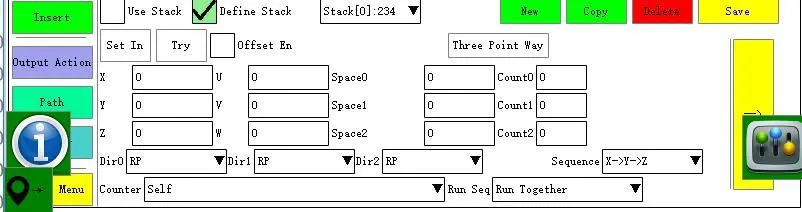
Known conditions outside the box:
1, a total of 4 boxes
2. It is necessary to stack 2 boxes in the positive direction of the X axis, stack 2 boxes in the positive direction of the Y axis, and stack 0 boxes on the Z axis. The stacking order is: X→Y→Z.
3. The distance between the boxes is 500mm and the distance between the top and bottom is 0mm. The teaching page is set as follows:

The final heap effect is shown in the figure below.:

Data source stacking
Data source stack usage:
1, select the "data source stack" option.
2, first click the "New" button to create a new stack name.
3, click "→" to enter the stack editing interface.
4, select the data source type, the data source type is divided into two types of irregular points (for irregular stacking), such as select this and then click "Edit Point" into the edit point box on the specific editing specific user ID.
5, playing √" "use stack "stack" in which to choose which stack to use, and set the stack speed, select a good location in the program click on "set" to edit the stack to teach


Data source type option "irregular points" and then click "edit point" button to enter the point editing interface as shown below:

"Replace position": Click the edited position Click "Replace position" button to replace the old coordinate position with the current position.
"Synchronization Replacement": If the user has the position drawing and the starting coordinate of the drawing is inconsistent with the origin coordinate of the manipulator, it can be easily set in the irregular point by synchronous replacement.
Click the first point to change the coordinate value of the current point to the coordinate value of the origin (first point) of the drawing, and then click the [Save] button, as shown in the following figure:

Dedicated user ID display interface:

Example of irregular stacking: Take the example of stacking 6 irregular points on a horizontal plane.
After setting the six positions on the point editing page and selecting the counter, you can complete the setting as shown in the following steps:
Enter the following interface, pull down the data source triangle arrow and select “irregular point”.

2. Click the [Edit Point] button to enter the edit point box to teach six positions.
3. Select the counter type. The default is to select its own counter.
Can be stacked as shown below:

Use the artboard function: Click the "Artboard" button to enter the following page.

Check the “brush” to set the position of the XY axis and the height of the pen. If you select a smooth or straight line, you can write in the light blue edit box. If you write incorrectly during writing, you can click the “Clear” button.
Clear all and rewrite, as shown below:

Clicking the "Calculate Path" button after writing is done will automatically generate the point, then click Close.

The automatically generated points can be viewed by clicking "Edit Points":

press“save” and inserting the stacking action to the main program

2.12、custom alarm
Press “custom alarm” button to enter this interface:

Select the alarm No and press 【insert】 to insert the alarm part to the program,when it runs to the alarm part, the robot will alarm and stop 。The content of custom alarm can be modified, we have a software for it, if you need please contact us.
2.13、module
Click【model】to enter this interface,we can call module in here:

Create a new module:press【new module】→insert module name→【save】→set the program in the module→【save】。
Delete module:pull down module menu,select module and press【delete】。
Way to insert module:drop down“call module”and select the module need to be inserted in the menu→drop down“return to flag”(remark:please define the flag before you insert)→选 select the line and press 【Insert】.
2.14、Visual instruction
press Vision button to enter the following interface:

select data source:select “catch”,select a certain output,set the action time,action time and interval time, it means a certain output catch time,the interval time for catching,and times for catching,insert this to the program then enter the vision interface to set the wait time,if it failed to catch, the robot will alarm
For an example,we set output Y15 to catch for 2s,the interval time for output is 3s,after three times for catching, 2s later, if the camera failed to catch, the robot will alarm ,the parameter setting is as below pictures:


2.15、Path speed
Click path speed button to enter the following interface:

function:adjust the trajectory movement speed
Scope:only applies to the straight line in the path and curve movement
Original speed:If it is inserted between the straight line and curve,the original speed will the same as the one with a faster speed.
2.16、Data command
Click Data command to enter the following interface:

Function of origin command:set the sequence and speed of each axis homing
The way back to the origin is divided into six kinds, the user can choose according to their own institutions::
1、 manually set the origin plus switch.
Set a random position with origin signal as home position manually,then this will be the origin position for every homing . Process for setting the home position:
In manual mode, adjust all axis to the origin switch,(the switch light is on)→ in stop mode, enter“settings”→“machine setting”→“motor configs”,click 【set to origin】or【factory set all origin】,then 【save origin】.
2、Find the Z pulse directly。
Process to set home position by finding the Z pulse signal of motor:
In manual mode, adjust all axis to the origin switch,(the switch light is on)→ in stop mode, enter“settings”→“machine setting”→“motor configs”,click 【set to origin】or【factory set all origin】,then 【save origin】.
When robot need to be home,in the manual mode, press 【origin】then press【start】.
3、Short origin(automatically set the origin plus switch).when backing to origin, when it hits the origin metal plate, the home process finished when the origin switch is on.
First time to set origin or modify the way back to origin:press 【origin】then press【start】button, robot will go home as the sequences。When each axis finished backing origin,it will alarm and ask“origin has been changes,reset the origin position?”if you need to reset, press the 【reset origin】,if you don’t need to reset , press【stop】option.
4、automatically set the origin plus switch (long origin)。When homing,it hits the origin metal plate, it still go over the metal plate, the end of the plate is the origin position.
5、Mid origin,The middle point of the metal plate is the origin.
6、similar origin, when homing,when each axis is near to the origin position with origin signal,it is the origin press【origin】then press【start】button, robot will go home as sequence, when axis go to the position near to the origin,the system will think it has been in the origin.
Remark:
1、The origin instruction must be edited in the programmable button [0] (serial number 0).
2、When program, the sequence of inserting is the sequence for homing。
3、in this interface, we can set the speed for homing(remark:the speed can’t be too fast otherwise it will cause collision)
remark:in the stop mode, actual speed=origin speed(value of motor)*axis speed
4、axis can do the home movement simultaneously by inserting the simultaneous start and end
2.17、CAN command
Press CAN command to enter Can command interface:

remark:this function only can be used in the CAN internet communication mode
2.18、And Or Action
Press”And Or Action”to enter following interface:

And Or Action are used for waiting for signals,And action means robot must wait for several signals at a time,if lack of any of the signals, the robot will alarm. Or action means it needs to wait for signals, when robot receive any of the signals, the robot will not alarm。
2.19、extend
click extend button to enter this interface:

2.19.1、Route inside address

The route inside address function is to run the route by using the address. Before use this function, we need to set the parameter for the address.
Inside address:it can be 800-890 address.
Types of address: line 3D, posture line and free path.
line 3D:it is only used for XYZ axis to run line,If the address is 800,X axis is 800, Y axis is 801 , Z axis is 802.
Line 3D pose:use XYZUVW six axis to run line 3D pose,if the inside address is 800,X axis is 800, Y axis is 801 ,Z axis is 802, U axis is 803 ,V axis is 804 ,W axis is 805805
Free point:Use XYZUVW six axis to run free points,,if the inside address is 800,X axis is 800, Y axis is 801 ,Z axis is 802, U axis is 803 ,V axis is 804 ,W axis is 805805
2.19.2、Save point

Save point function is to save the present point as memory,when we press stop button and restart it, the robot will run the points again
Save types:world coordinate- XYZ、world coordinate- XYZUVW、joint coordinate,world coordinate XYZ only save world coordinate of XYZ axis,world coordinate XYZUVW only save the world coordinate of XYZUVW axis,joint coordinate save the joint coordinate of XYZUVW .
save address:address 800-890 can be saved
Action choose:only current pos and current pos add deviation.
2.20.3、analog control
Chanel:6 Chanel can be used.
Analog value:setting range is 1-6.
Delay:delay time for analog value.
2.19.4、safety area

√safe range and set the safe range for the axis.
The setting range for limited axis and limit axis is 801~899 ,value(801~899)doesn’t represent the exact distance, it represent the address,the exact distance needs to set in the data command
example:If X axis is 300~500, Y changed or Y is 0~100,the alarm will be “5001”.
First Step:setting for limited axis range remark: 801/802 is not a distance concept,actual distance range should be set in data command:
Less than X axis(limited axis) setting:

More than X axis(limited axis )setting:

Second step:limited axis condition setting 设 1:When Y axis (limited axis)changed,it will be a alarm “5001”.

When Y(limited axis) is out of 0~100 range, it be be a alarm No“5001”

Remark: 803/804 is not a distance range. Distance range should be set in data command, way of setting is as the picture show:set Y(limited)MINI range:

Set limited axis Max range:

2.19.5、axis mepos
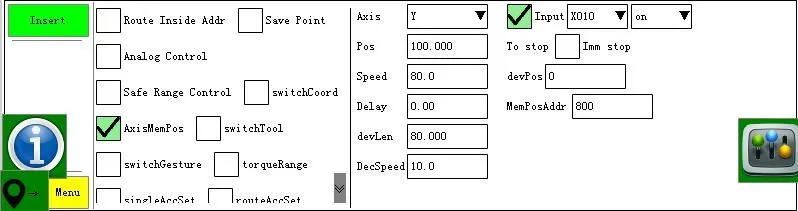
This function is for memorizing last position.as the pic shows: Y will go to position 20 with a speed of 80 , then it will continue to go with the speed of 10,when there is a signal in X010,if the position is 60, it will remember this position. When next module starts, Y axis will run in the speed of 80 to the position 60, the rest of 40, it will run in a speed of 10. when there is signal of X010, it will remember this position.
remark:
1.if we set position as 30,for the fist action, Y axis will go with a speed of 80 to the position 50
2.saving address should be 800--899 .
2.19.6、switch tool

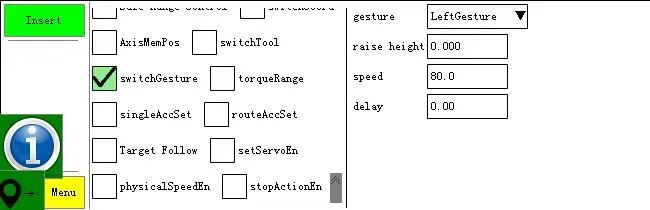

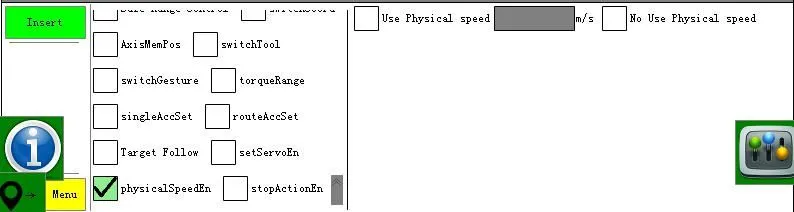

2.19.11、set servoEn
We can make the servo function on or off in this interface.
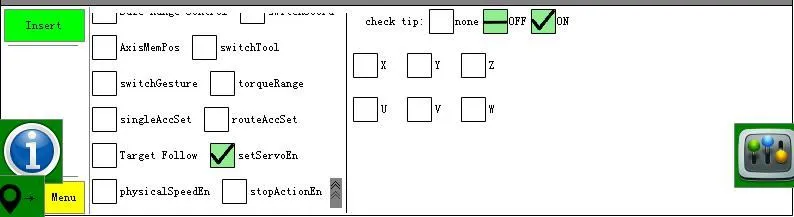
When the program runs to “set servoEn”:X off;Y on;” X axis servo is off, Y axis servo is on,it will alarm because the X axis servo is off.
3、Manual
3.1、 output
In this interface, we can select a output,click【on】the light will be green, it means there is a output.

When IO boards are 2-5 IO , click next can switch the IO board to check
3.2、 tools calibration
After setting the tool coordinate,the robot control point comes to the tool end,in this way we can adjust the tool posture in a more accurate way.
Two Point:user only can use “two point”when user knows the deviation of the tool.
process:
Step 1:when robot is in home position, click【T set】to set the value of the coordinate.
Step 2:input the deviation value of each axis.
Step 3:click confirm button when finish the settings.

3.3、 custom button
In this interface we can check and us the custom button.

Way for using this button:press this button that has already edited well,robot arm will run the program in it.
3.4、 Table calibration
The worktable can be calibrated under this interface.:

PO:Starting point position
PX:Position on the X axis
PY:Position on the y-axis
process of Establish workbench :
1. Enter the coordinate system and click the [New] button to create a new coordinate system.。
2、Set PO, PX, PY points on the workbench
3、Click the “OK modify” button to convert coordinates。
Note:The PO PX and PO PX lines intersect at 90° and the right hand four fingers are held from the X-axis Y- axis. The thumb should face up.
3.5、Operating instructions
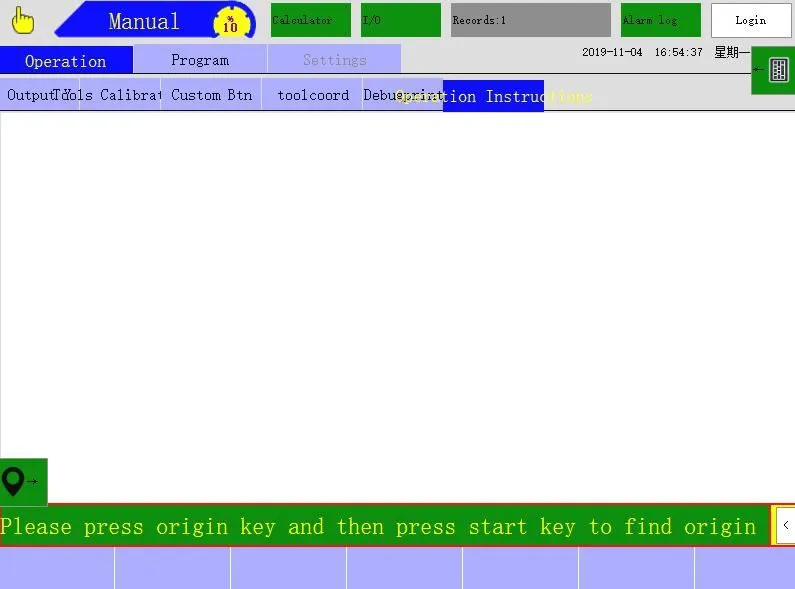
Insert the U disk scan manual and the installation manual in the "parameter"-"picture", where the instructions can be displayed.