


BORUNTE Industrial robot English (HC)instruction manual——Stop status
The setting of all parameters can be viewed without manual operation when the three-speed knob is turned to the intermediate position and enters the "stop"-state interface to be stopped.
1、Settings
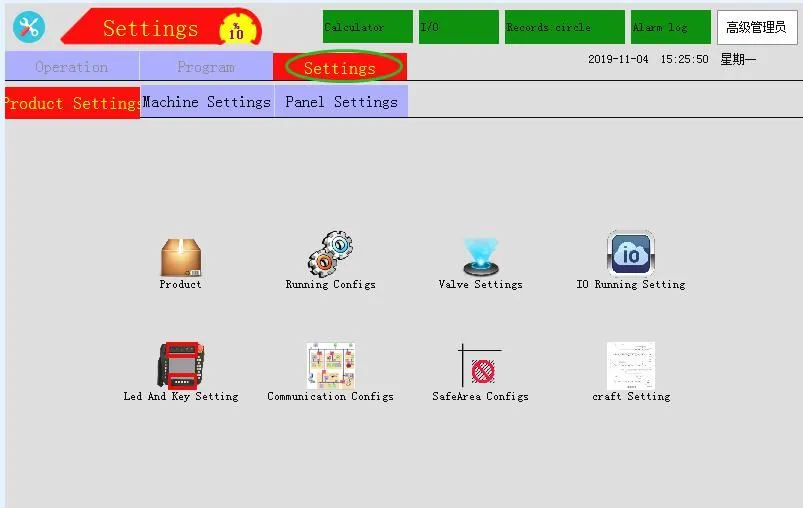
1.1、Product setting
Click  Button to enter the following interface, if you choose to use a subroutine, face it at this interface to use the.
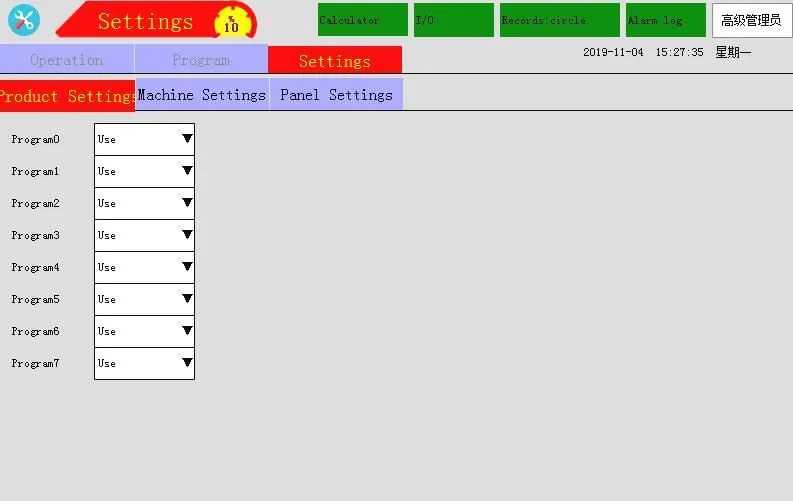
Program: multiple programs can be used at the same time in a set of programs. At first, the system defaults to the use of the main program, and the subroutine is not used. If you want to use the subroutine, you can drop down the triangle arrow to select it as the use of the.
Special note:
1. the main program and the subroutine can be run at the same time.
2.You can use subprograms alone without using the main program to program.
1.2、Valve setting
Click  Button to enter the following interface:

1.3、IO Settings
Click  Button to enter the interface shown below,IO can be set.
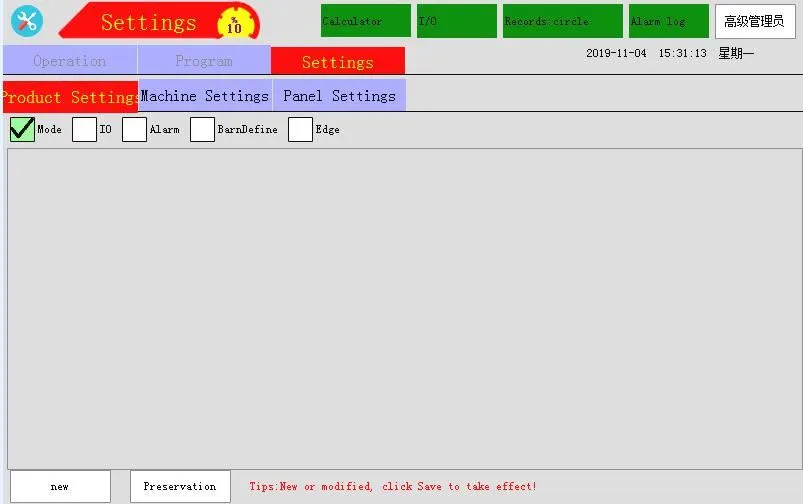
1、The mode state function is mainly used to automatically control the on-off state of the signal after switching to a certain mode.
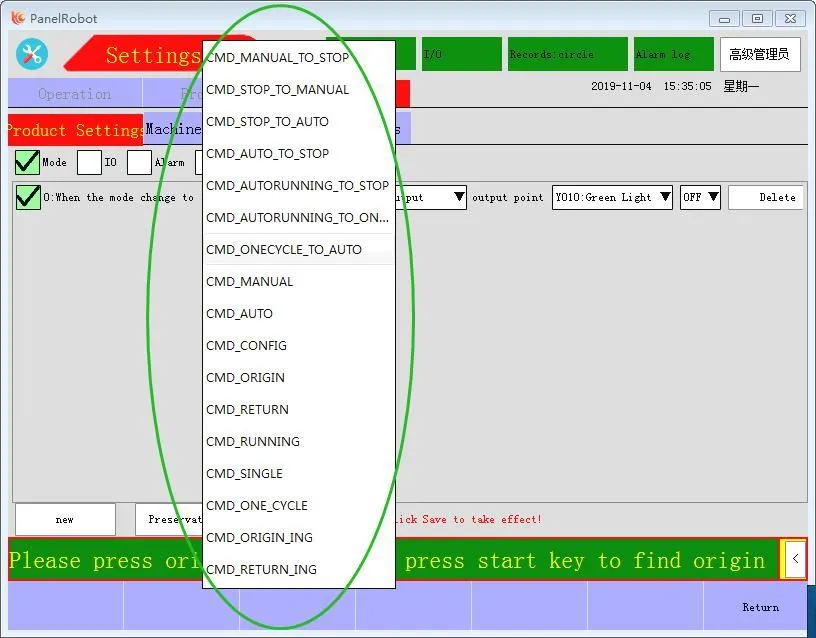
First click the “new” button,and then select the corresponding state in "switch mode to", such as manual to stop,stop to manual,stop to auto and so on. Then select the IO output or M value output, and then select the appropriate point in output Point
Note: you can create more much program and only click save to take effect, and you can get rid of it when you don't need it. Or click on the delete after (you also need to click save)
2、The IO state function is mainly used to automatically turn on and turn off another output signal by controlling the on-off state of one input and output signal in some modes.

First click the New button and check the newly built, and then click "in Mode" to select the appropriate status, such as manual mode, stop mode, automatic mode, and so on. When you select an input or output point on or off, you can turn on & turn off an output point.
3、The alarm operation function is mainly used to control the on-off of an output signal when the alarm number meets a certain condition.
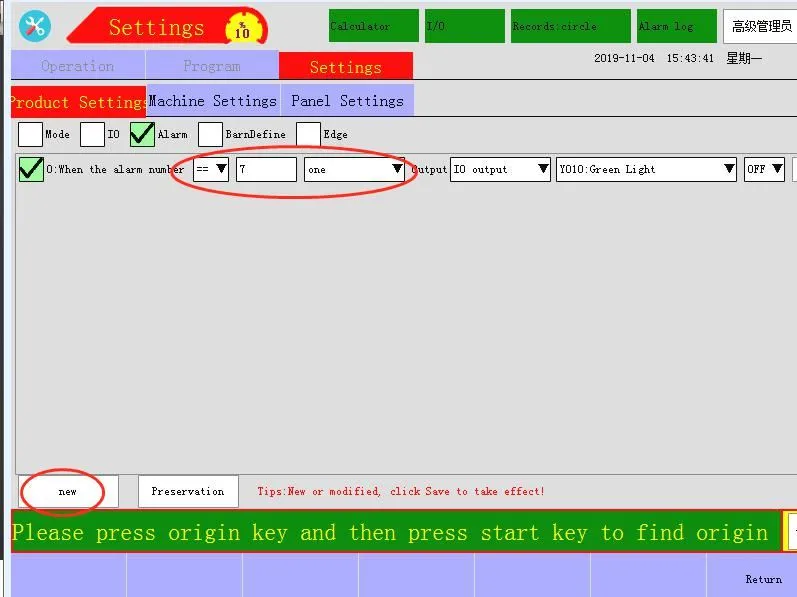
4、The silo definition function is used to define the silo.

5、The edge signal function is mainly used to check whether there is a rising edge or a falling edge signal in some modes, that is to say, the edge signal can not be detected only in automatic operation, but also in parallel when there is an edge signal in a non-automatic state.
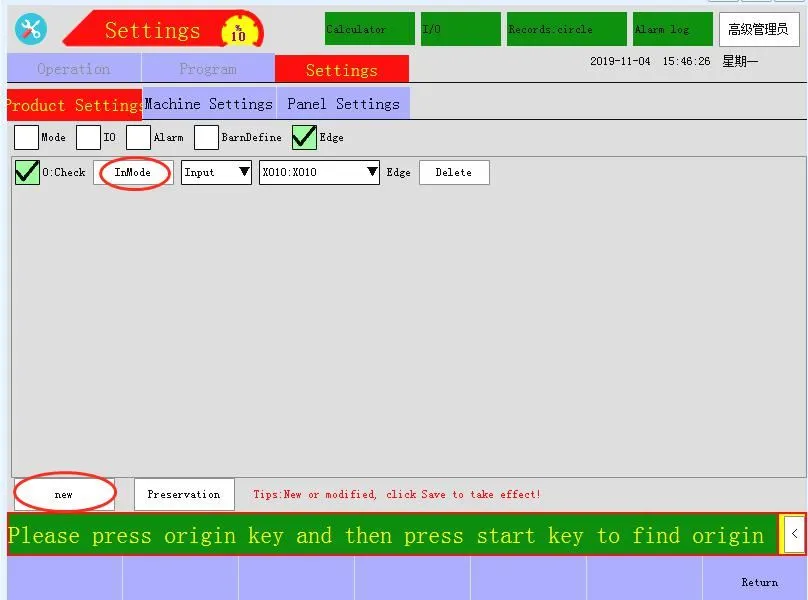
First click “New button” and check the newly built one, and then click "in Mode" to select the appropriate state, such as manual mode, stop mode, automatic mode, and so on. Select the input type and input point again。 The specific applications are as follows:
1、Switch Program surface: Testing Teach X - axis motion to move Y - axis only if there is an X 10 rise signal. :

2、Switch stop state, enter the IO settings page, check along the signal, create a new check along the signal, click the "in mode" button to select manual, stop, automatic mode, automatically run and click on the OK button. Then select the input signal X10 and click the save button.
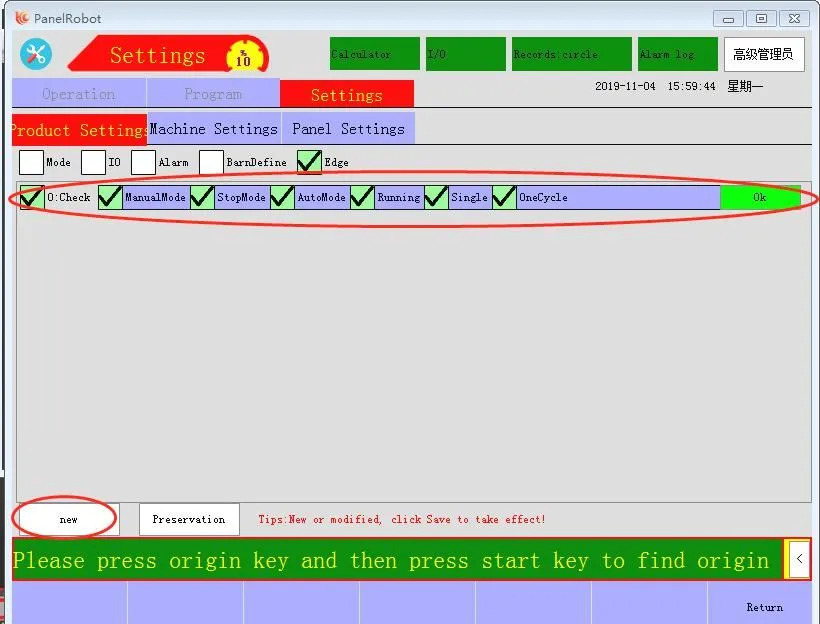
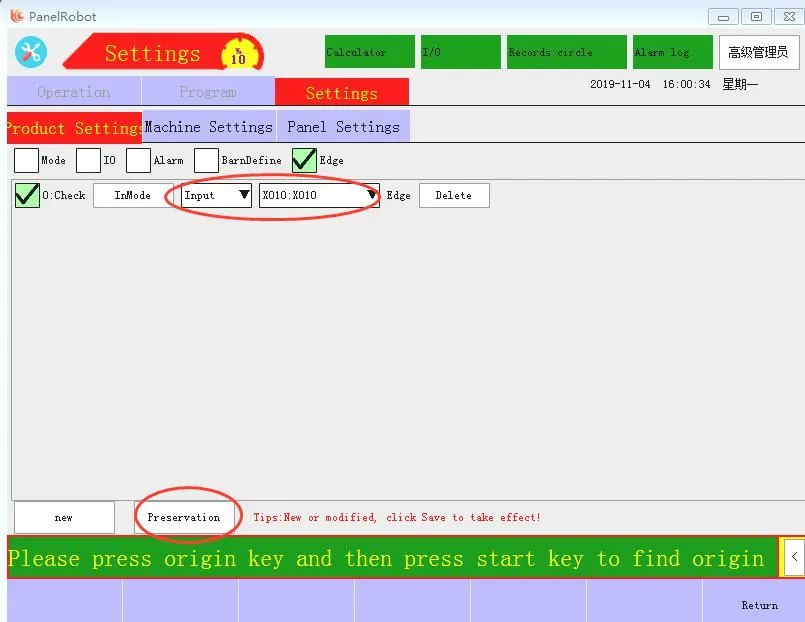
3、In manual state or stop state or automatic state or automatic operation, an X10 rising edge signal is given directly to automatic running, and the Y axis also moves after X axis motion.
1.4、Keystrokes and indicator lights
Click  button to enter the interface shown below, and the IO can be set at this interface

1.The function of the LED1--5 state is the same as the IO setting, and the on-off of the LED lamp on the hand control is controlled by selecting the corresponding input, output, and M values.
2.In the key F1--F5 function binding, the on-off state of the IO point and the M value is controlled by the use of the key F1-F5 in some mode. If the function binding of the key F1 is checked, click the "mode selection" button to select the manual mode and the stop mode, then click OK, then select the M value, the state is on, the M is M10, press the F1 button when the button is pressed to the manual state or the stop state, and the M10 output.
3When the "state inversion" is selected, the M10 output is pressed by pressing F1, and the output is turned off by pressing the M10 again. When selecting the "pulse", press F1, M10 output, loosen F1, M10 open the output, select the "to pass through", press F1, M10 always output will not be broken. Press F1 while selecting the "break", and M10 is always open.
2、Machine setting
Click“Machine Setup”to enter the following interface where the machine can be set.

2.1、Running Configs
click  button to enter the following interface:
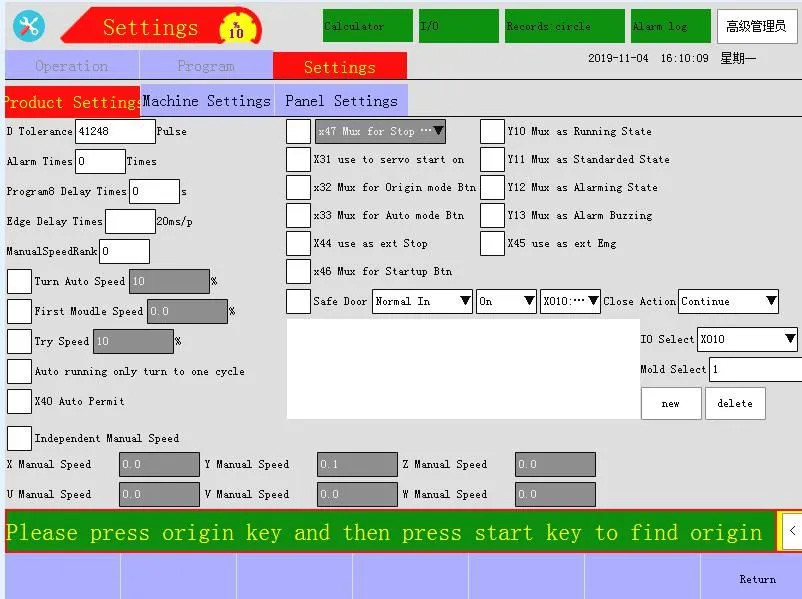
D Tolerance:The difference between the transmitted pulse and the feedback pulse.
Turn auto speed:The default running speed setting when Worker switch auto automatic state to run automatically.
Alarm times:How many time will Y013 output point flash when alarm appears.
Manual speed rank:Adjust the manual speed, that is, when the manual speed is 10% at the same manual speed, when the manual speed level is 1, press the manual shaft button to move only two and three millimeters, and the manual speed level is 10, press the manual shaft button to move approximately 20 mm.
First Moudle speed:The speed of the first mode under automatic running status
Safe Door:Define the signal point of the safety door. Check that the corresponding input point will be on or off automatically when the safety door is used. Otherwise, the alarm Err36 will be alarm, resulting in the failure to run automatically.
Close Action:Under automatic operation,the operation of the mechanical arm after the safety door is closed when the safety door is in alarm.The function is matched with the function of the safety door.When the safety door is selected for use, it is assumed that the setting safety door signal is X10, when the X10 signal is opened, the safety door is opened, and the alarm safety door is opened, at this time, if the clear alarm is selected to continue, If the safety door is closed, that is, the X10 signal is turned on, the automatic clear alarm manipulator will continue to operate, and if the stop is selected, the safety door is closed, that is, after the X10 signal is turned on, the automatic clear alarm manipulator is suspended, and the start key manipulator can be pressed to continue to operate, and if the selection is selected, After the reset is started, the safety door is turned off, that is, after the X10 signal is turned on, the alarm is automatically cleared and the operation is reset.
Independent manual speed:Check this item to set the speed of each shaft in the manual state.
Program 8 delay time:When subroutine 8 is taught, the delay time for subroutine 8 to start
Edge Delay times:The maintenance time of the effective edge signal, if the filtering level along the signal is set to 1, the edge signal needs to be maintained at the 20ms time to be regarded as the effective edge signal, and if it is lower than 20ms, it is the invalid edge signal.
Remote control function (input point reuse function button):

Check "X32 reuse: enter origin mode", "X33 reuse: enter automatic mode", "X46 reuse: start", "X47 reuse: pause" these options can be used for remote control of [origin] key, [start] key, [stop] key and "enter automatic state"
√ X32 reuse: entering the origin mode is equivalent to pressing the hand controller [origin] button;
√ X33 multiplexing: entering the automatic mode is equivalent to turning to the (automatic) mode;
√ X46 reuse: starting the light is equivalent to pressing the hand controller [boot] button;
√ X47 reuse: pausing lighting is equivalent to pressing the hand controller [stop] button;
pecial explanation:
1、When the X47 is lit once, the robot stops immediately. If the system has an alarm, light up the X47 once to clear the alarm that has been resolved。
2、Using the reuse button can make the origin return action in the automatic state, but in this state, pressing the [origin] button on the hand control and then pressing the [start] button will not return to the origin (the knob has to be pressed automatically to be valid).
Note: The point that is used for multiplexing is not allowed to do other functions.
Servo start on:

After checking this function, the external X31 input point can be used for external switch control. If the X31 signal is turned on, all the shafts can be servo enabled, and when the X31 signal is disconnected, the servo enable of all shafts will be disconnected. If any axis action is carried out, the alarm servo will not be enabled.
2.2、Motor Configs
Click  Button to enter the following interface:
the Axis can be selected,used and set under this interface,

Axis use: all axis are selected for use by default.If you do not need to use them, check the none selection box.
Encoder type: Encode Type 2
Motor factory:Inovance
Encoder Read Way:READ_TYPE_PU
2.3、Struct Configs
Click  Button to enter the following interface:
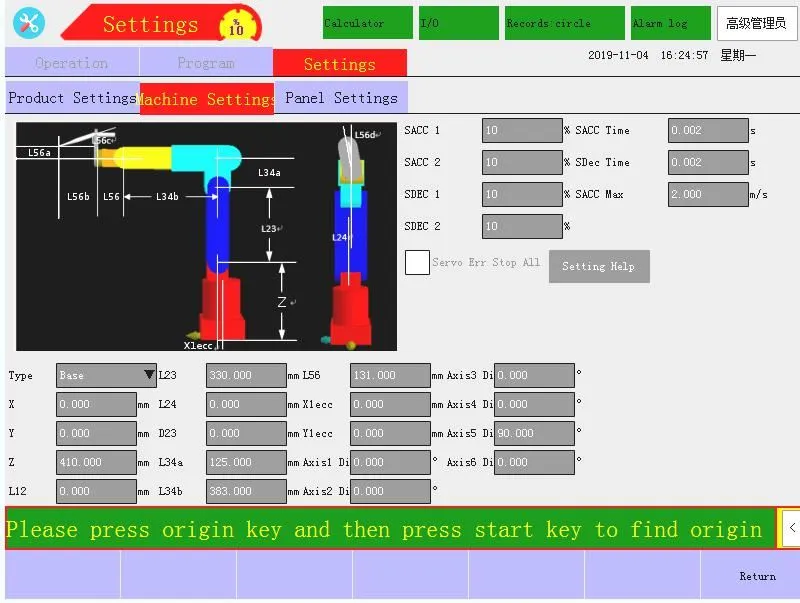
S-curve acceleration:

1. Variable acceleration section: the acceleration increases from 0 to the maximum acceleration according to the set acceleration, and the velocity increases according to the acceleration.
2.Uniform acceleration section: the acceleration keeps the maximum acceleration unchanged, and the velocity increases according to the maximum acceleration.
3.Variable acceleration section: the acceleration decreases from the maximum acceleration to 0 according to the set acceleration, and the velocity increases according to the acceleration.
4.Uniform speed section: the acceleration is 0, and the velocity remains the same as the target speed.
5.Variable deceleration section: the acceleration increases from 0 to the maximum acceleration according to the set acceleration, and the velocity decreases according to the acceleration.
6.Uniform deceleration section: the maximum acceleration is kept unchanged, and the velocity decreases according to the maximum acceleration.
7.Variable deceleration section: The acceleration is decreased from the maximum acceleration to zero according to the set acceleration, and the speed decreases according to the acceleration.
The S acceleration and deceleration settings correspond to the above line segments as follows:
S Acceleration 1: paragraph 1 "variable acceleration paragraph"。
S Acceleration 2: paragraph 3 "variable acceleration section"
S Deceleration 1: paragraph 5 "variable deceleration section"
S Deceleration 2: paragraph 7 "variable deceleration section"
Number of injection IO boards: number of injection IO boards to be connected.
Number of IO boards: the number of IO boards that need to be connected.
Number of EU67 boards: the number of EU67 boards that need to be connected.
Servo alarm turn off all enable: when servo alarm is checked and used, all enable will be turned off.
Analog module enable: when using analog module, we need to check analog module enable to use normally, this analog module is purchased.
2.4、Safety Zone Parameters
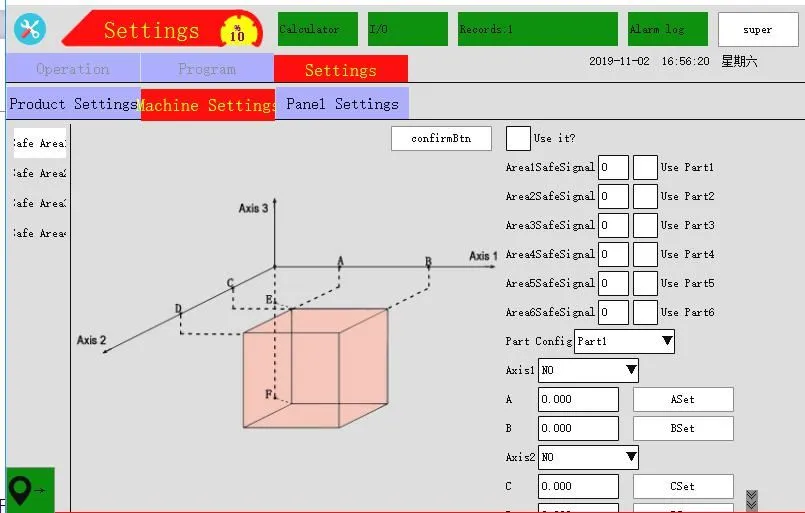
Type 1: Up to 6 security zones can be set in this interface. Note: The red area indicates the non-safe area. Zone safety zone signal: The value entered in this edit box means that the safety zone limit is invalid when there is a signal at an input point (similar to the mold opening signal), and when there is no signal at an input point, the robot cannot enter the planned non-safety. Area range. The regional safety signal value comparison table is as follows:

Use the operation process:
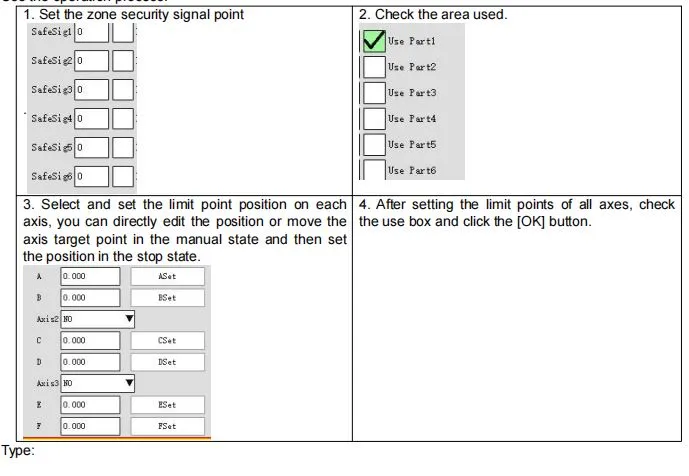

When the robot enters the area formed by A, B, C, D, the turntable in this area cannot be rotated. Setting method:
1. Set the axis represented by Axis1 and Axis2 (the pull-down triangle arrow) to select.
2. Set the position of each point of A, B, C, D, you can directly input the coordinate position or manually move the axis to the target point, and then click the [Set] button to set the current coordinate value into the edit box. .
3. Finally, click the [Use] button to complete the setup.
Type3:
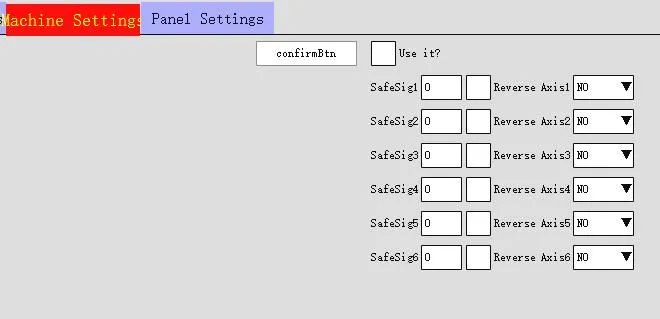
When the reverse is not checked, it means that there is a safety signal to move the axis. If the reverse is checked, it means that the axis can be moved when there is no safety signal.
Type4:
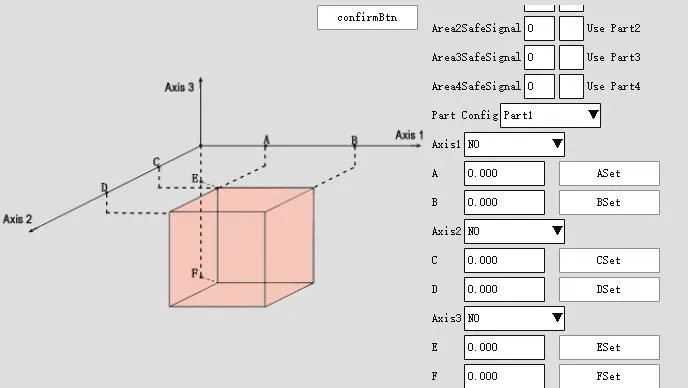
Type 4 is divided into two parts. The first part is to limit the safety distance between the two axes, and the second part is to limit the safety area between the two axes. The two parts can be used alone or in combination.
first part:

Zero Interval: The distance between two axes after the origin is restored.
Safety distance: The safety distance maintained by the two axes. If the distance between the two axes is less than or equal to this safety distance, the alarm will be given immediately.
Safety signal: When there is a safety signal input, it will alarm immediately. If the reverse direction is checked, it will alarm when there is no safety signal input.
The specific use is as follows
Assume that the distance between X1 and X2 is 800mm after the return of the origin. It is not safe when the distance between X1 and X2 is 100mm. To ensure that X1 and X2 do not collide, set relative axis 1 to X1 and relative axis 2 to X2. Set to 800, check the distance detection enable, set the safety distance to 100, then when the X1 axis moves to 400mm, the X2 axis can only move up to 295mm (800-400-100=300, but for safety reasons, when When X2 moves to about 5mm, it will alarm when it reaches 300.)
If the check signal detection is enabled and the safety signal is set to 1, the alarm will be triggered as soon as there is a safety signal X10 regardless of the distance between X1X2. the second part:

The usage method is similar to that of type one, and can be directly referred to the use of type one
2.5、Origin setting
Click the button  to enter the following interface:

On this page, you can set the origin mode, origin order, origin speed, reset sequence and reset speed of each axis. After setting, click Save to take effect.
2.6、Automatic tuning
Click the button  to enter the Auto Tuning page:

Click the “Start Test” button to test the motor's forward and reverse conditions and valve continuity.
2.7、Servo parameters
Click the button  to enter the servo parameter page, where you can set the servo parameters of each axis.

Note: The motor code must be checked for correctness. Compare the motor code in Table 1 of the appendix of this manual.
3、Manual Setting
Click the [Manual Settings] button to enter the manual setting interface, as shown below:

3.1、Manual setting
Click the button  to enter the following interface:
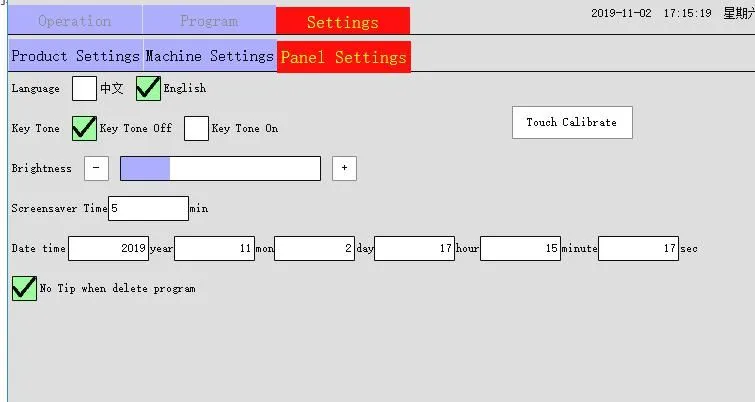
Language: Choose Chinese or English.
Date and time: The date and time displayed by the system. Select the date and time and press the plus or minus keys to change.
Screen saver time: that is, the backlight time, set the time when the backlight is on during standby.
Screen brightness: Adjust the brightness of the display.
Touch correction: Click the [Touch Correction] button and follow the prompts to correct the action, or rotate the third gear knob and use the shortcut button on the manual controller to press F5 → F1 → F4 → F1 → F3 → F1 →F2→ F5 Enter the calibration screen and press the prompt to perform the calibration.
Delete teaching does not prompt: When this function is checked, the manual teaching page deletion program will not have any deletion confirmation prompt. If this function is not checked, the following deletion confirmation dialog will pop up immediately when the manual teaching page deletes the program action.
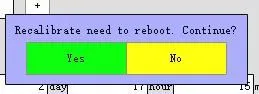
Mobile teaching no longer prompts: When this function is checked, the manual teaching page moving program will not have any movement confirmation prompt. If this function is not checked, the following mobile confirmation dialog will pop up immediately when the manual teaching page moves the program action.
3.2、Network Configuration
Click the button  to enter the following interface:

Network enable method:
1 Check it. 
Set whether to enable remote control. If you select Use, the “Command List” button appears.
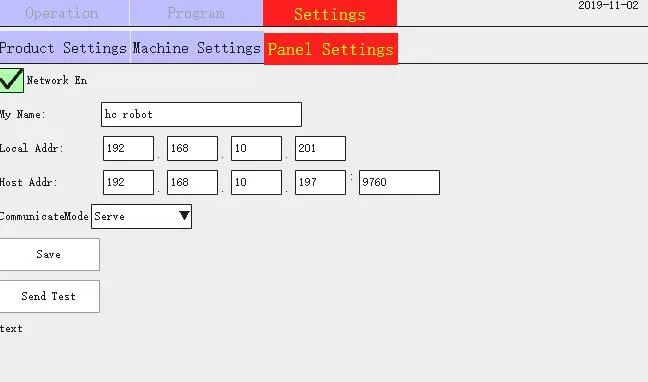
3. Set whether to communicate with the host network.
4. Set the name of the machine.
5. Robot IP address (only the opponent controller has a network port valid).
6. Fill in the peripheral destination IP address.
7. Select the communication mode.
8. Click the [Save] button to save the set data.
9. Click the [Send Test Data] button.
10. Waiting for the external feedback data to the hand controller indicates that the network configuration is successful.
Note: This setting is for the manual network port setting.
3.3、Registration
Click the button  to enter the following interface:
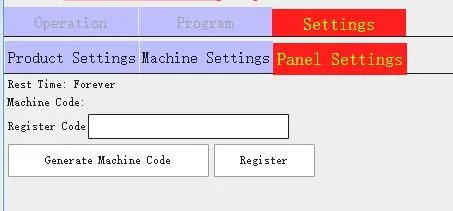
Registration process:
1. Log in to the highest authority to view the vendor code and click the [Generate Machine Code] button to generate a 6-digit machine code.
2. Provide the manufacturer code and machine code to the supplier to have the supplier register the production registration code.
3. Enter the “Registration Code” edit box according to the 20-digit registration code provided by the manufacturer.
4. Click the [Register] button to complete the registration.
3.4、Maintenance
Click the button  to enter the following interface:
In this interface, you can view the version number, upgrade version, and backup/restore parameters
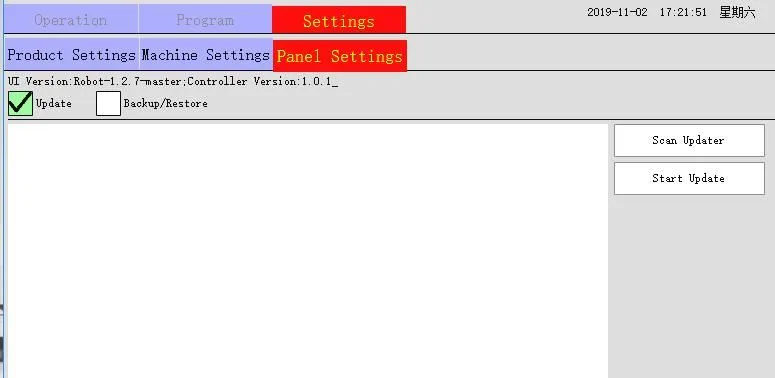
Version update method:
1. Check the Update Rotation box. 
2. Plug in the U disk for a few seconds.
3. Click [Scan Update Package] (If there is no display program, please check whether the U disk program or U disk format meets the requirements for identification).
4. Select the version you want to upgrade.
5. Click the [Start Update] button to enter the update interface to update.
Backup/Restore:

Machine parameters: refers to the setting of the axis parameters, including the software limit, the distance per revolution.
Manual parameters: parameter settings in the programmable buttons and all settings under the manual settings.
Ghost: All backups, backing up all data of the current hand controller.
Update package: This system will automatically save the upgraded version. If you need to upgrade the previous version again, you can check  and select
  the version number to update the version. You can also export the program to the U disk for other manual controllers
  . Update.
Backup operation flow: Tick → Select to back up data (machine parameter / manual parameter / ghost) → click backup current status → enter the backup name in the pop-up backup name dialog box → click OK.
1. The above steps are to back up the parameters to the machine. To back up to the U disk, insert the U disk on the above steps and select the parameter name just backed up to the machine → click the export button → pop up the export completion dialog box. Click OK.
2. You can also rotate the third gear knob and use the shortcut button on the manual controller to press F5 → F3 → F4 → F3 → F2 → F3 → F1 → F5 to enter the backup interface and follow the prompts for backup. Restore operation flow: check  or
or  → select to restore data (machine parameter / manual parameter /ghost) → click [Restore selected backup] button → according to the prompt, the manual controller will restart and wait for the restart to complete.
4.3.5 User Management
Click the button  to enter the following interface:

In this interface, administrator permissions can be set and passwords can be modified.
System operator default password:
Operator: 123
Administrator: 123
Senior administrator: 123456
Super administrator: 12345678
Op: The permissions of this item are:
1. The axis can be moved in the manual state, but can not enter the teaching page for teaching;
2. The robot can be started and the speed can be adjusted in the automatic state;
3. In the stop state, the home position return and the product setting page setting parameters can be performed;
4. You can enter the registration page.
Mold: This permission has:
1.Op all permissions;
2. Relevant settings related to the model number;
3. You can enter the teaching page for teaching;
4. Automatically edit and modify the position, speed and delay of the program action.
System: This permission has:
1.Op all permissions;
2. The machine parameters can be modified;
3. Can enter most of the manual settings page.
User: This permission has:
1.Op all permissions;
2. Can enter the user management page.
Root: This permission has:
1.Op all permissions;
2. The manufacturer code of the registration page is visible.
Auto Modify: This permission has:
1.Op all permissions;
2. Automatically edit and modify the position, speed, delay, etc. of the program action.
New User Name: Edit User Name → Set Password → Check Permission □Op → Click [OK].
Admin
□Super
□System
□User
□Root
Auto Modify
Delete user name: Check the user list → click the [Delete] button