


BORUNTE Industrial robot English (HC)instruction manual——User Application Usage
1、Stamping application
1.1、Stamping process function instruction


1.4、Open process description
1.4.1、Open the use process
Login permission, enter the Process Settings item

Click on the process settings to enter the following page:

Click on the process type and select Stamping
1.4.2、Set online parameters
Click on the communication configuration to set the online parameters that must be set for stamping (single unit/online must be set).

CAN online setting and stamping process related parameter setting

Note: Please set the board according to the enabled port.
Description:
In order to use the stamping process normally, the stamping process must first be turned on, and the stamping related parameters (CAN setting "online") must be set. Otherwise, the stamping process may not be used normally. After modifying the above parameters (turn on the stamping process and CAN settings online), please restart the system.
1.5、Stamping process stand-alone / online operation
1、When used in a single machine, it can be taught according to the stamping process instructions.
2、Multiple online operations
1.Connection: When using multiple units (more than one, up to 15 units), the control unit can be directly connected to the CAN1 or CAN2 socket of the control box with a network cable (straight network cable). Note that the first and tail machines must be shorted to the terminating resistor (terminal resistor plug-in) to be inserted into the first and tail CAN ports. For the board, please enable the port wiring according to the corresponding settings.
2. Set the relevant online parameters (Note: use the stamping process, CAN communication is online, this parameter can be set and normal use).
1, Find the CAN setting item in the communication parameters, and select the connection in the use, configure the ID (the local ID), the baud rate (all parameters must be the same online connection, modify this parameter need to restart the system).
2, Set the machine type, according to the online sub-machine, the intermediate machine, the tail machine (change this parameter needs to restart the system). First machine: Select the mechanical type of this robot as the "first machine" when you select it as the first robot under online conditions.
Intermediate machine: If the robot is in the middle position under online condition, please select the mechanical type of this robot as “intermediate machine”. Tail machine: If it is the last machine in the case of online, please select the type of machine of this mechanical mobile phone as "tail machine."
Note: When doing the first machine, please put all the participating slaves (except the first machine, the others are slaves) corresponding to the ID point (display green). Only the first machine ID is selected when the slave is on.
3.Set the stamping time, the longest stamping time, etc.
Note: Start stamping, automatic (punching sheets) only check to be effective. Otherwise the function is invalid. The stamping time is the starting stamping time, the longest time is, and the whole cycle time after the normal stamping is completed is the judgment condition for detecting whether the stamping is abnormal.
Description:
1, Configuration ID: such as 3 machines online, the first machine configuration is 1, slave 2 (intermediate), slave 3 (tail). Other multi-machine online settings are similar.
2, The control integrated box only has CAN setting, two ports (CAN1 and CAN2) are used together. When using CAN communication as the host or tail machine, the terminal resistance plug-in needs to be inserted in the other port.
The board is divided into two separate ports, CANA and CANB. B1 and B2 are equipped with a terminating resistor interface for the CANB port. When the first and last machines are enabled and the CANB port is used for CAN communication, short wires can be used. Specify the port usage for the intermediate machine and set the relevant port parameters.
3, stand-alone / online mode is determined by the choice, operation: login permission, under the stop file, click the stand-alone or online button to switch (only the punch function can be displayed to display the secondary button).
Special note: After the stamping process is started, the communication must be set to be online, and the stamping process can be used normally. Otherwise, the button will not be displayed, and the function options will not be displayed.
1.6、Stamping process teaching example program
Standard stamping template (standard online template)


2、Palletizing craft package
2.1、Palletizing craft instruction notes

2.2、Palletizing process data setting operation flow
Operating procedures
1、Opening process
Process usage can be skipped.


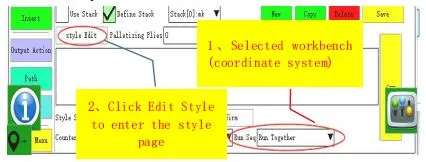

Note:
1. New style, internal transition point, palletizing position, ready point, point must be saved after saving. The data can be saved, otherwise the data is invalid (not saved).
2. After the palletizing position is modified, you must click Confirm to modify the data.
3. Transition point, point transition point trial can be moved to the transition point position. The palletizing position must select the palletizing position and then click the trial button to the palletizing position.
4. Select the palletizing position, click to set, you can save the current position into the selected palletizing position; if you modify the data, you must confirm the modification and valid. Detailed operation buttons as shown below:

Note:
1, the above style can be used to call all the code in the template program. Please call the corresponding style correctly when calling.
2. The transition point can be directly set to the specified position. The preparation point and the departure point are only X, Y, Z, andθoffsets for the position of the item. The value is directly filled in.
3. The position of the palletizing item can be moved to the specified point, and the point can be set. If you make fine adjustments, click the item , position and modify the corresponding data. Click OK to modify to change the item's location data.
4. After all the data in the style has been modified, you must save the style button to be valid, otherwise the data may be lost. Delete style, must be selected to remove from the bottom (last created).

Note: The above picture is the setting:
1, The number of layers, layer arrangement.
2, Modify the palletizing binding counter (counter number).
The above settings complete the point save to completely save the current pallet all relevant setting parameters. If you need to delete the delete button, you can delete it.
2.3、Using craft programming

Description:
5、Use stacking, insert palletizing parameters.
6、Select the created pallet number to be called, insert the code to teach before the action.
7、Pallet with settings, please set the actual situation, otherwise the default.
8、Pallet type: Only the parameters of the selected pallet class are displayed. When inserting, the palletizing or depalletizing selection is displayed. Palletizing is from low to high, while depalletizing from high to low.

Description:
1、Insert the process instruction, there are 4 instructions:transition point, ready to work point,stacking point, and leave away point. Please refer to the explanation of the instructions for details.
2、Stacking instruction corresponding number: Select stacking number. Instruction use condition description:
1、There must be palletizing stack parameters in the current program.
2、The palletizing stack parameter (palletizing/depalletizing) must be inserted before use.
3、The use must be used in conjunction with the called palletizing stack parameter.
4、The instruction action is a variable type instruction, which is related to the current working position in the palletizing stack parameter. Can't be tried.
Edit the program as shown below:

2.4、Using palletizing routines
1、Palletizing operation


3、Spraying/tracking craft
3.1、Prepared work
Prepare relevant components and connect the circuit correctly before using the spraying process.
1, RS485 communication analog module, RS485 encoder.
2, correctly connect the external encoder, analog module and system port signal docking.
Note: Currently only analog modules and encoders that support RS485 communication
3.2、Component wiring
Please refer to the corresponding port manual for wiring.
RS485 communication analog module, RS485 encoder, etc. and host CAN1 port wiring.

3.3、Spray process setup steps
1、Spraying process setting page description


Definition interpretation:
① Manual control:Rotate the state selector switch to the left gear position to the manual state, in which the robot can be manually operated.
② User login permission:Log in to obtain the appropriate permissions before performing manual operations. Advanced Administrator Password: 123456
③ Action menu:Enter the action type interface to teach, click the corresponding action button to enter the action editing interface to set
④ Process: Enter the spray process settings page
⑤ Mode selection: There are options such as line, arc, plane, plane inching, arc surface, arc inching, etc. Please select the desired mode for operation.
⑥ Corresponding point in the corresponding track mode: as shown in the diagram, P1: plane mode track starting position, P2: plane mode track intermediate point position, P3: plane mode track end position. The unrecorded display is grayed out and the recorded display is green. When the display is green, the test run can be performed at that point.
Note: P1~P3 cannot be set on the same line.
⑦ Output point setting: user-defined
⑧ Analog setting: 6 groups of channels 0~5, can output analog voltage of 0~10V
Note:
You need to select the corresponding port function under the communication settings, and check the analog encoder under the process setting to be used normally. (For example: the wiring diagram shown above, you need to set it first) , then check Analog Encoder under the process setting,
 at this point, the analog encoder can be used normally.)
⑨ Smoothness: The higher the smoothness level of the two straight lines connected to each other, the larger the arc angle
⑩ n times: as shown in the figure, N corresponds to a notch for 1 time, and the column chart has 3 notches. The number of times n is set to 3 times, and the rest is pushed by this column.
⑪ Save to module: Generate all module settings for the user, let the client call.
Note: When generating, the last option will be given, the new model number or the current model number will be used, and the current model number will be used to overwrite the original program.
2、Tracking process settings instructions


Definition of interpretation:
① Follow Enable:Check the process to take effect after checking.
② Data source:RS485-encoder, Can encoder (not supported at this time).
③ Accuracy:Encoder number (column such as 1024 resolution encoder, the value is filled in 10).
④ After the feedback band (unit: s):Refers to the tracking error caused by the conveyor belt speed deviation or the encoder sampling deviation during the tracking process. The accuracy is compensated by this value. The setting range is 0~0.511s.
⑤ Reverse counting:Check to change the counting direction of the current encoder.
⑥ Distance per revolution:The distance the encoder rotates one turn to the actual running distance of the conveyor belt.
Example of calculating the operation mode per revolution distance:
First, calibrate the coordinates of the table of the robot. The Y+ direction of the workbench must be the flow direction of the conveyor belt. After calibrating the workbench, place the calibration rod on the conveyor belt and flow into the robot arm span. Stop the conveyor belt. The end moves to the top of the calibration rod by teaching and aligns with the calibration rod. At this point, click the “Record A” button, start the conveyor belt, run a distance, stop the conveyor belt. At this time, the calibration rod is still in the robot arm span range. At this time, the robot end is moved to the top of the calibration rod through teaching. Calibration rod alignment. At this point, click the “Record B” button, then click Calculate, the value is displayed directly in the distance per revolution.
⑦ Starting point offset:After setting, it is offset from the tracking starting point by a fixed distance according to the set value.
Start offset operation example:
Place the calibration rod on the conveyor belt to the tracking starting point and stop the conveyor belt. At this point, click the “Record A” button to start the conveyor belt, run to the distance that needs to be offset, and then stop the conveyor belt. Click “Record” B” button, then click on the calculation, the value is directly displayed in the starting point offset.
⑧ Interval trigger(unit:mm):Refers to a fixed distance trigger photo (used only in the visual tracking process).
⑨ Target following instruction-following type:The follow type currently supports two modes, one is the conveyor + the signal and the other is the conveyor + vision.
⑩ Target following command - Start following:Set the robot's following starting position, following range distance (tracking radius), following speed. When the following product is recorded and the target is flowed within the range distance, the robot starts to follow.
⑪ Target following command - stop following: The recorded target product stops following when it exceeds the working range, or the following track stops following the running.
⑫ Target following command - Record target:When the sensor is on, check the recording target and click to set the current position. That is, each time the sensor is illuminated, the product position is recorded and followed. When the position enters the tracking range, the robot starts to follow and the record is accumulated.
E.g:
The first product flows over, the robot is following, the follow-up is not over, and the second product is sensed, then the position of the second product will be recorded, and the second product will follow the second immediately after the end of the product. Products, of course, also need the second product to enter the tracking range to follow.
3.4、Teaching template program
3.4.1、Spraying teaching template program


Note: Lines 3 to 14 are the traces generated by the spray process setting as the contents of the module [1]. For the sake of easy understanding, the content is expanded to the main model number.
3.4.2、Spray tracking teaching template program
1、Teaching the instructions under subroutine-8, the teaching template is shown below

Teaching the main program, the teaching template is shown below

