


3 Manual Setting
Click the [Manual Settings] button to enter the manual setting interface, as shown below:

3.1 Manual setting
Click the button  to enter the following interface:

Button sound: button sound on and off.
Language: Choose Chinese or English.
Date and time: The date and time displayed by the system. Select the date and time and press the plus or minus keys to change.
Screen saver time: that is, the backlight time, set the time when the backlight is on during standby.
Screen brightness: Adjust the brightness of the display.
Touch correction: Click the [Touch Correction] button and follow the prompts to correct the action, or rotate the third gear knob and use the shortcut button on the manual controller to press F5 → F1 → F4 → F1 → F3 → F1 →F2→ F5 Enter the calibration screen and press the prompt to perform the calibration.
Delete teaching does not prompt: When this function is checked, the manual teaching page deletion program will not have any deletion confirmation prompt. If this function is not checked, the following deletion confirmation dialog will pop up immediately when the manual teaching page deletes the program action.
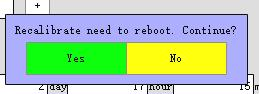
Mobile teaching no longer prompts: When this function is checked, the manual teaching page moving program will not have any movement confirmation prompt. If this function is not checked, the following mobile confirmation dialog will pop up immediately when the manual teaching page moves the program action.
3.2 Network Configuration
Click the button to enter the following interface:

1. Check it. 
2. Set whether to enable remote control. If you select Use, the “Command List” button appears.

3. Set whether to communicate with the host network.
4. Set the name of the machine.
5. Robot IP address (only the opponent controller has a network port valid).
6. Fill in the peripheral destination IP address.
7. Select the communication mode.
8. Click the [Save] button to save the set data.
9. Click the [Send Test Data] button.
10. Waiting for the external feedback data to the hand controller indicates that the network configuration is successful.
Note: This setting is for the manual network port setting.
3.3 Registration
Click the button  to enter the following interface:

Registration process:
1. Log in to the highest authority to view the vendor code and click the [Generate Machine Code] button to generate a 6- digit machine code.
2. Provide the manufacturer code and machine code to the supplier to have the supplier register the production registration code.
3. Enter the “Registration Code” edit box according to the 20-digit registration code provided by the manufacturer.
4. Click the [Register] button to complete the registration.
3.4 Maintenance
Click the button  to enter the following interface:
In this interface, you can view the version number, upgrade version, and backup/restore parameters.
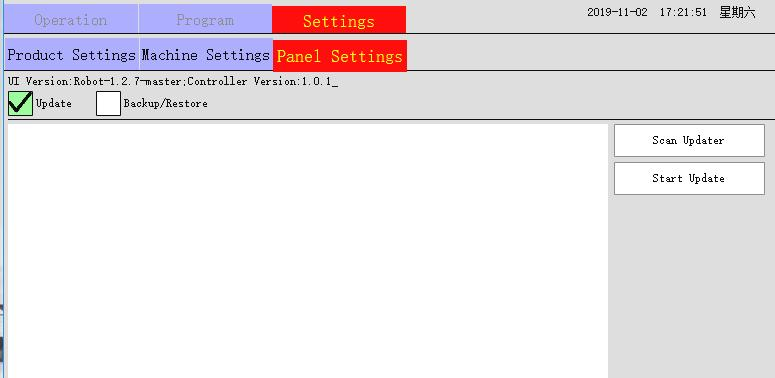
Version update method:
1. Check the Update Rotation box. 
2. Plug in the U disk for a few seconds.
3. Click [Scan Update Package] (If there is no display program, please check whether the U disk program or U disk format meets the requirements for identification).
4. Select the version you want to upgrade.
5. Click the [Start Update] button to enter the update interface to update.
Backup/Restore:

Machine parameters: refers to the setting of the axis parameters, including the software limit, the distance per revolution. Manual parameters: parameter settings in the programmable buttons and all settings under the manual settings. Ghost: All backups, backing up all data of the current hand controller.
Update package: This system will automatically save the upgraded version. If you need to upgrade the previous version again, you can check  and select
  the version number to update the version. You can also export the program to the U disk for other manual controllers
 . Update.
Backup operation flow: Tick → Select to back up data (machine parameter / manual parameter / ghost) → click backup current status → enter the backup name in the pop-up backup name dialog box → click OK.
1. The above steps are to back up the parameters to the machine. To back up to the U disk, insert the U disk on the above steps and select the parameter name just backed up to the machine → click the export button → pop up the export completion dialog box. Click OK.
2. You can also rotate the third gear knob and use the shortcut button on the manual controller to press F5 → F3 → F4 → F3 → F2 → F3 → F1 → F5 to enter the backup interface and follow the prompts for backup.
Restore operation flow: check  or
or  → select to restore data (machine parameter / manual parameter /ghost) → click [Restore selected backup] button → according to the prompt, the manual controller will restart and wait for the restart to complete.
4.3.5 User Management Click the button to enter the following interface:

In this interface, administrator permissions can be set and passwords can be modified.
System operator default password:
Operator: 123
Administrator: 123
Senior administrator: 123456
Super administrator: 12345678
Op: The permissions of this item are:
1. The axis can be moved in the manual state, but can not enter the teaching page for teaching;
2. The robot can be started and the speed can be adjusted in the automatic state;
3. In the stop state, the home position return and the product setting page setting parameters can be performed;
4. You can enter the registration page.
Mold: This permission has:
1.Op all permissions;
2. Relevant settings related to the model number;
3. You can enter the teaching page for teaching;
4. Automatically edit and modify the position, speed and delay of the program action.
System: This permission has:
1.Op all permissions;
2. The machine parameters can be modified;
3. Can enter most of the manual settings page.
User: This permission has:
1.Op all permissions;
2. Can enter the user management page.
Root: This permission has:
1.Op all permissions;
2. The manufacturer code of the registration page is visible.
Auto Modify: This permission has:
1.Op all permissions;
2. Automatically edit and modify the position, speed, delay, etc. of the program action.
New User Name: Edit User Name → Set Password → Check Permission □Op → Click [OK].
Admin
□Super
□System
□User
□Root
Auto Modify
Delete user name: Check the user list → click the [Delete] button