


CHAP 1 Safety Precautions
The manual uses the following mark to describe the safety-related information. Please be sure to follow the important description of the operation safety mark.
 Caution
Failure to operate according to the requirements may cause moderate or minor injuries, and damage to the machine.
1.1 Precautions for Storage and Handling
Caution: Do not store or place the machine in the following environment, otherwise it may cause fire, electric shock or machine damage.
1) Places exposed to direct sunlight, places where the ambient temperature exceeds the storage temperature conditions, places where the relative humidity exceeds the storage humidity, or places with large temperature differences or condensation.
2) Places close to corrosive gas or flammable gas, places with a lot of dust, salt and metal dust, places where water, oil and medicine drip, and places where vibration or shock can be transmitted to the subject. Please do not grab the cable for transportation, otherwise it will cause damage or failure of the machine.
3) Do not stack too much products on the machine, otherwise it may case machine damage or failure.
1.2 General Precautions
Please note when using:
1) This product is a general industrial product, not for the purpose of machines and systems related to human life.
2) If it is applied to the device which may cause serious accidents or damage due to failure of the product, please equip a safety device.
3) If it is used in the environment with high concentration of sulfur or sulfide gas, please note that the wire of the chip resistor may be broken or the point contact may be poor due to sulfurization.
4) If the input voltage is far beyond the rated range of the power supply of the product, smoke and fire may occur due to the damage of internal components, please pay full attention to the input voltage.
5) Please note that this product does not guarantee use beyond the product specification range.
6) The company may change some machine parts as we are committed to continuous improvement of the products.
1.3 Prohibitions
Do not disassemble or repair the machine except the company.
1.4 Precautions for Abandonment
1.5 System Installation
1) Wiring work must be performed by a professional electrician.
2) Make sure the power is disconnected before starting the operation.
3) Please install it on flame-retardant materials such as metal and keep away from combustible materials.
4) It must be safely grounded when used.
5) If the external power supply is abnormal, the control system will fail. In order to make the whole system work safely, please be sure to set the safety circuit outside the control system.
6) Before installation, wiring, operation and maintenance, the operator must be familiar with the content of this manual. It is also necessary to fully understand the relevant mechanical and electronic knowledge and all related safety precautions.
7) The electric control box for installation of the controller should be well ventilated, oil-proof and dust-proof. If the electric control box is airtight, the temperature of the controller is likely to be too high, which will affect the normal work. Therefore, an exhaust fan must be installed. The suitable temperature in the electric control box is below 50°C. Do not use it in places with condensation and freezing.
8) The controller should not be installed too close to the contactor, transformer and other AC accessories to avoid unnecessary surge interference.
Caution: Improper handling may cause hazards, including personal injury or machine accidents.
CHAP 2 Operation Panel
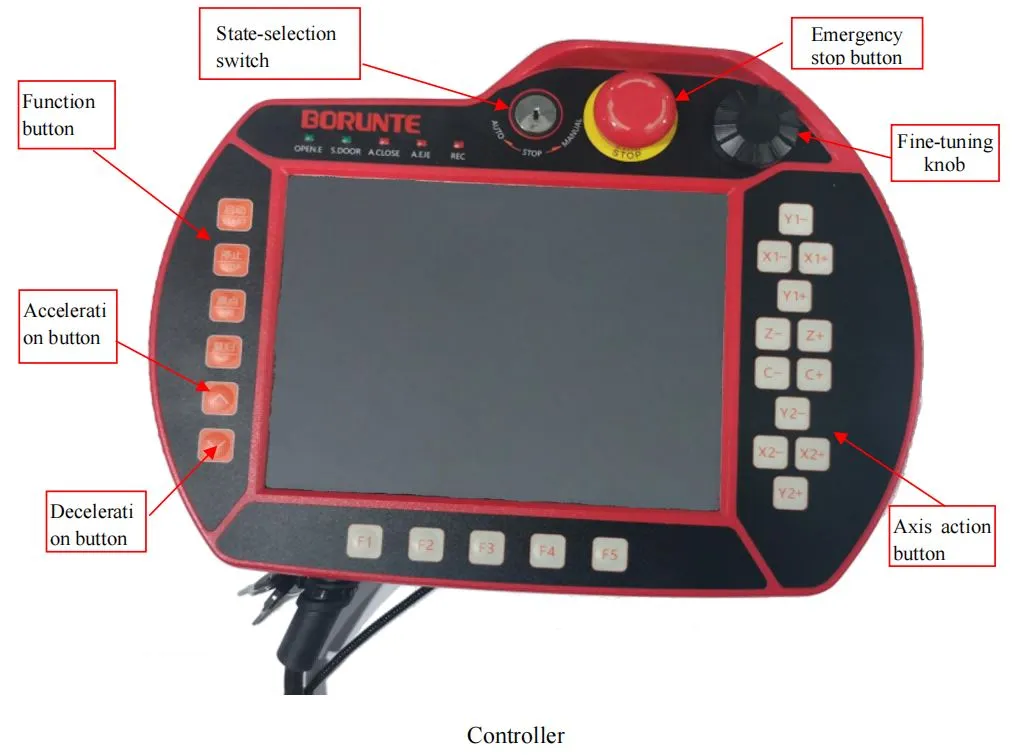
2.1 Appearance and Description
2.1.1 State Switch
The hand controller includes three statuses, i.e. Manual, Stop, and Auto.
[Manual]: Turn the state switch to the left to enter the Manual state
[Stop]: Turn the state switch to the middle to enter the Stop state. In this state, parameters can be set.
[Auto]: Turn the state switch to the middle to enter the Auto state. In this state, automatic and corresponding settings can be carried out.
2.1.2 Function Buttons
[Start] button:
Function 1: Press "Start" in Auto state and the manipulator will enter the automatic running state;
Function 2: Press "Origin" and then "Start" in Stop state, and the manipulator will return to the origin;
Function 3: Press "HP" and then "Start" in Stop state, and the manipulator will reset the origin;
[Stop] button:
Function 1: Press "Stop" in Auto state and the program will stop after the module ends.
Function 2: When an alarm occurs, press "Stop" in Auto state to remove the alarm display that has been resolved.
[Origin] button: It is only applicable to homing actions. Please refer to Section 2.2.4 "Homing Method".
[HP] button: Press "HP" and then "Start, all axes will reset in the order of Y1, Y2 Z, X1 and X2, Y1 and Y2 will return to 0, and Z, X1 and X2 will return to the start position of the program.
[Speed Up/Down] button: These two buttons can be used to adjust the global speed in Manual and Auto state.
[Emergency Stop] button: In an emergency, pressing the "Emergency Stop" button will cut off the power of all axes, and the system will alarm "Emergency stop". After turning the knob out, press the "Stop" key to eliminate the alarm.
2.1.3 Fine Tuning Knob
Function: This knob can be used to move the axis accurately in Manual state.
Operation method: Click to open the  button, click to tick the [Hand Controller] option, select the axis to be tuned or press the axis button to be tuned (on the controller), and then roll the knob to gradually move the axis to the target point.
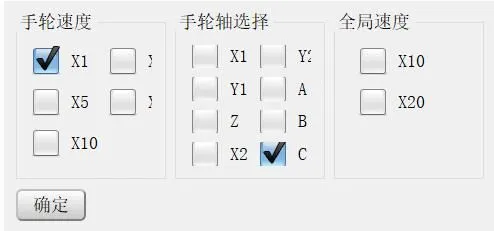
Description of hand controller speed:
X1: Move one grid and the axis will translate 0.01mm or rotate 0.01 degree.
X5: Move one grid and the axis will translate 0.05mm or rotate 0.05 degree.
X10: Move one grid and the axis will translate 0.1mm or rotate 0.1 degree.
X20: Move one grid and the axis will translate 0.2mm or rotate 0.2 degree.
X50: Move one grid and the axis will translate 0.5mm or rotate 0.5 degree.
2.2 Main Screen and Axial Definition
2.2.1 Description of Main Screen
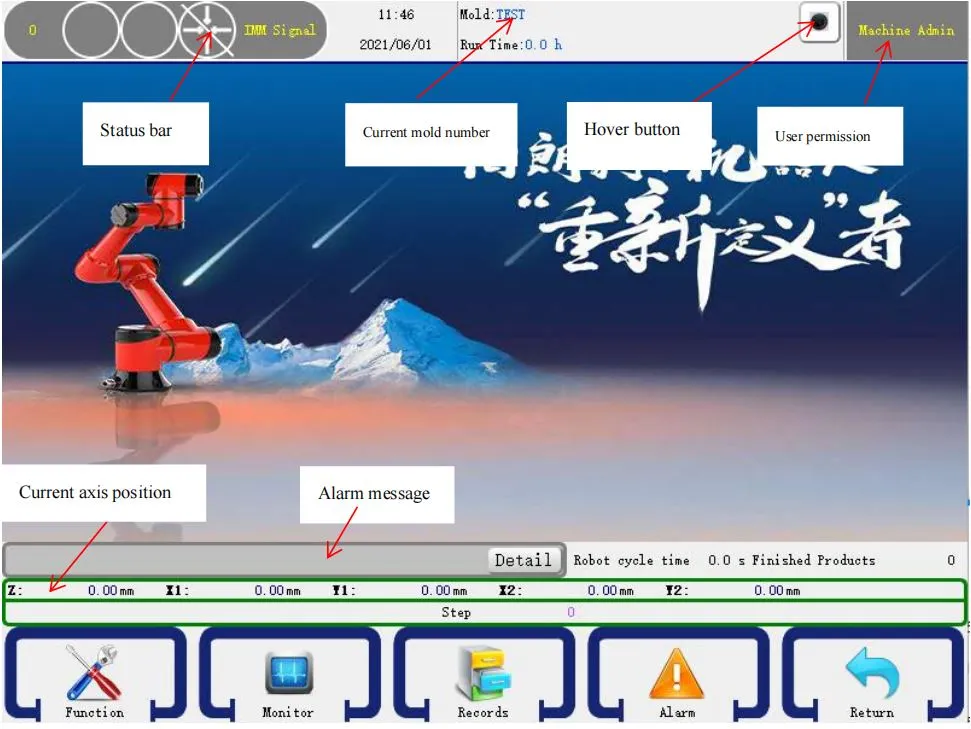
Status bar: Grey indicates not returning to the origin, and green indicates returned to the origin.
Current mold number: Display according to the mold number established for different process. It can be created, copied, deleted, loaded and exported in the file. See Section 4.1 for details.
Hover button: The auxiliary buttons are virtual buttons, including Start, Stop, Origin, HP, Speed Up, and Speed Down. These buttons are the auxiliary measures for actual buttons on the manual controller.
User permission: The user can log in as an operator, admin or advance admin. The initial password is 123. For modification of permission password, refer to Section 4.2.9 for details.
Current axis position: It displays the coordinates of the current machine in real time.
Alarm information: The alarm information is displayed in case of an alarm. Press "Help" to pop up a dialog box of solution, and the user can solve the problem according to the prompt.
2.2.2 Axial Definition
Z axis: Traverse in/out axis of the manipulator.
X1 axis: Forward/backward axis of main arm of themanipulator.
Y1 axis: Up/down axis of main arm of the manipulator.
X2 axis: Forward/backward axis of assistant arm of the manipulator.
Y2 axis: Up/down axis of assistant arm of the manipulator.
C axis: Horizontal/vertical axis of main arm fixture of the manipulator.
B axis: Rotation axis of the manipulator fixture.
A axis: Horizontal/vertical axis 2 of main arm fixture of the manipulator.
2.2.3 Operation Mode
The manipulator has three operation statuses, i.e. Manual, Stop and Auto. Turn the state switch to the left to enter Manual state, and the operator can manually operate the manipulator; turn the state switch to the middle to enter the Stop state, and the manipulator will stop all operations, except the origin reset and parameter setting of the manipulator; turn the state switch to the right and press the "Start" button once, and the manipulator will enter the Auto state.
2.2.4 Homing Method
The homing method is divided into absolute value type and incremental type: Enter the Machine Parameters -- Structure -- Origin Settings; tick √ "Absolute Value Servo", and it is absolute value type; if "Absolute Value Servo" is not ticked, it is incremental type; after modifying the homing method, click "Save" and turn the state switch to take effect. Before automatic operation, ensure that the axes have accurate origin position.
(1)Absolute value homing method (the single-board injection molding system does not have the homing method)
In manual state, use the axis action buttons to move the manipulator to the origin position; and then enter the Machine Parameters -- Structure -- Origin Settings page, click "Start Origin" and then "Set to Origin" to set the target position as the origin. At this time, the coordinates are displayed as 0. When the power is cut off, the system will automatically memorize the position of each axis before the power off. After restarting, the position of each axis is still displayed as the position before the power off, and there is no need to return to the origin for many times. If you need to set another position as the origin, repeat the above steps.

Note: In absolute value homing method, you can only return to the origin by using the "Start Origin" and "Set to Origin" buttons on the Machine Parameters -- Structure -- Origin Settings screen, but not the "Origin" and "Start" buttons on the operation panel.
(2) Incremental homing method
After starting the manual controller, confirm that all aspects of the machine are normal; turn the status switch to the Stop state, press the "Origin" key, then press the "Start" key, or click "Start Origin" and then "Start Origin Reset" buttons on the Machine Parameters -- Structure -- Origin Settings page; and the manipulator will return to the origin in the default order of Y1, Y2→X1, X2→Z. To customize the homing method, please enter the Machine Parameters --Structure -- Origin Settings page to set.
When all the axes, vacuum and fixtures return to the origin position, the  icon at the top right of the screen turns green, and then the automatic operation and manual operation of the electric axis can be carried out.
When the origin is reset, the user cannot carry out manual and automatic operation and parameter setting of the manipulator. In an emergency, the user can press the "Stop" button to stop the origin reset or press the "Emergency Stop" button.
Note: In incremental homing method, you can return to the origin by using the "Start Origin" and "Set to Origin" buttons on the Machine Parameters -- Structure -- Origin Settings screen, or the "Origin" and "Start" buttons on the operation panel.

2.2.5 HPAction
Click "HP"→ "Start", and the manipulator will be reset in the order of Y1, Y2→Z, X1 and X2. Z, X1 and X2 will move to the start position of current mold, and Y1 and Y2 will move to the origin.
2.3 Trail Operation
Before using the control system for operation, please perform the wiring according to the wiring method described in the hardware manual, and then perform trial operation of the manipulator. After the trail operation is normal, you can program the instruction running program according to your own needs.
The trail operation steps are as follows:
 CHAP 3 Manual Screen
Turn the state switch to Manual, and the manipulator will enter the manual screen, as shown in the figure below:

3.1 Manual Operation of Axis
The machine is a single-board system. Because the position data of each electric control axis is not correct before resetting the origin, the servo axis of the manipulator cannot be operated, but the pneumatic action can be manually operated normally. The drive control and RTEX cannot only operate the servo axis of the manipulator but also manually operate the pneumatic axis before resetting the origin.
The maximum speed of servo axis can be adjusted to 50 in Manual state.
 Pneumatic control: Press the button once to rise the main arm to the start position.
Electric control: Press and hold the button to move up the main arm and release to stop moving.
 Pneumatic control: Press the button once to drop the main arm to the end position.
Electric control: Press and hold the button to move down the main arm and release to stop moving.
 Pneumatic control: Press the button once to rise the assistant arm to the start position.
Electric control: Press and hold the button to move up the assistant arm and release to stop moving.
 Pneumatic control: Press the button once to drop the assistant arm to the end position.
Electric control: Press and hold the button to move down the assistant arm and release to stop moving.
 Pneumatic control: Press the button once to move the main arm back to the start position.
Electric control: Press and hold the button to move back the main arm and release to stop moving.
 Pneumatic control: Press the button once to move the main arm forward to the end position.
Electric control: Press and hold the button to move forward the main arm and release to stop moving.
 Pneumatic control: Press the button once to move the assistant arm back to the start position.
Electric control: Press and hold the button to move back the assistant arm and release to stop moving.
 Pneumatic control: Press the button once to move the assistant arm forward to the end position.
Electric control: Press and hold the button to move forward the assistant arm and release to stop moving.
 Pneumatic control: Press the button once to flip the fixture vertically to the stop position.
Electric control: Press and hold the button to move the fixture in the vertical direction and release to stop moving.
 Pneumatic control: Press the button once to turn the fixture flat to the stop position.
Electric control: Press and hold the button to move the fixture in the horizontal direction and release to stop moving.
 Traverse in button: Press and hold the button to move the manipulator to the origin direction and release to stop moving.
 Traverse out button: Press and hold the button to move the manipulator to the end point direction and release to stop moving.
3.2 Operation on Manual Screen
3.2.1 Jig Action
Click the "Fixture" and "Sucker" buttons on the lower right corner of the touch page to enter the corresponding manual operation page, as shown in the following figure:

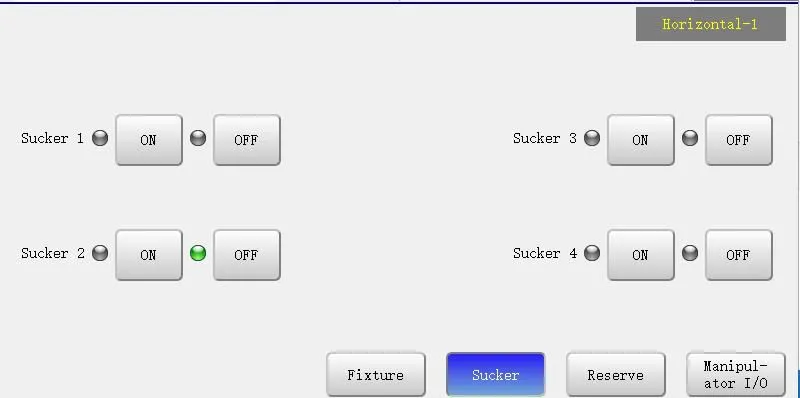
There are two types of jigs, i.e. "Fixture" and "Sucker", 4 groups for each. Click the "ON" button of corresponding jig to output the signal, and click "OFF" to disconnect the corresponding jig signal.
Note: The red indicator is the input limit signal and the green indicator is the output signal. The indicator will be off if there is no signal.
3.2.2 Auxiliary Action
Click the "Other" button on the lower right corner of the touch page to enter the manual operation page of auxiliary equipment, as shown in the following figure:

Click "ON" of injection to connect the injection output, and click "OFF" to disconnect the injection output.
Click "ON" of conveyor to connect the conveyor output, and click "OFF" to disconnect the conveyor output.
Click "ON" of feeder to connect the feeder output, and click "OFF" to disconnect the feeder output.
3.2.3 Reserve Action
Click the "Reserve" button on the lower right corner of the touch page to enter the manual operation page of reserve action, as shown in the following figure:

Click "ON" to connect the signal output of corresponding reserve point, and click "OFF" to disconnect the signal output.
The system has six groups of fixed reserve and two groups of optional reserve (Reserve 9 and Reserve 10 can be set in reserve settings, please refer to 4.2.5 for details). Users can choose according to their needs.
Warning: Reserve 1 and Reserve 2 can tick not interlock. If ticked, the output of both reserves will not affect each other. If not, the Reserve 1 and Reserve 2 are interlocked by default, that is, Reserve 2 will be ON after Reserve 1 is ON, and the output of Reserve 1 will be disconnected. Please connect with care as needed! (The interlock and reserve functions can be set in the reserve settings. For details, please refer to 4.2.5)
3.3 Instruct Screen
Turn the state switch to the Manual state, and then click "Instruct" to enter the program instruction page, as shown in the following figure:

Main Menu: The action menu divides the editing of program into 12 types. Click the corresponding button to enter the instruction page of corresponding action, and click "Main Menu" to return to the main page of instruction actions. (If there are no condition and sequence action buttons and no quick settings on the left side of instruction selection on the main menu, please set in the advance admin. For details, please refer to 4.2.9)
Edit: Select the action and click the "Edit" button to modify the parameters of the action.
Delete: Select the action and click the "Delete" button to delete the action.
Compose: For example, if selecting X2 in figure above and clicking "Compose", the step order of X2 will become 3, and X2 and Z axes will start running simultaneously during auto operation.
Decompose: After decomposing two combined actions, they will run in order separately.
Function: Click the "Function" button to enter the function page, as shown in the following figure.

[Move Up]: If selecting the step 4 in figure above and clicking the "Move Up" button, the step will move up and the order will change to 3.
[Move Down]: If selecting the step 2 in figure above and clicking the "Move Down" button, the step will move down and the order will change to 3.
[Copy/Paste]: If selecting step 4 in figure above and clicking "Copy" button, and then selecting step 2 and clicking "Paste" button, step 4 will move above step 2
[Trail Operation]: Click an action and click "Trail Operation" to execute the action; and release the button to stop the action.
Warning: The trial function may not follow the sequence of procedures, so please pay attention to anti-collision when use!
[Multi-Select]: Click the "Multi-Select" button and the "Start/Stop" button will change to clickable state. For example, if selecting step 2 and clicking "Start", and then selecting step 4 and clicking "End", steps 2-4 will be selected.
[Insert]: Select an action, select the position to be inserted, and click "Insert" to instruct the action to the required position.
Search: 1) Click the "Search" button to enter the search page, as shown in the following figure:
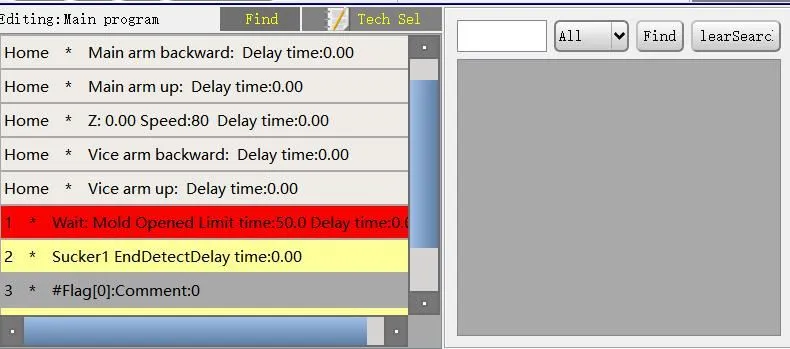
2) Enter the keyword to be searched in the left input box. If you want to view all actions related to 1, you can directly enter "1"; then select the search scope such as "All", and then click the "Search" button to display all actions related to 1, as shown below:

3) Click the searched result to directly go to the program of the action.
4) Click "Clear" button to clear all searched results.
In the system, to instruct an action in the program, click on the left of the action to change to √; select the program step on the left side of the page, and click "Insert" button. If there is an indicator next to the action name, green indicator means that the corresponding valve will output after executing the action, and grey indicator means that the corresponding valve will disconnect the output after executing the action.
Unless otherwise specified
1. The time set by the delay is the time to wait before executing the action, and while waiting for the action, the next program will not run.
2. Interval modes means that an action will be executed once at an interval of set modes when running in the Auto state.
3.3.1 Axis Action
Click "Axis Action" button to enter the instruction page of servo axis. In this page, you can edit the actions of X1, X2, Y1, Y2, Z and C axes (side-pose). As shown in the figure below:

In this page, you can instruct the position, speed and delay time of the servo axis, and select the horizontal or vertical state of the pneumatic axis.
There are two ways to set the position of the servo axis:
1 Directly enter the coordinates of the target position in the position textbox.
2 Press the manual axis action button to move the set axis to the target position; and then click "Set" to set the current position of the axis to the textbox.
3.3.2 Program Home Point
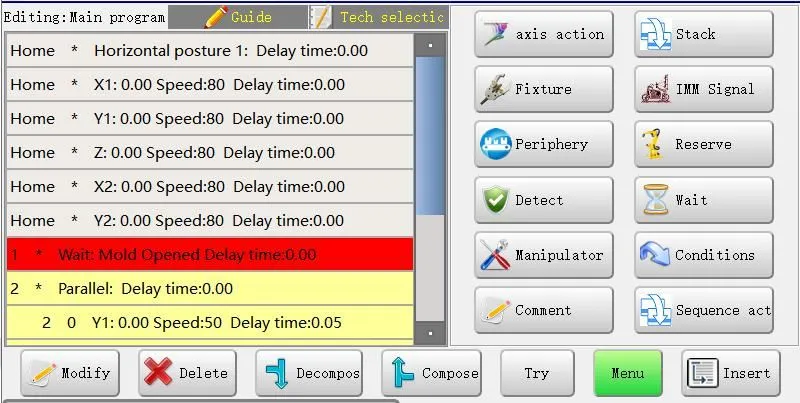
The home point display corresponds to the selection of axis definition (section 4.2.5), that is, the number of home point corresponding to the axis selected is the number of axis. If the number of home point is different from the number or type of the axis in the axis definition, an alarm "Wrong position of standby point" will be displayed. At this time, it is required to create a new mold number or select the correct axis definition.
Note: The home point program can be edited and cannot be deleted.
3.3.3 Stack Action
Click "Stack" to enter the stacking instruction page, as shown in the figure below:
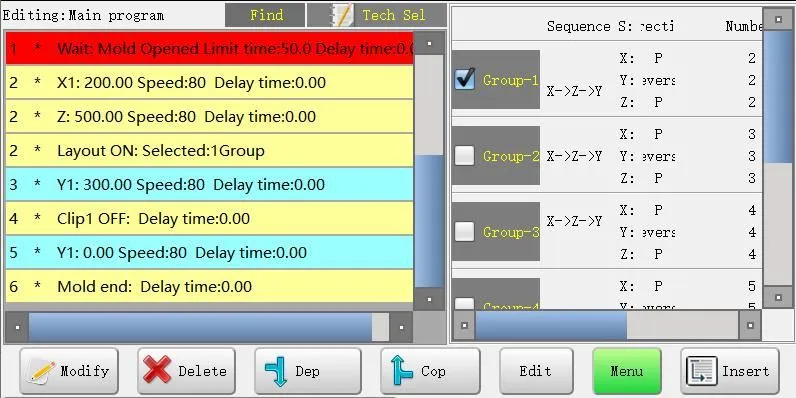
Select the box on the left of the stacking program to be inserted. For example, select the first group of stacking programs, and then click the "Insert" button to insert the programs before the program step to start stacking. During automatic operation, the manipulator will stack and discharge products according to this stacking program. If you are using the Y axis for stacking, be sure to insert the stacking program one step ahead of the descending action of Y axis.
Each automatic program can insert 7 groups of stacking programs, which can be inserted in 7 different positions for stacking and discharging products. When using the 7 groups of stacking programs, the home point should all be 0.
Important: The Y axis is selected in the system design as the end between stacks. The stacking program must be inserted before the action of Y axis. If there are multiple stacks, it is required to insert the Y axis between the stacks to partition them.
For setting of stacking parameters, please refer to Section 4.2.8.
3.3.4 Jigs and Testing
The following figure shows the "Jig" and "Test" pages. The functions of "Jig" and "Test" are usually used together, and their actions can be set on these two pages. As shown in the figure below:
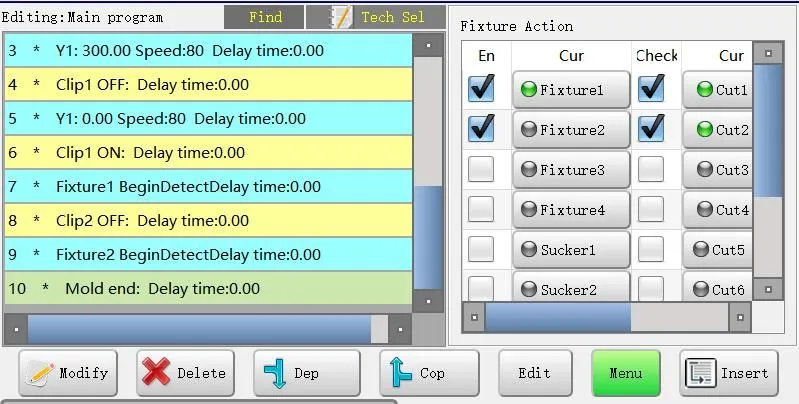

The controller can control the action of four groups of fixtures and suckers, and the instruction of jigs and testing is same as that of axis action. The testing program must be instructed after jig action.
During automatic operation, when it runs to "ON" of a jig, the jig will pick up the object; when it runs to "Start Testing of Jig", if the confirm limit signal of corresponding jig is ON/OFF correctly, the program will continue to run; otherwise, the system will send out an alarm "Picking failed" and pop up a window. If clicking "Cancel" button (at this time, Y axis is at the origin position), the program will return to the home point and pick up the object again; if clicking "Continue", the program will continue to run the next step. When it runs to "OFF", the jig will release the object. After about 1s of "Jig OFF" action, the program will automatically test the corresponding confirm limit signal. If the signal is correct, the program will continue to operate; otherwise, it will send out an alarm "Picking failed".
Important: When the jig (fixture or sucker) is off, the system will delay 0.5s before testing whether the jig is off. If the jig still has signal, the system will send out an alarm. If the instruction ends testing, the system will stop testing whether the jig has signal.
If the testing signal is normal, there is no need to instruct the end testing signal!
Warning: If the same jig action needs to be ON/OFF more than once in the program, it must be instructed to end the test.
For example: Sucker 1 ON, sucker 1 OFF, sucker 1 ON, sucker 1 OFF. It is required to instruct end testing at the first sucker 1 OFF
Please be sure to instruct the testing of fixture and sucker; otherwise, it may damage the mold!
Tips: Because the action of the negative pressure detection switch needs a certain time, and the program running speed is within 1μs, if the instruction of testing starts immediately after jig action, the system will send out an alarm "Picking failed".
Solution:
1. the testing after rising (that is, after several steps).
2. Delay the start of testing, generally above 0.5s. This delay will not affect the cycle.
3.3.5 Injection Molding Machine Signal
Click the "Injection Molding Machine Signal" button to enter the instruction page of signal controlling injection molding machine. In this page, you can set the controlling action of mold locking, thimble and core-pulling of injection molding machine. As shown in the figure below:
Green indicator means ON, and grey means OFF. If an action is instructed to ON, the signal will start output; if it instructed to OFF, the signal will disconnect the output. [Ejection Permit] and [Ejection BW Permit] will not take up cycle time. 
For example: Set the delay of [Ejection Permit] to 5s, the program will not stop when it runs to [Ejection Permit] and will continue to run the following steps, and the [Ejection Permit] will start output after 5s of passing the [Ejection Permit] step.
3.3.6 Auxiliary Action
Click the "Auxiliary" button to enter the instruction page of auxiliary device. As shown in the figure below:

[Time]: Set the execution time of the auxiliary device. All the auxiliary devices adopt time control and only need to instruct the ON action. After reaching the set delay time, it will automatically disconnect the output (this time will not occupy the cycle time).
[Interval Mode]: How many modes the auxiliary device will output in the Auto state.
若间隔模数设为 3,延时为 5S,自动运行时,则每隔 3 模输出一次,每次输出 5S 后自动断开。
If the interval mode is set to 3, and the delay is set to 5s, the auxiliary device will output every 3 modes and automatically disconnect after 5s of each output in Auto state.
Note: The actual count of conveyor is related to the conveyor counter. For details, please refer to the description of conveyor counter in Section 4.2.2 Product Settings.
3.3.7 Reserve Action
Click the "Reserve" button to enter the instruction page of reserve action, as shown in the following figure:
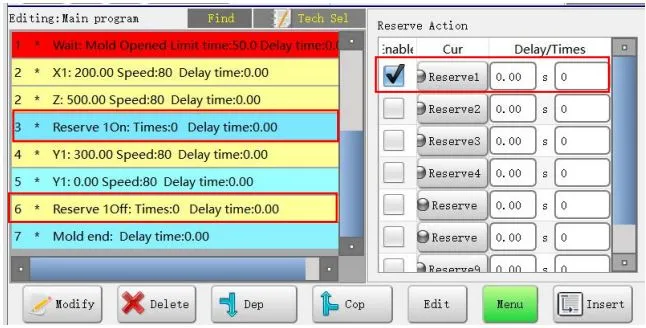
This system can set 8 groups of reserved output points. If the program instructs the reserve action, when it runs to the "Reserve ON" in Auto state, the reserve point will start output; when it runs to "Reserve OFF", the reserve point will disconnect the output.
Warning: Reserve 1 and Reserve 2 can tick not interlock. If ticked, the output of both reserves will not affect each other. If not, the Reserve 1 and Reserve 2 are interlocked by default, that is, Reserve 2 will be ON after Reserve 1 is ON, and the output of Reserve 1 will be disconnected. Please connect with care as needed! (The interlock and reserve functions can be set in the reserve settings. For details, please refer to 4.2.5)
3.3.8 Wait Action
Click the "Wait" button to enter the instruction page of waiting input signal. After inserting the waiting input signal, when the program automatically runs to the step, it can execute the action of next step only when the input point has signal input or no signal input. As shown in the figure below:

Each auto program must include the "Wait Mold Opened" step. A new program includes this step by default and it cannot be deleted.
After setting the wait time in the delay box of wait page, insert the wait action in the main program, or you can insert the wait action into the program, select the wait action, and then click the "Edit" button to modify the limit time.
[Limit Time]: When the program runs to the wait step, if the wait signal is ON and set the limit time to 10s, the system will send out an alarm "Waiting for time out" after 10s of waiting for signal at this step in Auto state. If there is signal in 10s, the program will continue.
The limit time for the "Wait Mold Opened" step can only be set in [Function] - [Product Settings] - [Wait Mold Opened Time].
3.3.9 Others Screen
Click "Others" to enter the others scene for instruction.
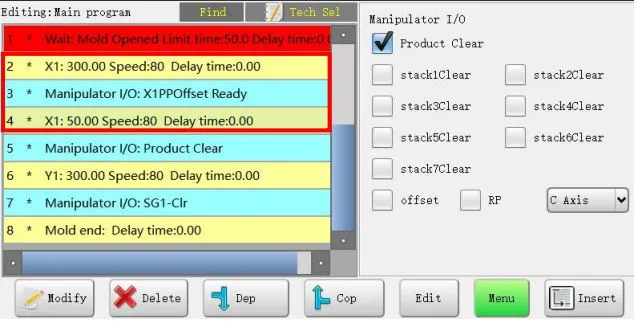
Clear Product: If this function is inserted to the program, during automatic operation, the system will reset the number of finished products to zero each time it runs to this step and start counting again.
Clear Stack: If this function is inserted to the program, during automatic operation, the system will reset the corresponding stack group to zero each time it runs to this step and start counting again.
Offset Preparation: Select shift preparation, and set the forward or reverse offset direction (if reverse direction is not selected, it is forward offset); select the axis to be offset, such as X1, and click "Insert"; instruct the X1 action after offset action. The action here is the position of axis X1 offset, which is the relative position. As shown in figure above, after running step 4, the position of X1 axis is 350mm instead of 50mm.
3.3.10 Sequence Action
Click [Sequence Action] to enter the page.
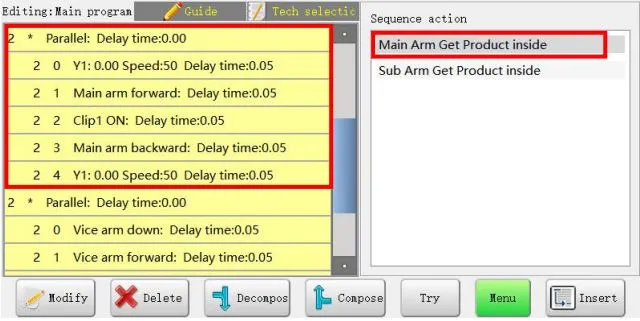
The sequence action is divided into taking product from the main arm mold or the assistant arm mold, as shown in the figure above. This function is to take a series of actions of picking product in the mold as a level-2 program to form a program block. The entire product picking action in the mold can be done in this sequence program block. The common use is to combine two sequence actions, as shown in the figure below. Because each sequence performs a series of actions, the last two series of actions are executed simultaneously. Besides, the level-2 programs in the sequence are independent from each other, the main and assistant arms can be independent and complete the picking action at the same time.

3.3.11 Quick Settings of Program
Click "Quick Settings" to enter the quick setting page. (This function needs to be enabled in "System Settings - Advance Admin". For details, refer to Section 4.2.9)

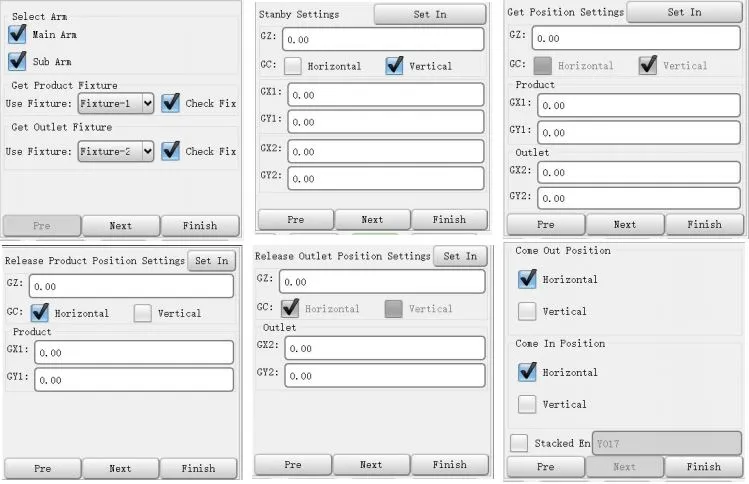
As shown in figure above, quick setting of program can set the position and select the action, and then the program can automatically generate executable program, saving the tedious step by step instruction!
Warning: If the user presses this function by mistake, all positions may change to 0. Please pay attention to this and inform the customer!
3.3.12 Note/Label
Click the "Note/Label" button to enter the instruction page of note/label. After inserting the note, it can be used to describe the previous program step or the next step; at the same time, a comment must be inserted before a condition can be inserted into the main program when a subprogram jump is executed. (If condition is used, label/note must be inserted) As shown in the figure below:

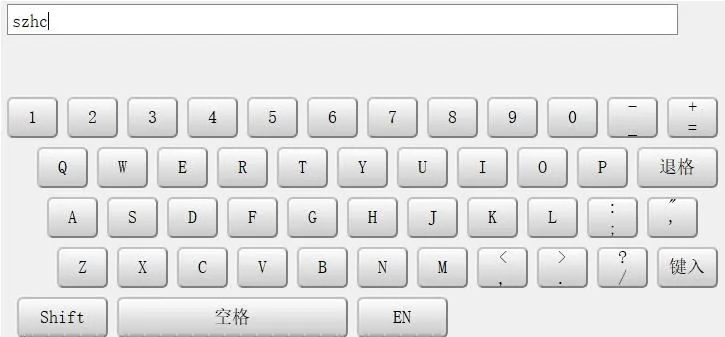
Click the blank part of note and the system will automatically pop up the input box; input the note content in the box (click "CH" to switch between Chinese and English); and then click "ENT" to insert the note before the corresponding program step. The input box is as follows:
3.3.13 Conditions
Click the "Conditions" button to enter the instruction page of conditions. Select signal (such as X43) as the judgment condition, and insert the condition into the corresponding position of the main program. When the program runs to the serial number, if no signal is detected, enter the subprogram to execute the action in the subprogram, and then jump to the note/label of the main program after completing the action. If a signal is detected, the action of the main program will continue without jumping. As shown in the figure below:
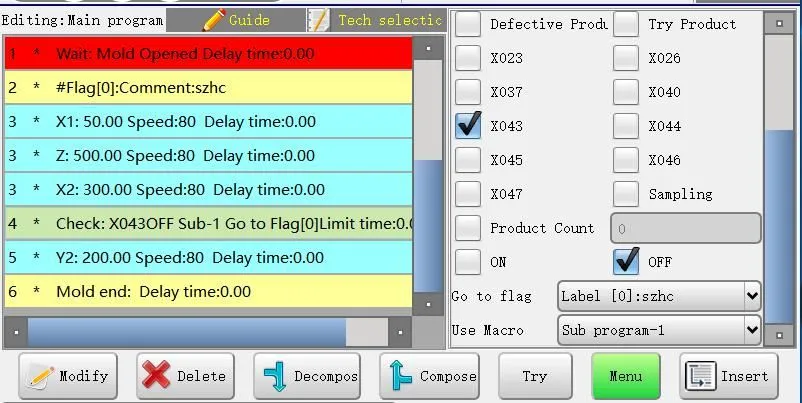
Important: When instructing conditions, instruct label/note first; otherwise, the condition cannot be inserted to the main program.
1 The instruction of conditions involve in three aspects, i.e. label, condition and subprogram. The three aspects complement each other and are indispensable.
2. Condition use: When a condition is met, the system will jump to the subprogram; after executing the subprogram, the system will jump back to the label position of the main program.
3. There are five types of conditions: Input point ON/OFF, trail production, interval modes, defective product, and sampling.
4. The label must be inserted before the condition program can be inserted.
5. Click "Instruct" to select the program to be used; click "Select" to enter the corresponding subprogram or main program for instruction, as shown in the figure below:

The following are examples of three types of conditions and ways to use conditions.
1. Common input point and defective product ON/OFF

As shown in the figure above, in addition to sampling, trail production and interval modes, the others can select ON/OFF to jump to the subprogram.
1 If the Fixture 1 (X012) has no signal, the program will enter subprogram 1 when it runs to this step; after completing, it will jump to label [0] to continue. That is, steps 5-8 will no longer be executed.
2. When Fixture 1 and X43 have signal, the program will enter subprogram 2 when it runs to SN6; after completing, it will jump to label [0] to continue. That is, SN7-8 will no longer be executed.
3. When Fixture 1 has a signal but X43 has no signal, the program will be executed in order without jumping.
4. The defective product is same as the function of input point ON/OFF. Select defective product and ON to insert it to the program; when the defective product has a signal, jump to the defective product program to execute the action; after completing, jump back to the label to continue to execute the programs below the label. If there is no defective product signal, jump will not be carried out.
2. Trail production

As shown in the figure above, the trial production has a special subprogram to jump. The trail production can set the mold number. For details, see 4.2.2 Product Settings - Settings of Trail Production Mold.
1 If the trail production mold is set to 10, as shown in the program instructed above, the first 10 molds will enter the trail production subprogram. After executing the trail production subprogram, it will jump to label 0 to execute the following programs. That is, steps 5-7 will no longer be executed.
2. The number of trail production molds is related to the number of product. If you do not enter the trail production subprogram, please clear the product. The program will run automatically again.
3. Trail production can only use its subprogram.
3. Interval modes and sampling

After the manipulator runs for N modes, it will trigger the condition to enter the interval modes or sampling subprogram.
1 The mode number of sampling is set in Section 4.2.2 Production Settings. For example, the mode number is set to 10, the system will enter the sampling subprogram at the 10th mold. After executing, it will jump to label [0].
2. Sampling can only use its subprogram.
3. It is in 5th mold, the program will execute the program of SN5 and enter the subprogram 1. After executing, it will jump to label [0].
3.3.14 Insert Program
In insert program, the step for taking the insert is before the wait mold opened step. The following figure is a simple program of taking insert.

Tips: Outside standby is automatically judged by the system, which is judged by the nearest Z value after mold opened. For example, the program takes SN4: S50 to judge it is inside standby. (If it is wait mold opened after the home point, take the Z value of home point to judge the standby position.)
3.3.15 Modify Program Parameters
Click the program step to be modified, and then click "Edit" to pop up the following dialog box:
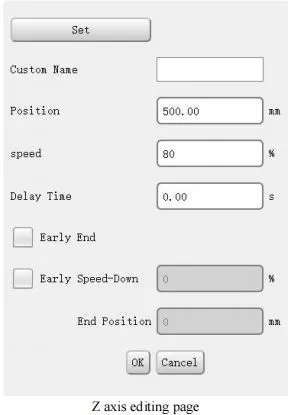
You can modify the position, speed, delay time, early end, early speed-up and early speed-down of current action. After modifying the required parameters, click "OK".
Early End: If the early position is set to 200 and the position is set to 1000, the axis will execute the action of next step after reaching the position of 800 (1000-200), and this program will continue to 1000.
Early Speed-down: If the early position is set to 200, the early speed-down is set to 5%, the position is set to 1000, and the speed is set to 80%, the axis will run at 80% speed from 0-800, and 5% speed from 800-1000.
Early Speed-up: If the early position is set to 200, the early speed-up is set to 5%, the position is set to 1000, and the speed is set to 80%, the axis will run at 5% speed from 0-200, and 80% speed from 200-1000.
Defective Product Enabled:
If it is not ticked, Z axis will first move to position 1500 and then to position 1300 during automatic operation.
If it is ticked, use the defective product enabled function. When Z axis runs outside the mold, if defective product signal is detected, Z axis will run to position 1300mm; if no signal is detected, Z axis will run to position 1500mm. This function is specific to Z axis.
The instruction method is as shown in the figure below:

Note: Defective product function can only be used outside the mold, but not inside the mold.
3.4 Examples of Instruction Program
The following instruction program will help you further understand and practice the programming of the manipulator. When instructing the manipulator program of the mold by yourself, please set the position of the servo axis and the control of the injection molding machine according to your actual condition.
3.4.1 Program Requirements
The program is used to take out the injection molding product and the material scraps. The manipulator stops above the mold of injection molding machine waiting for the mold opening, the starting position of the five electric axes of the manipulator is 0, and the fixture is vertical. After the injection molding machine opens the mold, the manipulator will take out the finished product and material scraps, the horizontal axis will place the scraps into the crusher and the finished product on the conveyor. The conveyor acts once for each mold.
3.4.2 Program Process
Adjust the manipulator to the Auto state.
The manipulator runs to the home position and waits for the injection molding machine to open the mold.
Us the sucker 1 to take out the finished product.
The manipulator leaves the mold range through the movement of X and Y axes, and outputs the close mold permit signal after detecting the success of picking.
The manipulator places the material scraps and finished product to the designated position, respectively.
Every time a finished product is placed on the conveyor, start the conveyor to run for 3s.
The manipulator returns to the home point and stands by
3.4.3 Instruction Program
Home X1: 0.0 Speed: 30 Delay Time: 0.00
Home Y1: 0.0 Speed: 30 Delay Time: 0.00
Home Z: 0.0 Speed: 30 Delay Time: 0.00
Home X2: 0.0 Speed: 30 Delay Time: 0.00
Home Y2: 0.0 Speed: 30 Delay Time: 0.00
Home Vertical pose Delay Time: 0.00
Wait Mold Opened
1 Y1: 850.0 Speed: 90 Delay Time: 0.00
1 Y2: 850.0 Speed: 90 Delay Time: 0.00
2 X1: 400.0 Speed: 90 Delay Time: 0.00
2 X2: 300.0 Speed: 90 Delay Time: 0.00
3 Sucker 1 ON Delay Time: 0.00
4 Fixture 1 ON Delay Time: 0.00
5 X1: 0.0 Speed: 90 Delay Time: 0.35
5 X2: 0.0 Speed: 90 Delay Time: 0.35
6 Y1: 0.0 Speed: 90 Delay Time: 0.00
6 Y2: 0.0 Speed: 90 Delay Time: 0.00
7 Sucker 1 Start testing
8 Fixture 1 Start testing
9 Lock Mold ON Delay Time: 0.00
10 Horizontal pose Delay Time: 0.00
11 Z: 1000.0 Speed: 90 Delay Time: 0.00
12 Y2: 600.0 Speed: 90 Delay Time: 0.00
13 Fixture 1 OFF Delay Time: 0.00
14 Y2: 0.0 Speed: 90 Delay Time: 0.00
15 Z: 1300.0 Speed: 90 Delay Time: 0.20
16 Y1: 800.0 Speed: 90 Delay Time: 0.00
17 Sucker 1 OFF Delay Time: 0.00
18 Y1: 0.0 Speed: 90 Delay Time: 0.25
19 Conveyor ON Interval Modes: 1 Action Time: 3.00
20 Z: 0.0 Speed: 90 Delay Time: 0.00
21 Program ends Delay Time: 0.00
CHAP 4 Stop State
4.1 Program Management
In Stop state, click the "Archive" button to enter the archive page, which can be used to create, copy, load and delete the mold number

Create: Input the required new mold name in the "New File Name" textbox, and then click "Create" to create a new blank mold program. The file name support both letters and numbers.
Copy: After inputting the new name in the "New File Name" textbox, click the saved mold name, and then click "Copy" to copy the program in the saved mold to the new mold.
Load: Click an existing mold program, and then click the "Load" button to load the selected mold program. If loaded successfully, the current mold displays the loaded mold name.
Delete: Click a saved mold program, and then click "Delete" to delete the mold.
Note: A mold being used cannot be deleted.
Export: After inserting the USB flash disk, tick the [USB Export]; click a saved mold program, and then click "Export" to export the selected mold to the USB flash disk.
Import: After inserting the USB flash disk, tick the [USB Export], and you can see the USB flash disk program; select the program to be imported and then click "Import" to import the program from USB flash disk to the controller. If imported successfully, the imported mold will be displayed in the "Machine Mold".
Search: Input the required mold name in the box and click "Search" to search the required mold.
Clear: Clear the search history.
4.2 Function Settings
Click the "Function" button in the lower left corner of the screen under the Stop state to enter the function setting page. As shown in the figure below:
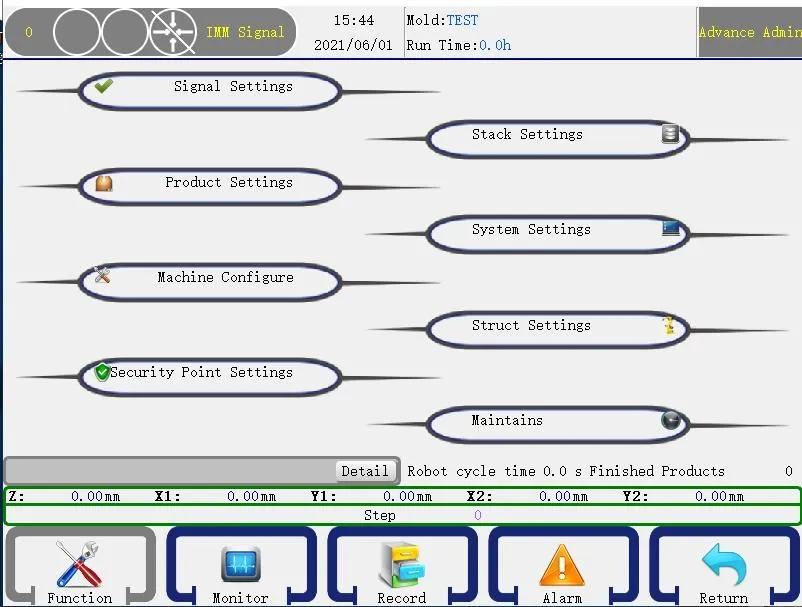
The function setting page includes 8 sub-pages, i.e. "Signal Settings", "Product Settings", "Operation Parameters", "Safety Point Settings", "Stack Settings", "System Settings", "Machine Parameters" and "Maintenance/Care"
4.2.1 Signal Settings
Click the "Signal Settings" button in the middle of the screen to enter the signal detection setting page, in which you can set whether to detect some input signals.

Detect Fixture 1 (2/3/4)
[Positive Phase]: Detect the positive phase of corresponding fixture switch. When the confirm limit of corresponding fixture has signal input, it means that the fixture picks up the object successfully; and when the confirm limit has no signal input, it means the fixture fails to pick up the object.
[Reverse Phase]: Detect the reverse phase of corresponding fixture switch. When the confirm limit of corresponding fixture has no signal input, it means that the fixture picks up the object successfully; and when the confirm limit has signal input, it means the fixture fails to pick up the object.
Important: Regardless of whether the positive phase or the reverse phase is selected, when the fixture is not moving, the detection result should be no signal input.
Transverse pose
[Horizontal]: When the manipulator manually moves in/out transversely, the jig must be in horizontal state; and when instructing the automatic program, the traverse pose must be horizontal.
[Vertical]: When the manipulator manually moves in/out transversely, the jig must be in vertical state; and when instructing the automatic program, the traverse pose must be vertical.
[No Limit]: When the manipulator manually moves in/out transversely, the jig state is not limited; and when instructing the automatic program, the traverse pose can be instructed as required.
Origin Reset
[Mold opened not needed]: When resetting the origin, the origin reset action can be carried out regardless of whether there is a mode opening finish signal.
[Mold opened needed]: When resetting the origin, the origin reset action can be carried out only after with the mode opening finish signal.
Up/Down Reset Pose
[Horizontal Pose]: When starting origin reset, the up/down action jigs of the arm must be in horizontal state.
[Vertical Pose]: When starting origin reset, the up/down action jigs of the arm must be in vertical state.
[No Limit]: The origin reset can be carried out no matter the jig is in any state.
Horizontal Standby
[Limit Lock]: The mold can be locked after the arm rises horizontally in horizontal standby state.
[No Limit Lock]: The mold is locked when the arm rises horizontally in horizontal standby state.
Close Mold
[Use]: After there is the [Mold Closed] signal and then the [Mold Opened] signal, the manipulator will descend to pick up object, otherwise the alarm "Mold not closed" will be sent.
[Not Use]: The [Mold Closed] signal is not detected.
Detect Safety Door
[Use]: During automatic operation, the manipulator detects the signal of safety door all the time. If the signal is not detected, the system will send out an alarm immediately.
[Not Use]: During automatic operation, the manipulator only detects the signal of safety door when the arm descends inside the mold. If the signal is not detected, the system will send out an alarm immediately. The signal is not detected in other actions.
Note: If the manipulator descends inside the mold when in Not Use, the system must also detect the signal of safety door. This is a mandatory safety measure.
Detect Pressure
[Use]: The manipulator detects the gas pressure. If the pressure fails to reach the set value, an alarm will be sent.
[Not Use]: The manipulator does not detect the gas pressure. The alarm will not be sent no matter whether the pressure reaches the set value.
Detect Mid Mold
[Use]: The manipulator detects the signal of mid mold. If there is no signal of mid mold when the arm descends inside the mold, an alarm will be sent. When the mold is a 3-plate mold, please select this function is Use.
[Not Use]: The manipulator does not detect the signal of mid mold.
Ejection Link Lock
[Not Use]: Allow the thimble signal to output all the time.
[Use]: After the mold is opened in place, the thimble signal will be turned off. When the program instructs the thimble step, the thimble will output.
Auto Run
[Not Use]: The manipulator does not detect the Auto Run signal of injection molding machine.
[Use]: The manipulator detects the Auto Run signal of injection molding machine. If there is no Auto Run signal during automatic operation, an alarm will be sent.
4.2.2 Product Settings
Click the [Product Settings] button in Function Settings page to enter the product settings page. As shown in the figure below:

Product Quantity: Product quantity planned to produce. When the product quantity produced reaches the set value, an alarm will be sent. No alarm will be sent if this value is set to 0.
Trail Production Modes: Set the product quantity for trail production.
Sampling Interval: Set the interval modes for product sampling.
Wait Mold Opened Limit Time: The time that the manipulator waits for the mold opened signal. If there is no mold opened signal within the set time, al alarm will be sent.
Pick Fail:
[Alarm When Up]: After detecting the picking failure, an alarm will be sent when the alarm rises inside the mold.
[Alarm Immediately]: An alarm will be sent immediately after detecting the picking failure.
Alarm Time: The time that the alarm sounds when an alarm occurs.
Alarm Output Method:
[Interval Output]: The alarm indicator flashes when an alarm occurs.
[Continuous Output]: The alarm indicator is always on when an alarm occurs.
Recycle Time: When the Close Mold function is selected, the time that the close mode is disconnected after the system receives the signal (i.e. the mold closed signal) that the mode is locked in place.
Jig Definition:
[Positive Phase]: The jig is the pose of picking up movable mold product.
[Reverse Phase]: The jig is the pose of picking up fixed mold product. The horizontal and vertical pose of jig will be reversed automatically.
Clear Product: Click the button to clear the quantity of finished product.
Conveyor Count: The conveyor counter must select All.
Product Save: It can save the current finished output after power off.
Clear Stack: Click the button to clear the finished stack quantity of corresponding stack group.
Auto Close Mold Output:
[Use]: After the three-state switch is turned to Auto, the close mold outputs immediately.
[Not Use]: After the three-state switch is turned to Auto, the close mold will not output automatically until it runs to the close mold action.
4.2.3 Operation Parameters
Click the [Operation Parameters] button in Function Settings page to enter the operation parameters page. As shown in the figure below:

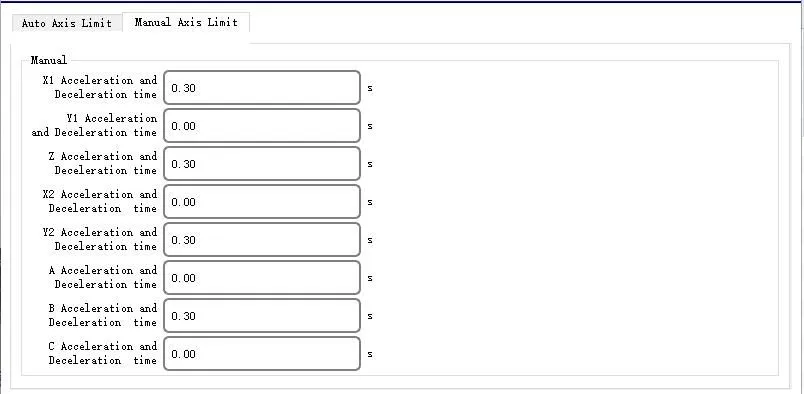
Tolerance: The difference between the instruction running distance and the actual running feedback distance. (This parameter does not affect the system positioning precision)
Drawbench Distance: When both X1 and X2 are servo axes, set the safe drawbench distance between the main arm and the assistant arm.
Acceleration/Deceleration Time Inside Mold: Set the acceleration/deceleration time of servo motor inside the mold.
Acceleration/Deceleration Time Outside Mold: Set the acceleration/deceleration time of servo motor outside the mold.
Manual Acceleration/Deceleration Time: Set the acceleration/deceleration time of servo motor in manual state.
Max Speed: Set the max running speed of servo motor, in %.
4.2.4 Relationship Between Several Speeds
During auto run of the system, the running speed depends on the Global Speed in red circle and Step Speed in green circle. (All in %)
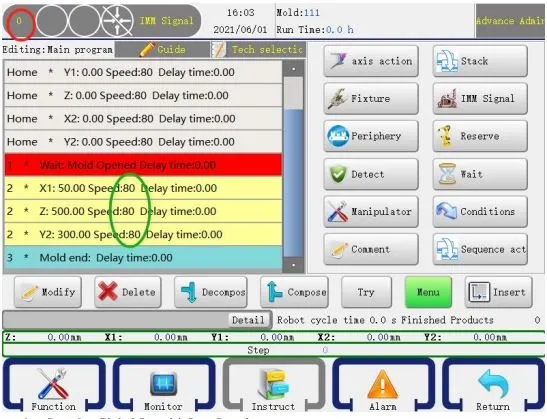
1. Actual Running Speed = Global Speed * Step Speed
1) When the actual speed is 100%, the emitted pulse is 500kHz. Generally, the corresponding servo speed is 3000RPM.
2) Suppose the global speed is 80, and the step speed is 80, then the actual running speed is 64%, that is, the corresponding pulse is 320kHz, and the corresponding rotation speed is 1920RPM.
3) The max speed of each axis can be adjusted in Function - Parameters, i.e. Section 4.2.3. (The actual running speed cannot exceed the max speed)
Suppose the max speed of X axis is 50, the global speed is 80, and the step speed of X axis is 80.
The actual running speed of X axis is 64%, which is greater than the max speed, then axis X still runs at the max speed 50%, that is, the corresponding pulse is 250kHz, and the corresponding rotation speed is 1500RPM.
4.2.5 Machine Parameters and Security Point Settings
The axial parameter settings on the machine parameters page is same as that on the security point settings page. Therefore, except for the limit page of the security point settings, other same pages will not be introduced one by one.
(1) X1/X2 axial parameter page and limit page of security point settings
Click the [Machine Parameters] button in Function Settings page to enter the machine parameters setting page, in which parameters of each axis can be set. After entering the page, directly go to the parameter settings of X axis, as shown in the figure below:
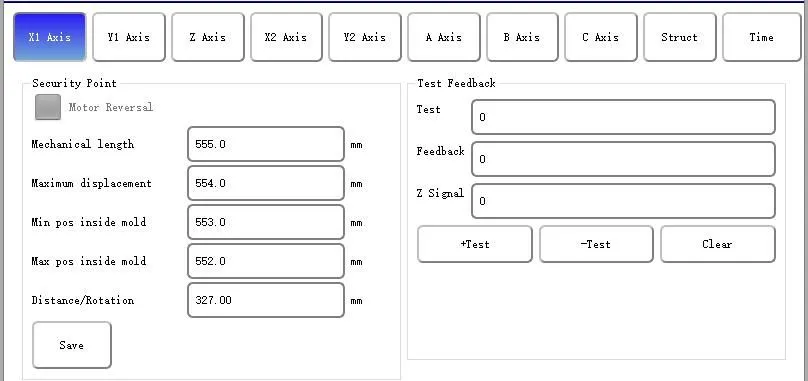
Motor Reverse: When the motor rotates counterclockwise by default, the axis moves away from the origin; if "Motor Reverse" is ticked, the axis moves towards the origin when the motor rotates counterclockwise.
Max Displacement: Set the max distance that X axis moves.
Origin Offset: (This function can be enabled by ticking "Origin Offset" in Structure - Origin Definition; otherwise, the value cannot be set)
If the offset value is positive, after returning to the origin, it continues to move a certain value towards the origin direction.
If the offset value is negative, after returning to the origin, it continues to move a certain value in the reverse direction to the maximum displacement.
Suppose the distance of each turn is 20 and the offset value is 40, after returning to the origin, the motor continues to rotate two turns towards the origin.
Note: After completing offset, the coordinate is still 0.
Min Position Inside Mold: The min position that X axis can move after Y axis descends inside mold.
Max Position Inside Mold: The max position that X axis can move after Y axis descends inside mold.
Motor Forward: Carry out motor forward test. If it is normal, both test and feedback display 10000.
Motor Reverse: Carry out motor reverse test. If it is normal, the test displays 10000, and the feedback displays -10000.
Tips: If the feedback is incorrect, please adjust the parameters of the servo feedback pulse direction.
Important: The move position of X axis also depends on the parameters in limit. If the Max Displacement of X axis is adjusted, the displacement in limit also needs to be adjusted; otherwise, the axis cannot move to the max displacement position.
Distance Per Turn: Set the running distance of each servo axis motor in each turn. Click "Motor Forward" and measure the actual running distance of the corresponding axis, which is the distance that the axis motor runs in one turn.
[Warning: This setting error may cause the machine to malfunction] Note: The parameter settings of X1 and X2 axes are the same.
Motor Forward/Reverse is to test the motor direction, that is, to confirm the direction of returning to origin. It is the first step to adjust the machine. The reverse direction of all axes is the direction of returning to origin.
[Limit] page

Min Increase of X Axis Inside Mode: Min position for X axis when the arm rises inside mold.
Max Increase of X Axis Inside Mode: Max position for X axis when the arm rises inside mold.
Min Increase of X Axis Outside Mode: Min position for X axis when the arm rises outside mold.
Max Increase of X Axis Outside Mode: Max position for X axis when the arm rises outside mold.
Note: The min/max descend of X1 axis inside mold is modified in the machine parameter page or the security point setting page.
X1 axis and X2 axis are at both ends of the drawbench beam by default, so their mechanical length and max displacement are the same. To prevent the collision of the two axes, the drawbench distance + the current coordinate value of X1 axis + the current coordinate value of X2 axis ≦ the max displacement, namely:
If the beam length is 400, the max displacement of X1 and X2 are also 400.
If the current position of X1 is 200, X2 can only move up to 150.
200+150+50 (drawbench distance)=400.
(2) Y axis parameter page, as shown in the figure below:
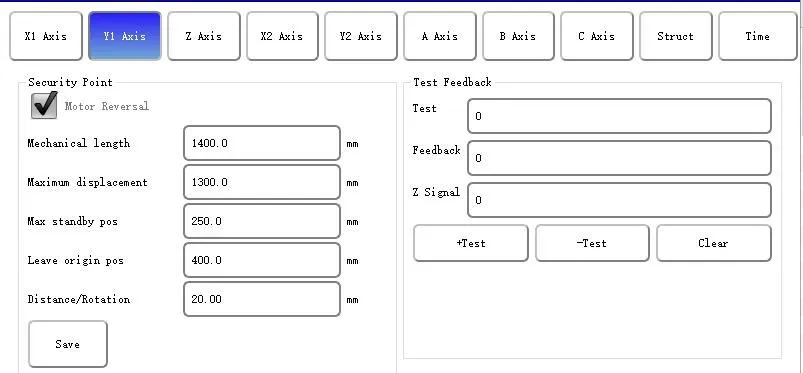
Max Standby Position: Set the max standby position of Y1 axis.
Position away from Origin: The position that Y1 axis descends away from the origin switch. If it is set to 400, when Y1 axis descends for more than 400 and Y1 origin switch still has signal, the system will send out an alarm.
Tips: This parameter is to ensure the parameters of Y axis motor (that is, the structure is normal). Because there is a certain delay in the on-off of the switch, please set this parameter larger (greater than the length of the origin iron plate).
Motor Forward: Carry out motor forward test. Both test and feedback display 10000.
Motor Reverse: Carry out motor reverse test. The test displays 10000, and the feedback displays -10000.
(3) Z axis parameter page, as shown in the figure below:
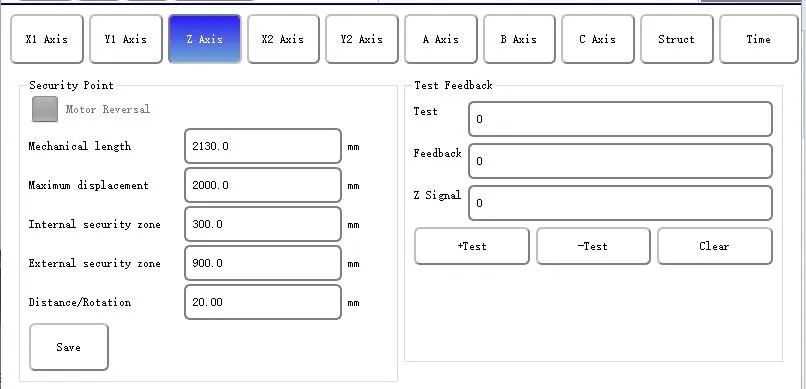
Inside Safety Zone: Set the safety zone position for picking up object inside the mold.
Outside Safety Zone: Set the safety zone position for placing object outside the mold.
(4) C axis parameter page, as shown in the figure below:
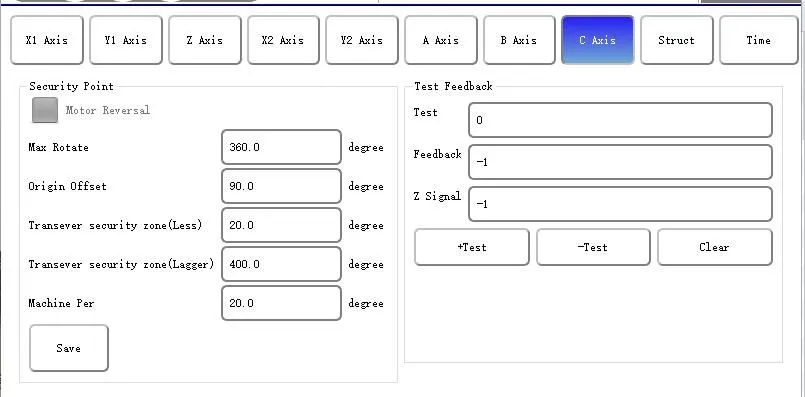
Max Rotation: The max rotation range of the C axis is 360 degrees.
Origin Offset: The offset range is (-90, +90)
If the offset value is positive, after returning to the origin, it continues to move a certain value towards the origin direction.
If the offset value is negative, after returning to the origin, it continues to move a certain value in the reverse direction to the maximum displacement.
Note: After completing offset, the coordinate is still 0.
Transverse Safe Range: A safety angle of limit jig during transverse action. As shown in the figure above, (0-20; 300-360) is the transverse safe range of C axis [that is, horizontal state].
Note: This parameter is valid only when C axis is servo axis.
C axis is vertical after returning to origin.
(5) [Axial Definition] page of [Structure]: (there is no servo parameter setting page for single-board type)
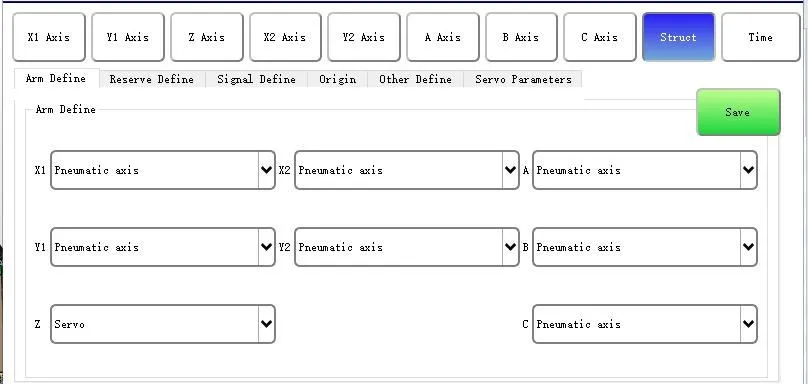
Machine Structure: It is divided into "Axial Definition", "Reserve Definition", "Limit Definition", "Origin Definition", "Other Definition" and "Servo Parameter Setting".
Axial Definition: Set the axis as pneumatic axis/servo axis/stepping axis/none. Each axis should be selected as servo axis or pneumatic axis according to the machine condition.
Tips:
1. The system is a dual-arm 5-axis system by default, that is, X1, X2, Y1, Y2, and Z axes must be selected as servo axes, otherwise, the system may be abnormal.
2. If it is a double-pose machine, the A axis needs to be selected as the pneumatic axis.
(6) [Reserve Definition] page of [Structure]:
The machine model basically does not use the position adjustment function, please tick all the options reserved.
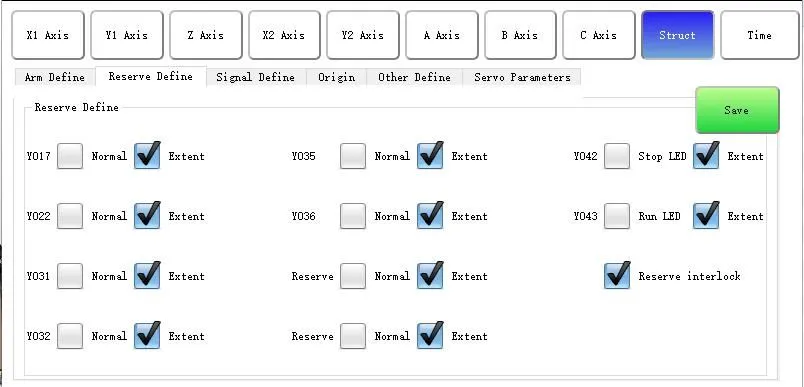
Y042: If stop indicator is ticked, the monitor output screen displays stop indicator; and if reserve is ticked, it displays reserve 9.
Y043: If running indicator is ticked, the monitor output screen displays running indicator; and if reserve is ticked, it displays reserve 10.
Reserve 1 and Reserve 2 not interlocked:
If ticked, the output of Reserve 1 and Reserve 2 will not affect each other.
If not ticked, Reserve 1 and Reserve 2 will be interlocked, that is, if Reserve 1 has output, its output signal will be cut off if Reserve 2 outputs again, vice versa. Both signals cannot output simultaneously.
(7) [Limit Definition] page of [Structure]:
The limit definition is divided into single/double-arm selection and limit switch signal selection. 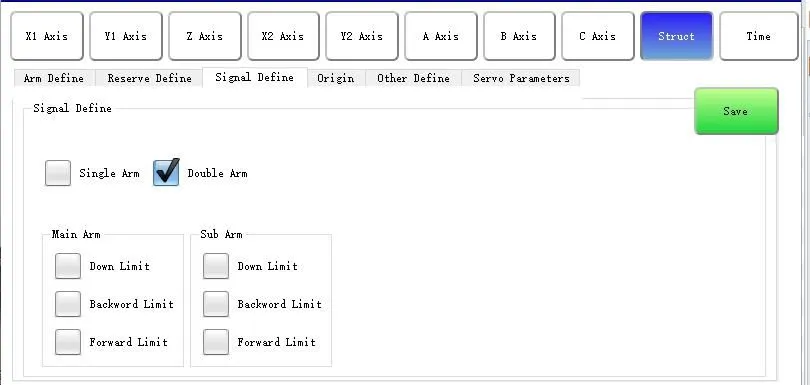
Single-arm: In Manual state, only the action of main arm can be instructed, and [X2+], [X2-], [Y2+], and [Y2-] buttons are invalid.
Double-arm: In Manual state, the action of both the main arm and assistant arm can be instructed, and all the buttons of the assistant arm are invalid.
Main Arm: descending limit, backward limit, forward limit.
Assistant Arm: descending limit, backward limit, forward limit. If the assistant arm is a pneumatic axis, the limit is valid. When the corresponding pneumatic axis moves, the limit signal is required before the program executes the next step. Otherwise, an alarm will be sent.
Note: The limit definition is only valid for pneumatic axis, not for servo axis.
(8) [Origin Definition] page of [Structure]:

Absolute Value Servo: (This function is invalid for single-board type)
[Absolute Value Servo Ticked]: The homing method is absolute value type.
[Absolute Value Servo Not Ticked] (the state is as shown in the figure above): The homing method is incremental type.
After modifying the homing method and saving it, you need to exit the current page, and the new homing method will take effect.
Origin Sequence Enabled: After ticking "Origin Sequence Enabled" and saving it, the axes will return to origin according to the set sequence. For example, if you want to return to the origin in X01-Y1-Z order, you need to set 1 as X1, 2 as Y1, 3 as Z, and 4/5/6/7/8 as None; if you set 1 as None, 2 as X1, 3 as None, 4 as Y1, 5 as Z, and 6/7/8 as None or other axes, the axes cannot return to the origin normally.
Origin Offset: After ticking "Origin Offset" and saving it, the origin offset function will be valid. If not ticked, the function will not be enabled (if ticked, the origin offset box in each axis page is executable and can input value; if not ticked, the box is disabled and cannot input value).
Z Origin Outside Mode:
[Not Ticked]: X25 is homing signal. After returning to origin, the home point is inside the mode.
[Ticked]: X24 is homing signal. After returning to origin, the home point is outside the mode.
Long Origin: If ticked, the homing method is long origin homing.
Short Origin: If ticked, the homing method is short origin homing.
Limit Origin: If ticked, the homing method is limit signal homing.
(9) [Other Definition] page of [Structure]:

After modifying the parameters, click "Save", so that the parameters remain unchanged after power down and restart
Safety door mode:
[Close Continue]: If the manipulator fails to pick up the object, the safety door will be opened and then closed. At this time, the manipulator will continue to execute the mode program.
[Close Reset]: If the manipulator fails to pick up the object, the safety door will be opened and then closed. At this time, the manipulator will re-execute the program before opening the mold. After reaching the home point, it will wait for the mold opened signal of the next mold.
[Close Stop]: If the manipulator fails to pick up the object, the safety door will be opened and then closed. At this time, the manipulator will stop at the current position and exit the Auto state.
[Close Continue Confirmation]: If the manipulator fails to pick up the object, the safety door will be opened and then closed. Click "Continue" in the pop-up window to continue the mode program, or click "Cancel" to return to the home position to pick up the object again.
Adjust Position: Select to use or not use the electronic position adjustment function. (The existing models generally do not use the function)
Limit Switch:
[NO]: When the limit position is not exceeded, the limit switch is normally off; if exceeded and the limit switch has signal input, an alarm will be sent out immediately.
[NC]: When the limit position is not exceeded, the limit switch is normally on; if exceeded and the limit switch has no signal input, an alarm will be sent out immediately.
Side-pose Inside Mold:
[Limit]: Limit the descend pose inside mold to vertical. Side-pose inside mold is not allowed.
[No Limit]: The descend pose inside mold is not limited. Side-pose inside mold is allowed.
Descend Safety Time Outside Mold: If ticked, the descend safety signal outside the mold will be on, and an alarm will be sent if the safety time is exceeded; if not ticked, the function is invalid.
Movement Rigidity: Can improve the planned movement curve. (This function is optional, and the standard program does not have the function)
Mandatory Enablement: When the servo enablement is abnormal, you can try to use the mandatory enablement function.
No Z Axis Safety Switch Inside Mold:
[Not Ticked]: X25 signal is required to descend in the inside safety zone.
[Ticked]: X25 signal is not required to descend in the inside safety zone, and X25 is only used as the homing signal.
Mold Open Filter Time: If the signal stability is poor, please set to a greater value.
4.2.6 Servo Parameters Adjustment
Enter the [Machine Parameters] - [Structure] - [Servo Parameters Adjustment] page to set the servo parameters (the servo parameters adjustment page is dedicated to RTEX and drive control. The single-board type does not have the page)
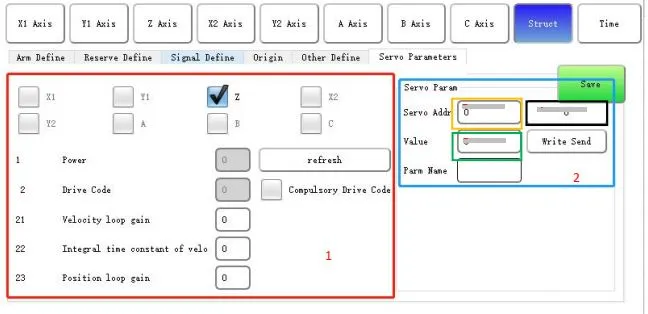
The content in red box is to view the servo parameters of corresponding axis; click the "Refresh" button to display the servo parameters in the corresponding box. To modify the parameter value, you can input the value in the textbox directly, or set the servo parameters in the blue box 2 on the right.
Parameter Address: Set the servo parameter number in the orange box 3; and the black box 4 displays the current servo parameter value.
Parameter Value: The green box 5 is the target value of the servo parameters to be set.
Parameter Name: The function corresponding to the current servo parameter number.
Parameter setting step:
Press the emergency stop button (the servo parameters can only be modified in this state)
1.Input the servo parameter number in orange box 3.
2.Input the target value of servo parameters in the green box 5 after the [Parameter Value], and then click the "Send" button.
3.Check whether the value in box 4 is same as the target parameter value. If yes, the parameter is set successfully; otherwise, the parameter setting fails and needs to be reset.
4.After successful parameter setting, restart the servo and manual controller, and the new parameters will take effect.
Servo Parameter Table
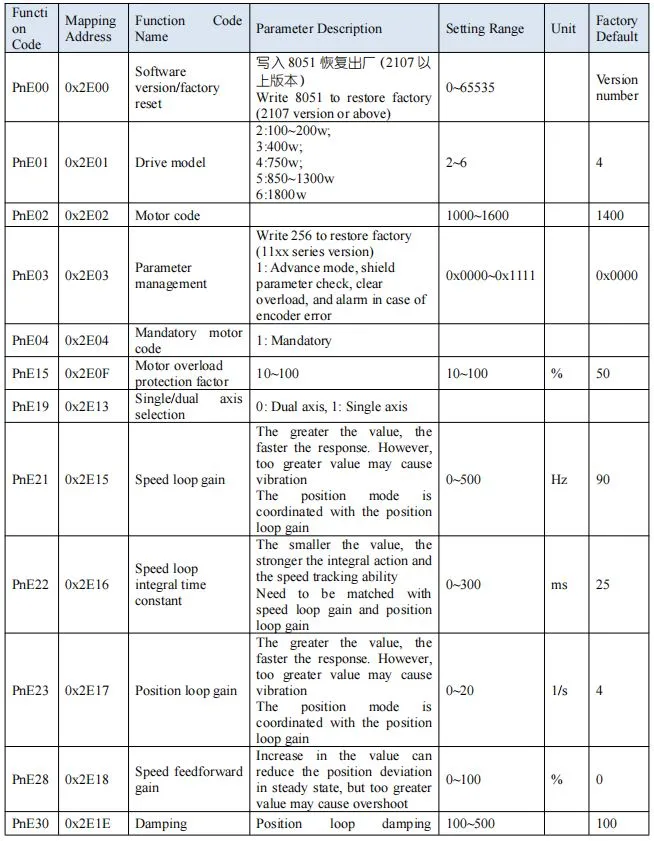
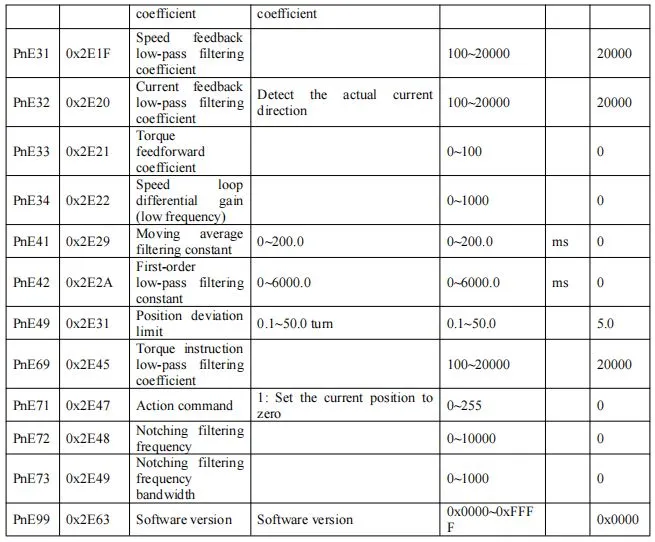
4.2.7 Machine Time

You can set the limit time of each axis in the page. When the time of each axis action exceeds this set value and there is no corresponding input signal, an alarm will be sent. (Only valid for pneumatic axis)
4.2.8 Stack Settings
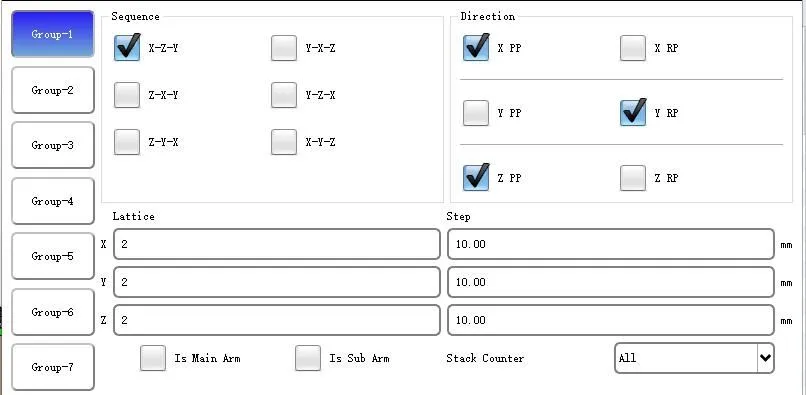
The product stacking function of the manipulator can be used to arrange the finished products neatly on the conveyor or loading box in a certain way. The system is designed with 7 groups of stacking, with the first 6 groups of regular stacking, and the seventh group of free stacking.
Regular stacking:
Click the stacking program group (such as group 1) to be used, select the product stacking sequence, and set the product stacking quantity and distance of each axis.
Quantity: The number of items to be stacked in a given axis.
Distance: The distance of two adjacent items in a given axis.
Sequence: The sequence of stacking in several axes.
The definition of four kinds of stacking sequence is the same. Here take X-Z-Y sequence as an example, and the rest are not further described.
X-Z-Y: The stacking program first arrange the products in X axis, then Z axis and finally Y axis.
Forward: That is, the stacking position is increasingly greater. Reverse: That is, the stacking position is increasingly smaller
Assistant arm stacking:
(1) The program adopts main arm stacking by default, that is, only the main arm stacks.
(2) If assistant arm stacking is ticked, X1 and Y1, and X2 and Y2 will stack simultaneously, and the stacking sequence, direction, quantity and distance are the same.
Stack Counter: The system is designed with 9 types of stacking counting methods, and each stacking group has three options.
For example, for stacking group 1, the stack counter can select All, Good Products or Group 1. If another stack counter is selected, the program may be abnormal.
Example of stacking program settings:
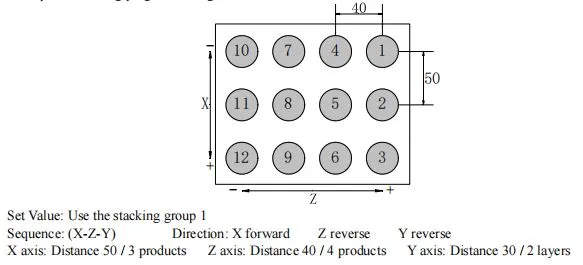
According to the settings, the manipulator arranges the three products (①②③) on the first column from right along the X+ axis direction with a distance of 50mm, and then the next three products (④⑤⑥) on the second column from right along the Z- axis direction with a distance of 40mm, and so on. After arranging the 12 products, the manipulator rises 30mm along the Y- axis direction, and then the first position starts to repeat the arrangement of the second layer of products. As the products are arranged in two layers, a total of 24 products can be discharged into the container.
Free stacking: It can set in this page or in Manual - Instruct - Main Menu - Stack - Group 7. The free stacking is also divided into XYZ free stacking or XZ free stacking.
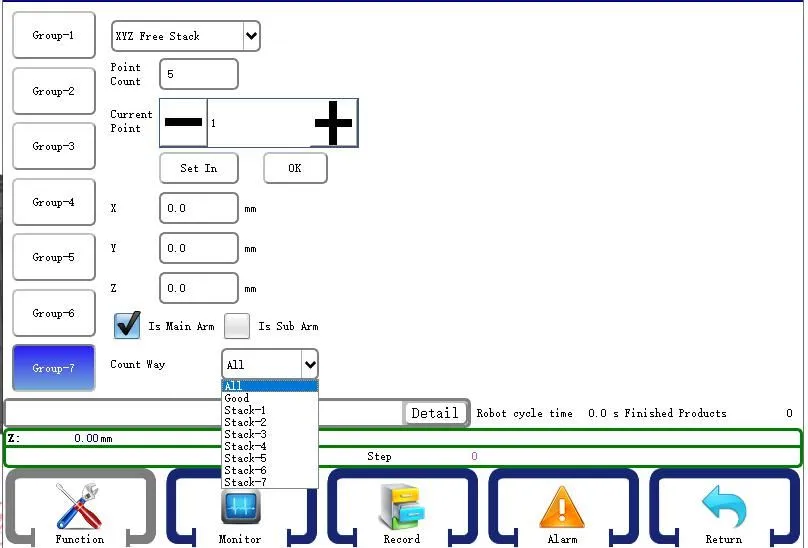
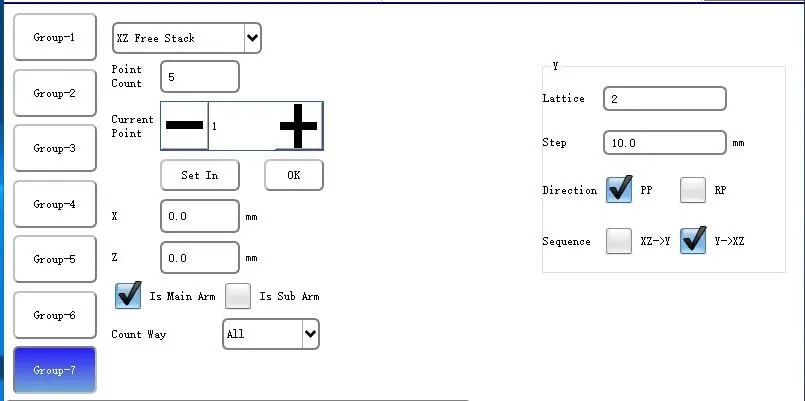
XYZ free stacking:
Point Number: Total number of stacking, range (3-30).
X axis: Stacking position of X axis
Y axis: Stacking position of Y axis
Z axis: Stacking position of Z axis
Current Point Position: The number of stacking positions. As shown in the figure above, if it is 1, the position of the first stacking point (X, Y, Z) is (110mm,110mm,110mm).
Set: Click "Set" to set the current coordinate as the Nth stacking position.
Confirm: After modifying the stacking position, click "Ok", otherwise the modification fails.
Assistant arm stacking:
(1) The program adopts main arm stacking by default, that is, only the main arm stacks.
(2) If assistant arm stacking is ticked, X1 and Y1, and X2 and Y2 will stack simultaneously, and the stacking quantity and position are the same
XZ free stacking:
ZX axes are free stacking, and the setting is same as the free stacking; Y axis is regular stacking, and the setting is same as the regular stacking.
Enter the instruction mode and click the "Stack" button to enter the following page:
The stack setting and stack instruction are in no particular order. For stacking instruction, please refer to Section 3.3.3, which will not be further described here.
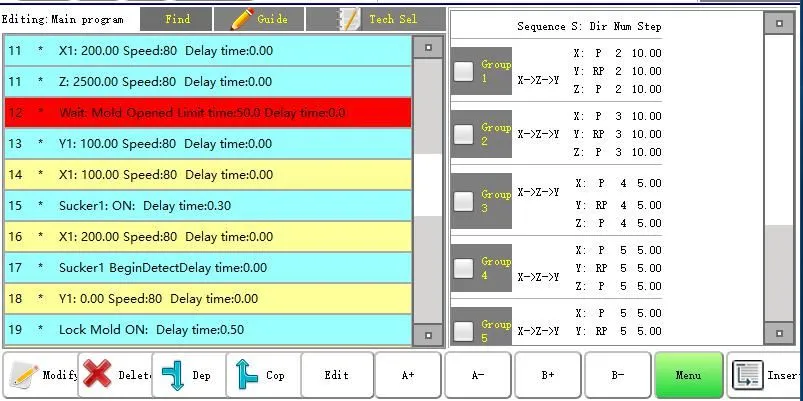
Select the box on the left of the stacking program to be inserted. For example, select the first group of stacking programs, and then click the "Insert" button to insert the programs before the program step to start stacking. During automatic operation, the manipulator will stack and discharge products according to this stacking program. If you are using the Y axis for stacking, be sure to insert the stacking program one step ahead of the descending action of Y axis.
Each automatic program can insert 7 groups of stacking programs, which can be inserted in 7 different positions for stacking and discharging products. When using the 7 groups of stacking programs, the home point should all be 0.
Important: The Y axis is selected in the system design as the end between stacks. The stacking program must be inserted before the action of Y axis. If there are multiple stacks, it is required to insert the Y axis between the stacks to partition them.
For more on-site stacking examples, please follow our official account.
4.2.9 System Settings
[System Settings] include 5 pages, i.e. "System Settings", "Permission Management", "Admin Settings", "Backup/Restore" and "Ghost".
(1) System setting page, as shown in the figure below:
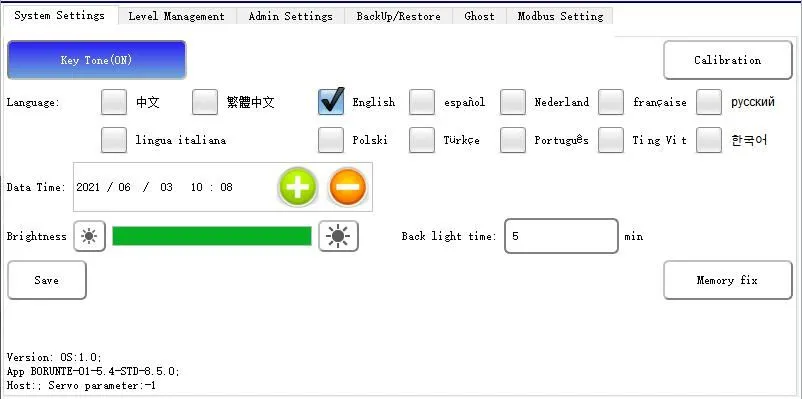
Tips: If the archive cannot create, copy or delete a program, please click "Storage Repair" function, and the system will automatically restart the storage repair function.
Keytone: Switch to turn on/off the keytone.
Language: The system is designed with 12 languages for the customer to select. The default language is Chinese.
Date: The date and time displayed by the system. Select the date and time, press the +/- keys to change it and then click "Save". After about 2 minutes, it will be updated to the new time.
Backlight Time: After the set time, the screen will change from bright to dark, and the "Advance Admin" permission will become the "Admin" permission.
Screen Brightness: Adjust the brightness of the display, click  to darken the screen, and click
  to brighten the screen.
Version No.: Display the version of the manual control system and host.
Calibration: When the screen cursor is not accurate, it can be calibrated.
Important: If the cursor deviates and cannot enter this page, you can use the key sequence to calibrate the screen.
1. After fully restarts the system, turn the three-state switch to the Stop.
2. Press F5 F1 F4 F1 F3 F1 F2 F5, and the system will automatically restart to enter the calibration screen page.
Storage Repair: After pressing the button, the system will automatically restart to restore storage. (Applicable to situations where a new mold number cannot be created)
(2) Permission management page. As shown in the figure below:
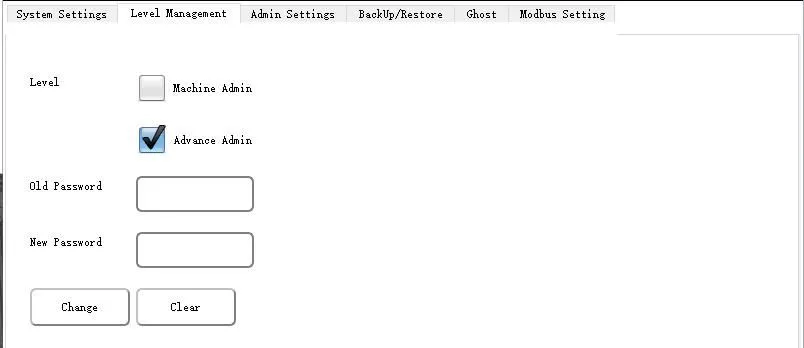
Permission: Include admin and advance admin. The admin can modify the basic parameters, but cannot instruct program, modify machine parameters or enter the maintenance page. However, the advance admin can modify all parameters.
Old/New Password: Input the old password and then the new password, and press the "Change" key to change the password. (To modify the admin password, you can directly enter the new password if you are under the permission of advance admin)
(3) Advance admin page, as shown in the figure below:

Verify: Input szhc2a in the textbox after the "Verify" button, then click button, and the [Function Extend]/[Quick Guide] and [Registration Function] will change from grey to black.
Function Extend: If ticked, the main menu in [Edit] page has 12 sub-pages in Manual state; if not ticked, the [Conditions] and [Sequence Action] in main menu will be hidden and cannot be used.
To register an admin, please contact the technician of Huacheng.
(4) Backup/Restore page. As shown in the figure below:

You can use a USB flash disk to backup and restore the "Machine Parameters", "System Parameters" and "All Parameters" in this page.
After restoring the parameters, the manual controller will restart automatically.
(5) Ghost function, as shown in the figure below:
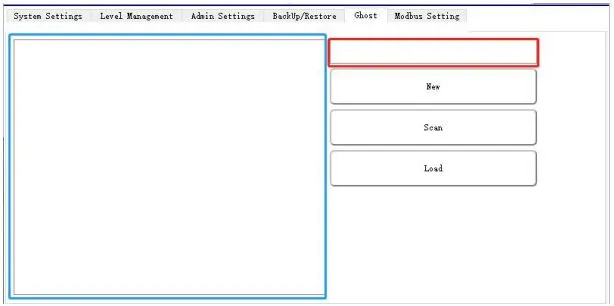
Create: Input the name in red box, click the "Create" button, and the system will backup all parameters (including the manual control program) in manual controller to the USB flash disk (the USB flash disk needs to be inserted in advance).
Scan: Scan all backed-up GHOST file (need to insert USB flash disk), the blue box will display the backup file.
Load: Select a file, click "Load", and a prompt window will pop up after restoration; click "OK" in the box and the manual controller will restart and the current manual control program will be restored to the program in the backed-up Ghost file (suppose the current manual control program is 6.6.6, upgrade it to 6.7.2 after backup of Ghost file, and then load the backed-up Ghost file. After restarting the system, the manual control program is 6.6.6).
4.2.10 Maintenance and Care
(1) Maintenance page, as shown in the figure below:

Upgrade description: Copy the upgrade program to the USB flash disk, insert the USB flash disk after powering on the manual controller, log in as advance admin, and turn the switch to Stop to enter the "Maintenance" function; click "Scan Update Package"; after the version number displays, select the version; and then click "Start Update". The system will restart automatically and then pull out the USB flash disk.
Update description of start page and standby page:
1. Create a new HCUpdate_pic in the root directory of the USB flash disk, and copy the picture that needs to be used as the startup page to this folder; (Note: the picture on the startup page needs to be 800*600, and the picture on the standby page needs to be 800*400, in png format)
2. Insert the USB flash disk to the manual controller;
3. Click "Update Picture" and a picture update window will pop up; and then click "Scan Picture";
4. Select the picture that needs to be used in standby, click to select it as the standby page, and the prompt "Setting successful, take effect after restart" will pop up; select the picture on the startup page, click "Select as Start Page", and the prompt "Setting successful, take effect after restart" will pop up; then exit and restart the system.
Factory Reset: This function is a non-standard function.
(2) Care page, as shown in the figure below:
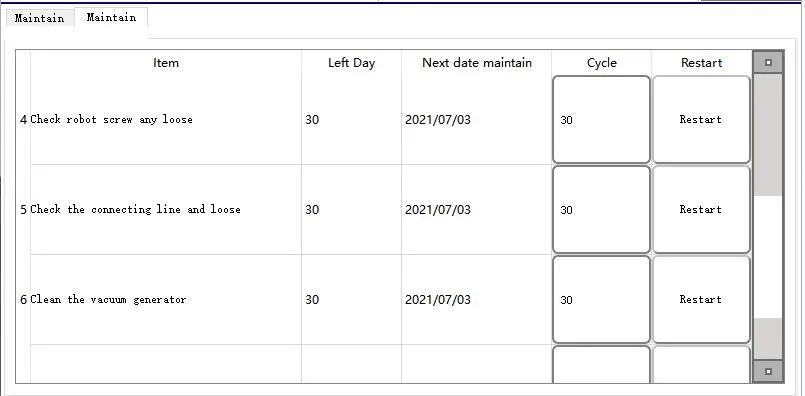
You can set the care period in this page, which is calculated by calendar days. If the care period of a certain item is reached, the system will prompt. After the care is completed, you need to click "Recalculate" for re-timing.
Chapter 5 Auto State
5.1 Monitoring of Auto Run Data
Turn the state selection switch to Auto, and the manipulator will enter the automatic standby state; press the start button again and the manipulator will start automatic operation. The operation data of the manipulator can be monitored under the automatic operation state. The Auto Run page is shown as follows:
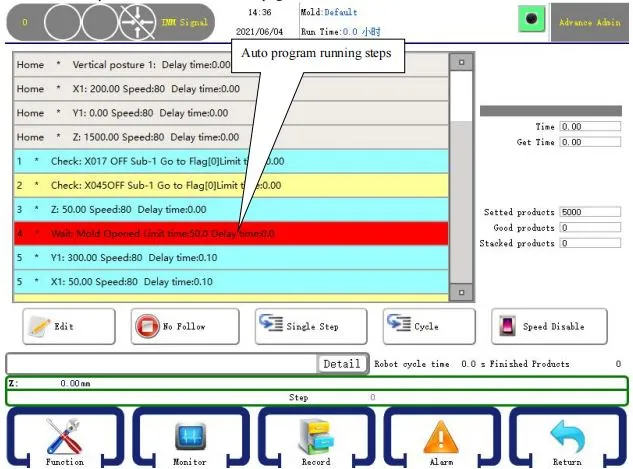
Molding Cycle: Automatically record the molding cycle of the injection molding machine in the last cycle.
Picking Time: During Auto Run, start timing when there is mold opened signal until the close mold ON step is executed, that is, the time between OFF and ON of close mold signal.
Set Output: Currently set target number of products.
Good Product Quantity: Quantity of qualified products taken by the manipulator. (If there is no defective product signal before mold opened, the product is deemed as good)
Stack Quantity: The number of products the manipulator has stacked when using a stack.
5.2 Parameter Modification in Auto Run
In Auto Run state, you can modify the action time, the speed and position of electric axis in automatic program according to the current operation conditions. To facilitate parameter modification, you can click "Not Follow" to stop the movement of the program running indication bar.
Click the row of the action to modify the parameter, select it and then click "Edit" to pop up the following dialog box:

In this dialog box, you can modify the delay time of the action, the speed and position of the electric axis, and then click [OK] after changing the parameters. The parameters will be accepted online, and will run according to the changed parameters from the next cycle. To cancel this action, you can click [Cancel].
In order to ensure that the modification of the electric axis position will not damage the manipulator, injection molding machine, and mold, each modification can only be within ±5mm.
Click the "Speed Control Prohibit" button to change it to "Speed Control Allowed". You can press the up and down arrow keys at the lower left corner of the panel to adjust the global speed, which can increase or decrease the speed of each electric axis as a whole.
5.3 Single-step Running
Turn the state selection switch to Auto, click "Single" and then "OK" to enter the single-step running mode. In this mode, you can click "Single" to execute one step of automatic action, and so on. The executed automatic program is the currently instructed automatic program.
The single-step mode can be used to verify step by step that the program being instructed is correct.
5.4 Single Cycle
In Auto state, the motor is in "Single Cycle", press the "Start" button again to enter single cycle running mode. The auto run will end after running one mode.
5.5 Speed Adjustment During Auto Run
In Auto Run state, click "Speed Control Prohibit" to change it to "Speed Control Allowed", select the up/down speed buttons on the panel to increase or decrease the global speed in Auto state. Global speed can be adjusted to a maximum of 200.
Chapter 6 Monitoring and Alarm History
6.1 Monitoring
Click the "Monitor" button at the bottom of the screen to enter the monitoring page of I/O signal. The page is divided into manipulator I/O signal, injection molding machine I/O signal and servo parameters (not applicable to single-board type). The I/O state is shown as follows:
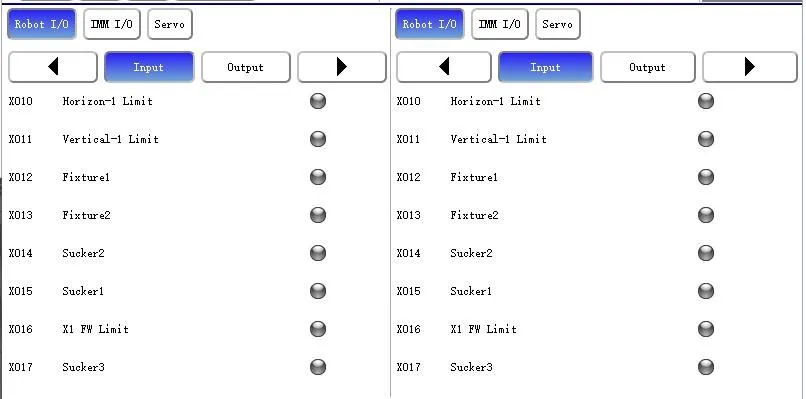

You can monitor the position instruction deviation, speed and load rate of each axis in this page.
RTEX servo parameter page

6.2Alarm History
Click the "Alarm" button at the bottom of the screen to enter the alarm history page. As shown in the figure below:
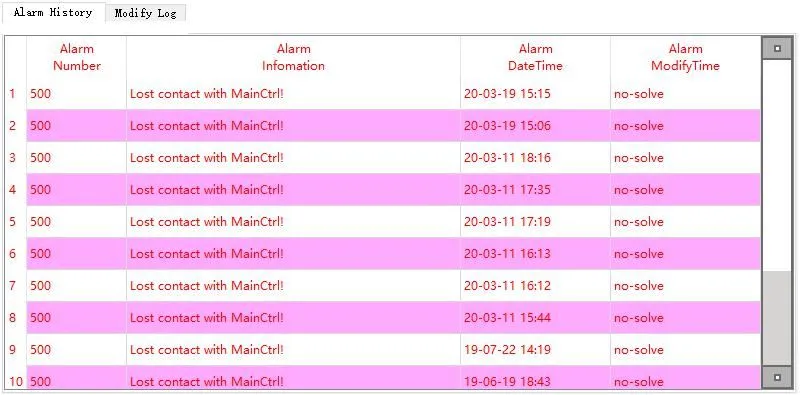
When an alarm occurs, click "Help" in the alarm bar and a prompt box will pop up with detailed information and solutions for the alarm. As shown in the figure below:

The control system can record the latest 200 alarm records, which is convenient for users to find historical alarm information of the manipulator.
6.3 Modification History
Click the "Modification History" button at the bottom of the screen to enter the modify log page. As shown in the figure below:

The control system can record the latest 200 modification records, which is convenient for users to find historical modification information of the manipulator.
6.4 Alarms and Solutions
1. Function alarm and solution


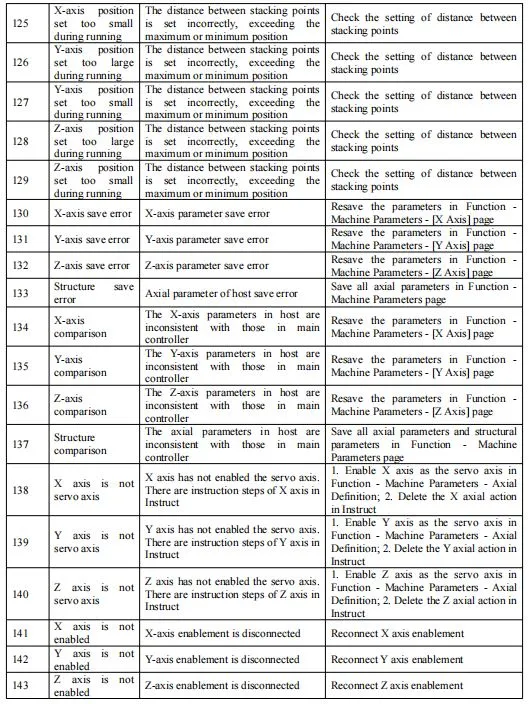

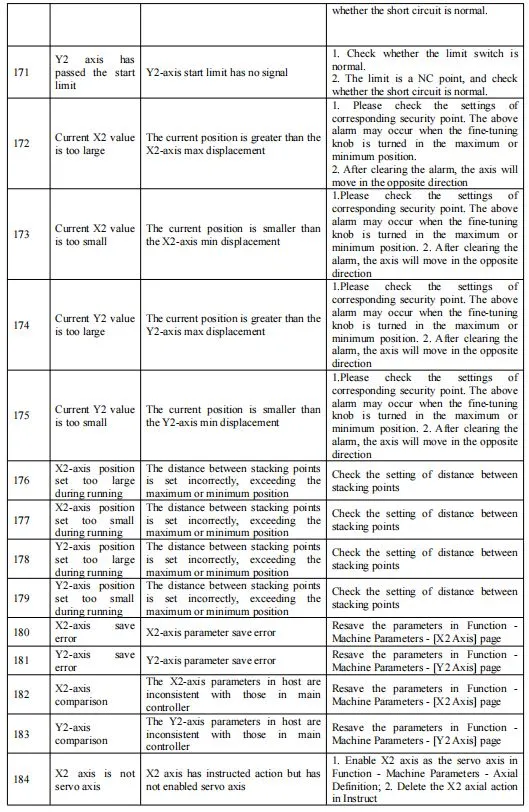
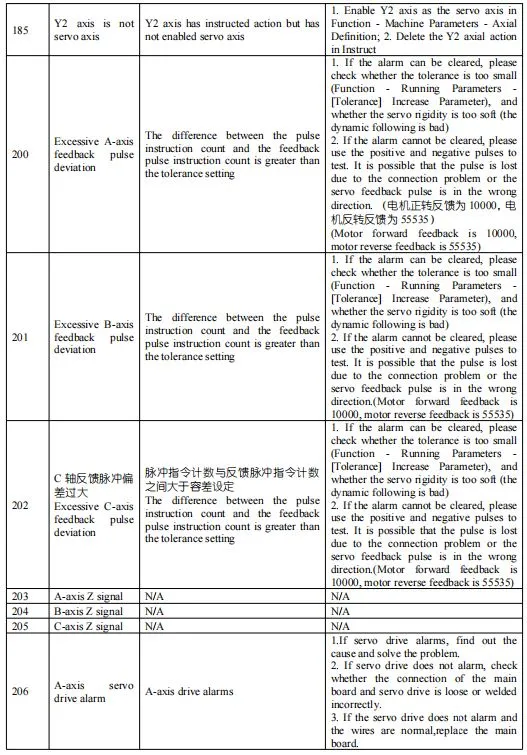
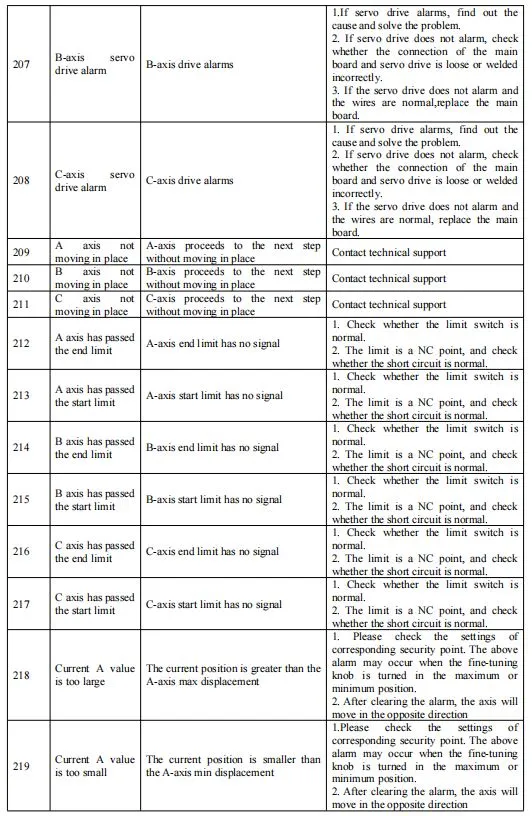


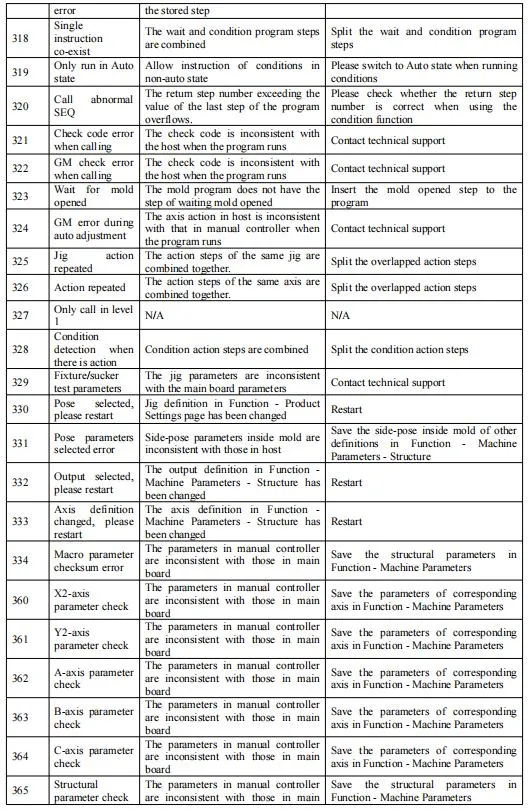
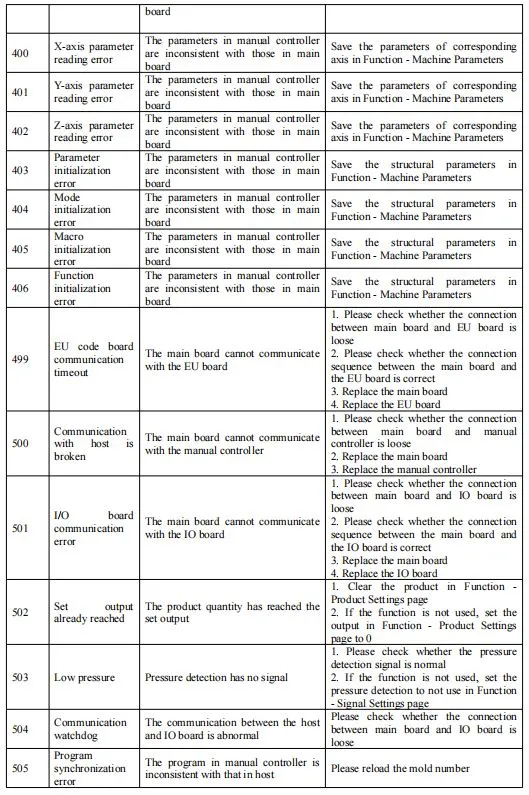


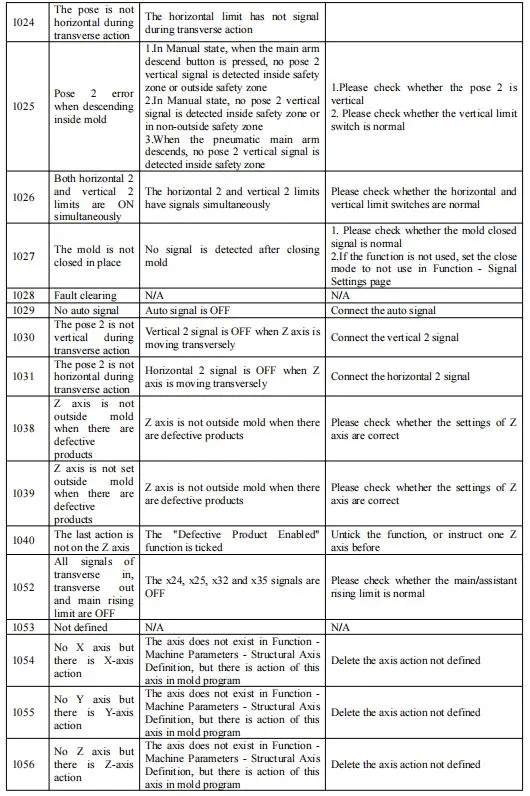

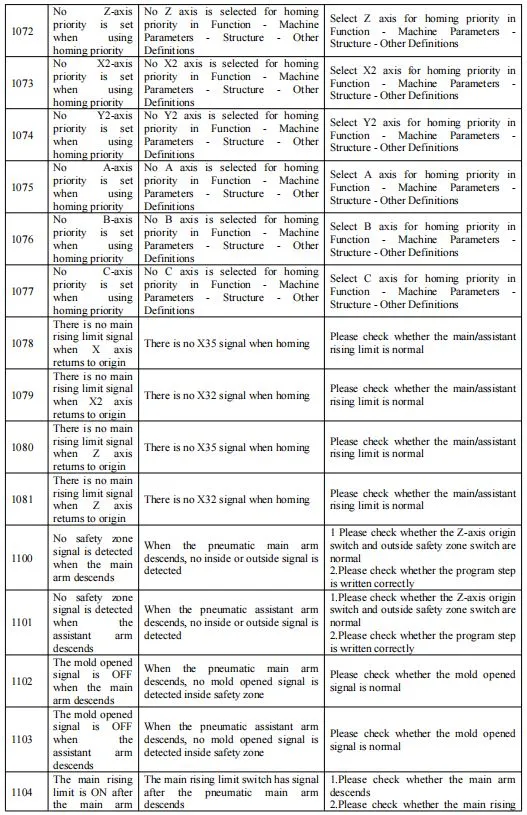


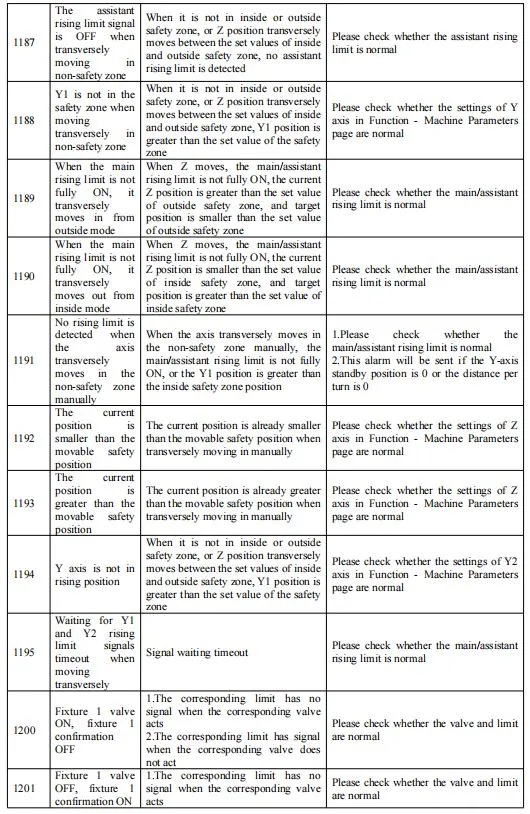
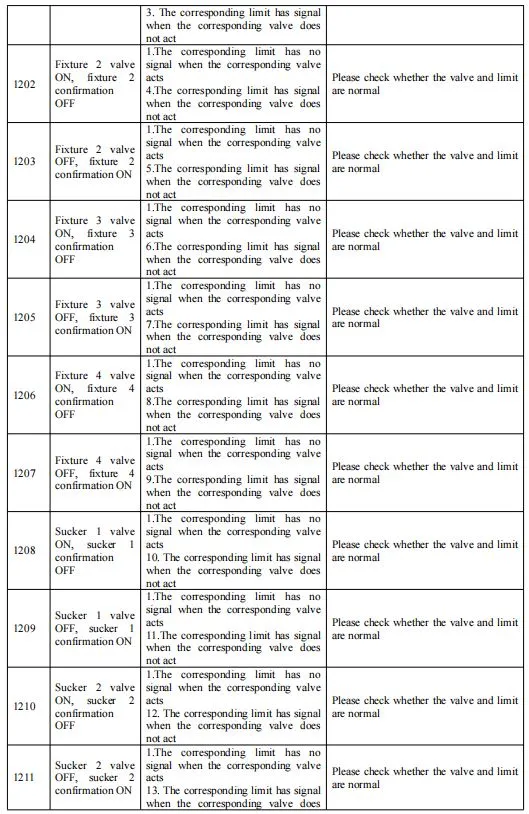
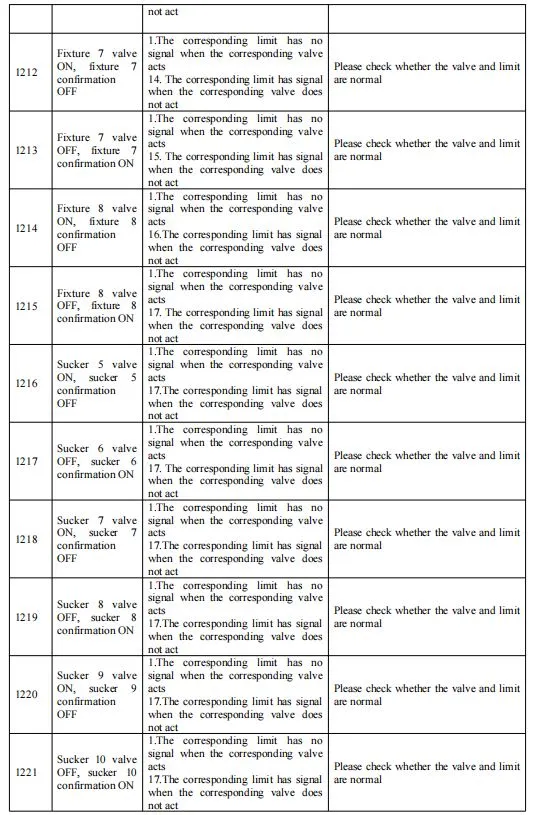
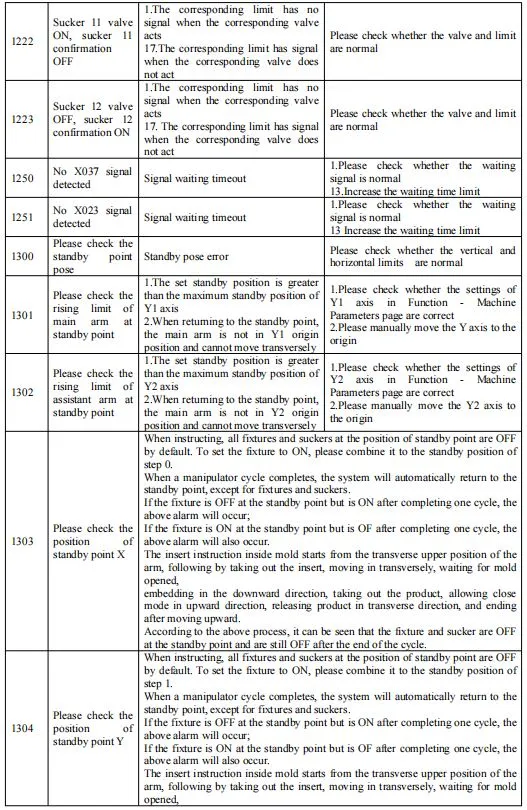


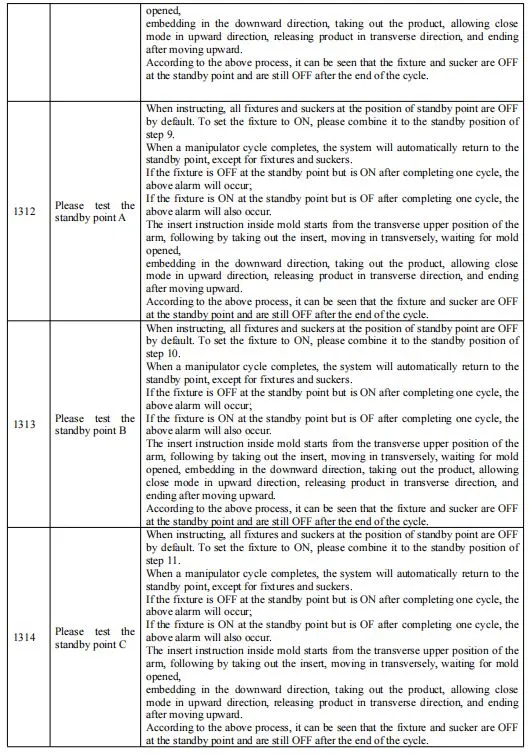
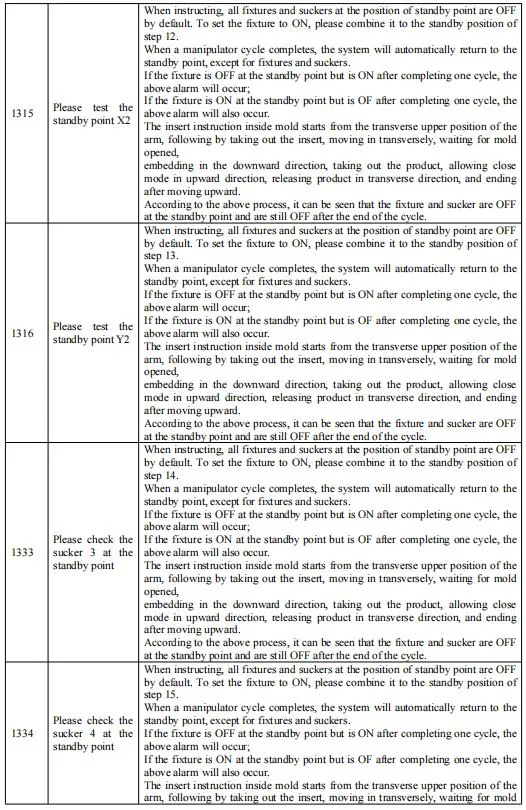
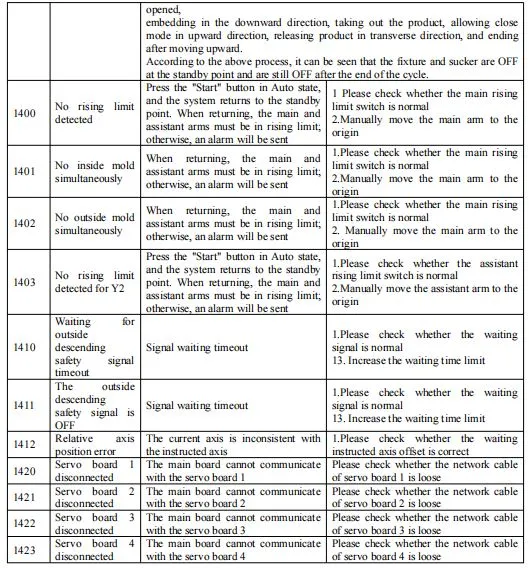
2、ECS5/ECS3/QCS3G Servo Alarm
The numbering rules of drive-type servo alarms are: The first two XX indicates axis number, with the range of 27-38, in which 27 is the servo alarm of servo board 1, 28 is the servo alarm of servo board 2, 29 is the servo alarm of servo board 3, 30 is the servo alarm of servo board 4, 31 is the servo alarm of X axis, 32 is the servo alarm of Y axis, 33 is the servo alarm of Z axis, 34 is the servo alarm of X2 axis, 35 is the servo alarm of Y2 axis, 36 is the servo alarm of A axis, 37 is the servo alarm of B axis, and 38 is the servo alarm of C axis; and the last two digits are the servo alarm type. If the two digits are the same, it means that the alarm type is the same. O axis is a general reference here, not means a certain axis, and is determined according to the axis number.
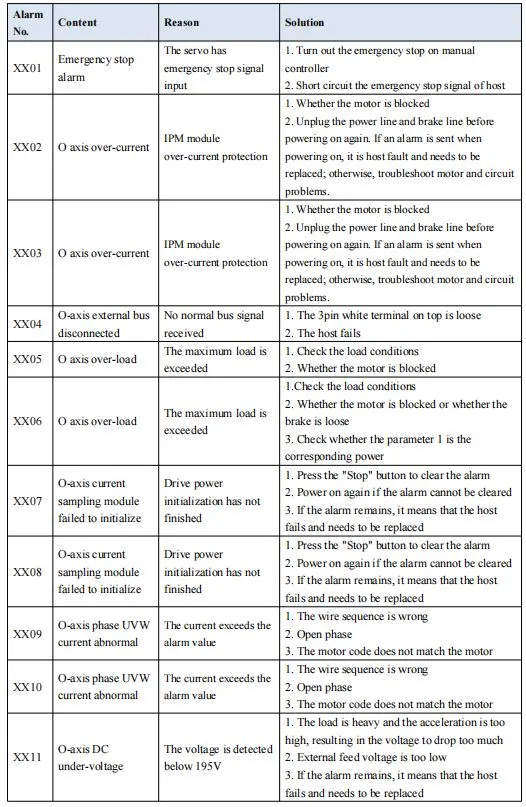

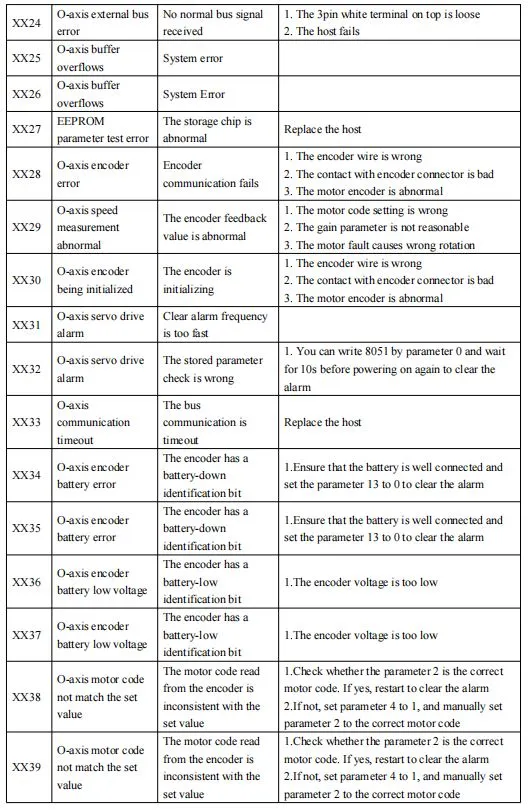
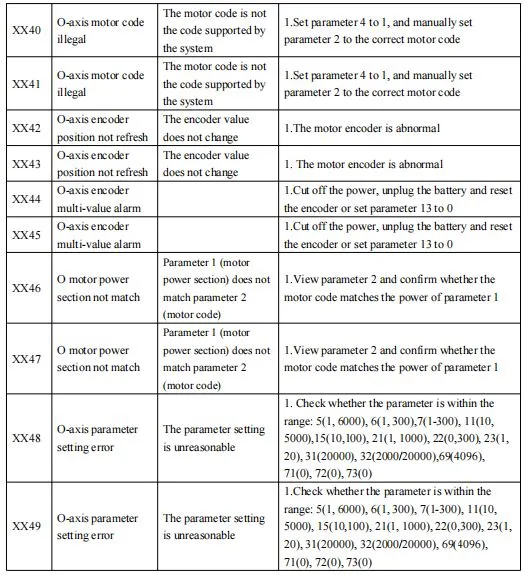
3、XS5R Servo Alarm
The numbering rules of RTEX-type servo alarms are: The first two XX indicates axis number, with the range of 16- 23, in which 16 is the X-axis servo alarm, 17 is the servo alarm of Y axis, 18 is the servo alarm of Z axis, 19 is the servo alarm of X2 axis, 20 is the servo alarm of Y2 axis, 21 is the servo alarm of A axis, 22 is the servo alarm of B axis, and 23 is the servo alarm of C axis; and the last two digits are the servo alarm type. If the two digits are the same, it means that the alarm type is the same. O axis is a general reference here, not means a certain axis, and is determined according to the axis number.
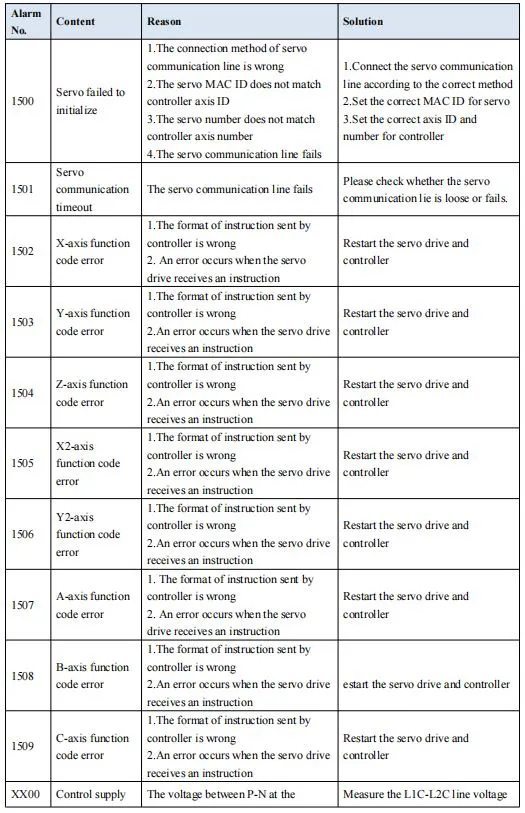

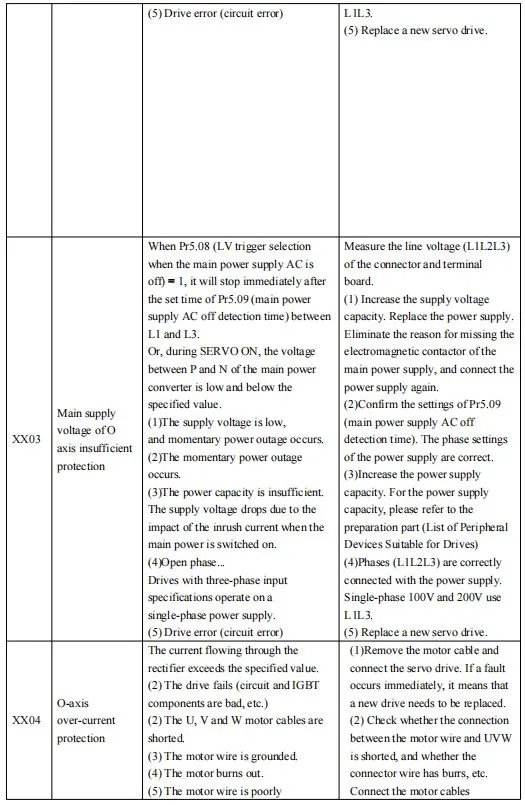
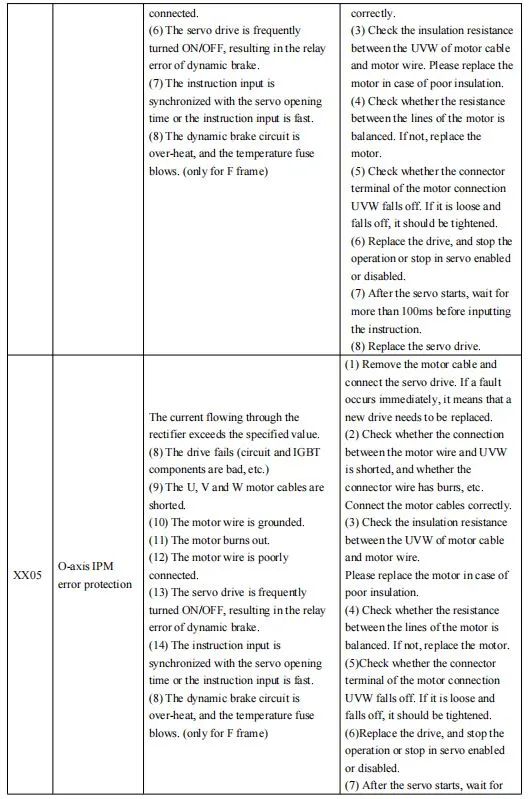

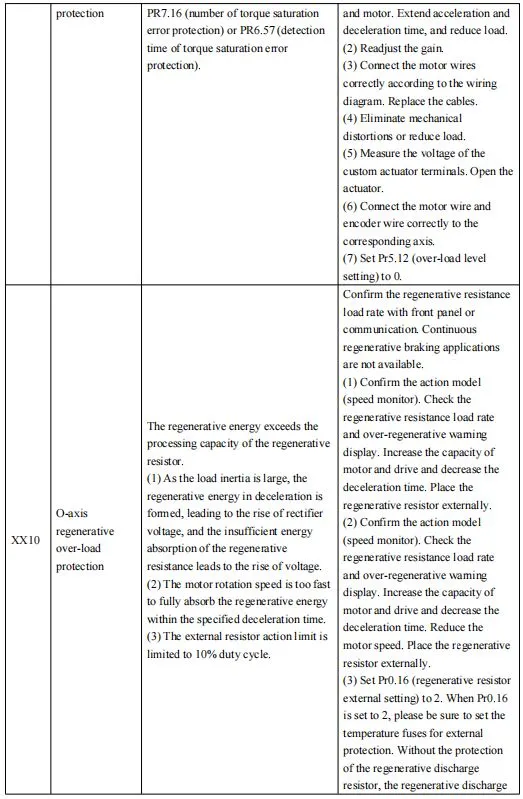

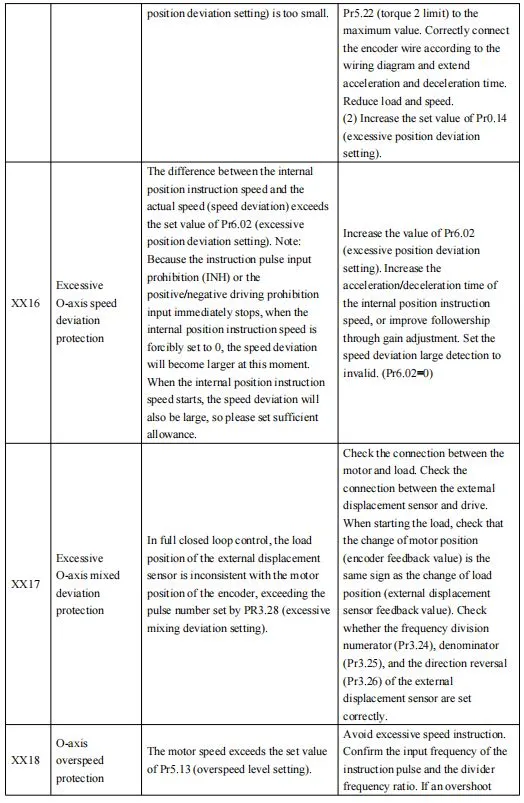

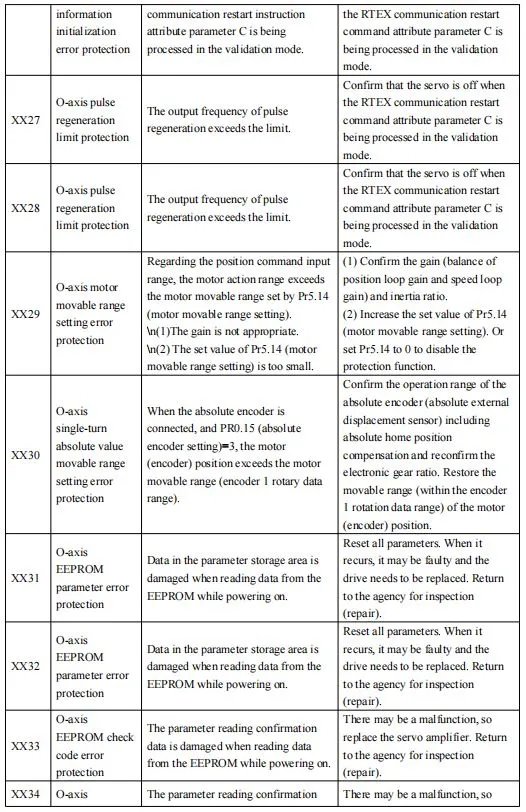
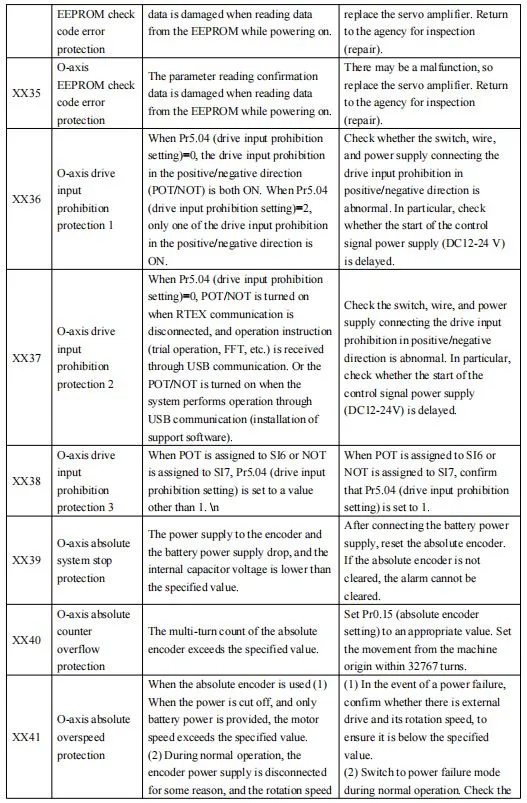

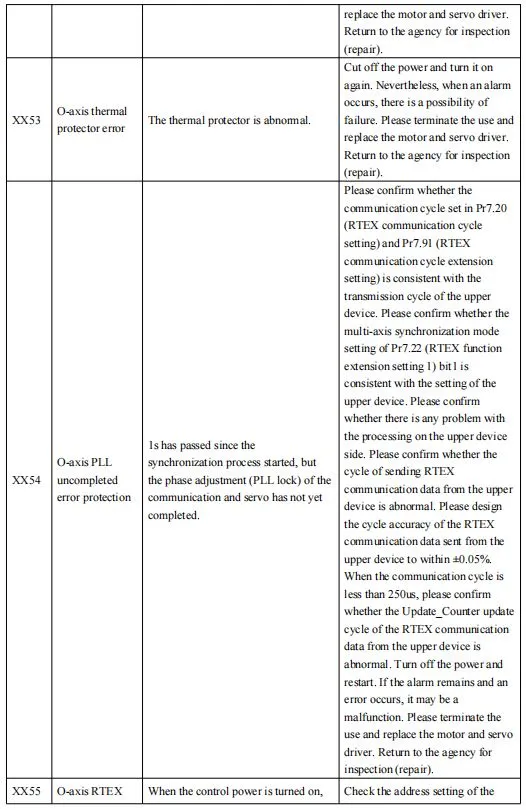
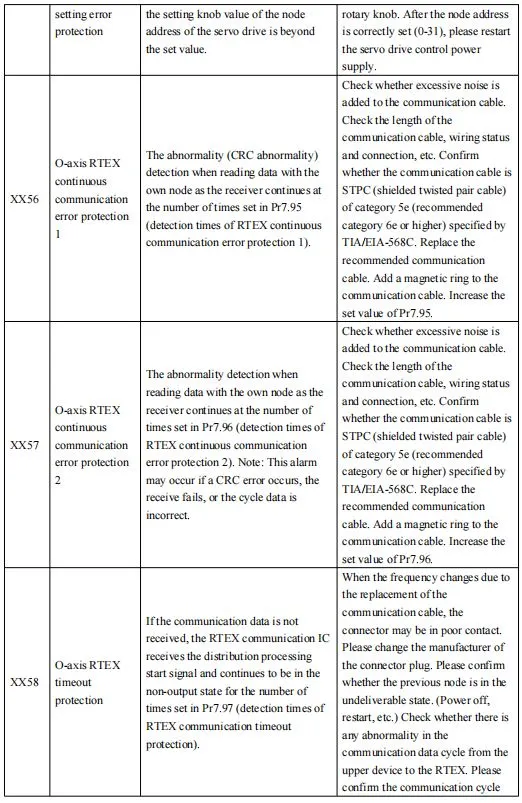
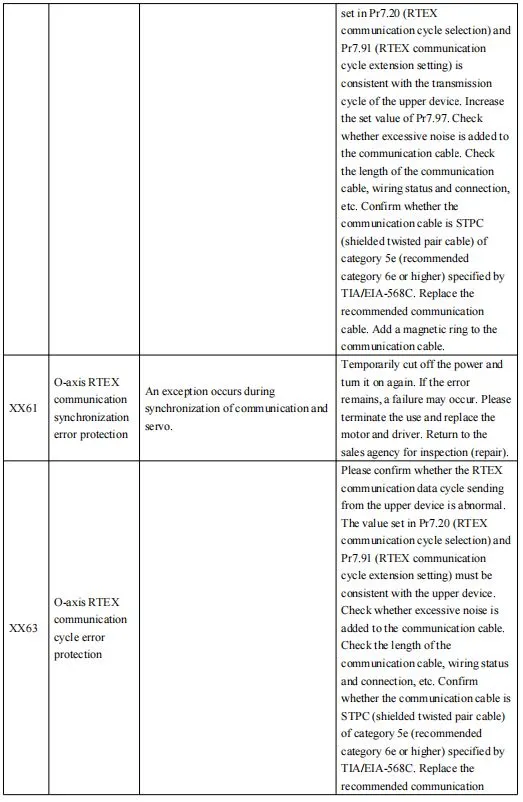


Ppendix IO Definition
I. IO Definition of Five-axis Injection Molding Machine (XYZX2Y2 are servo axes, and ABC are pneumatic axes)
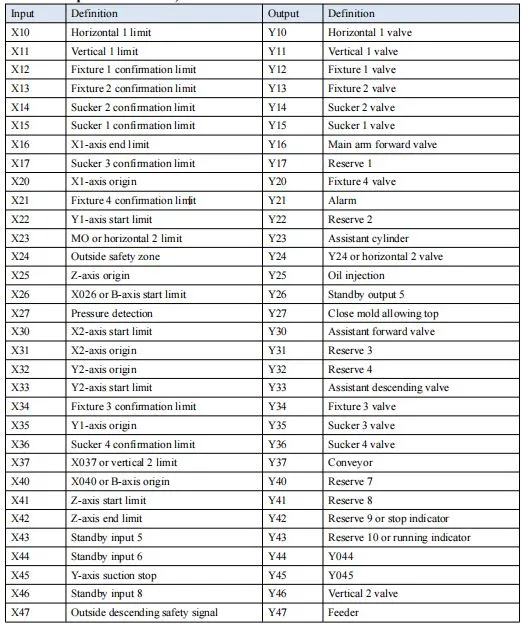
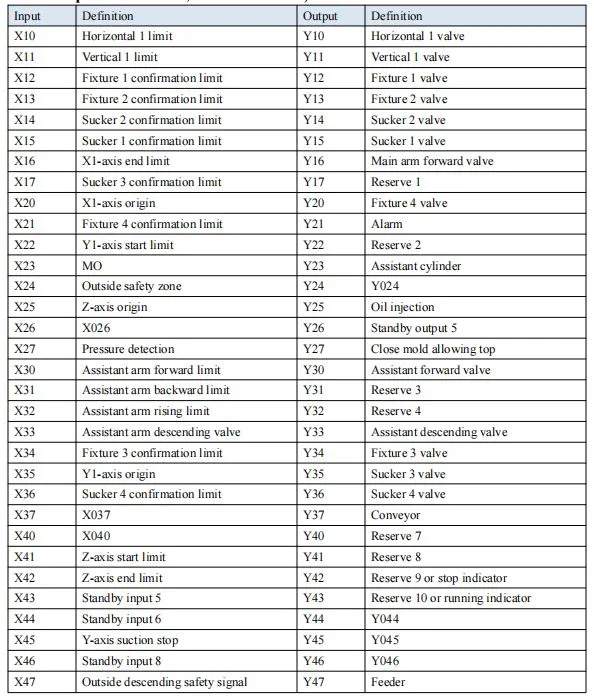
Chapter 7 wire connection
7.1 Drive and control integration cabinet instruction
7.1.1 QC-S5E Drive and control integration exterior instruction

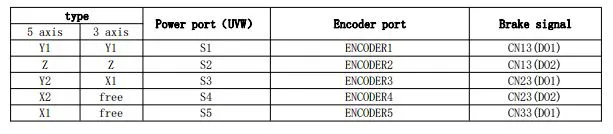

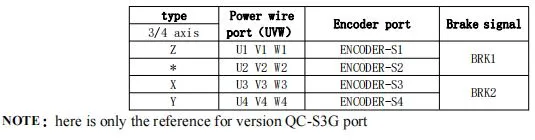


7.1.5 Port description of electrical characteristics
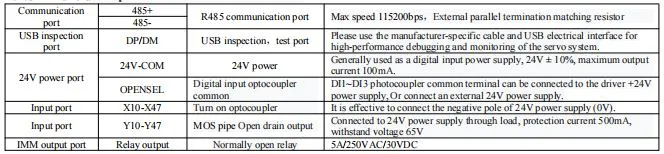

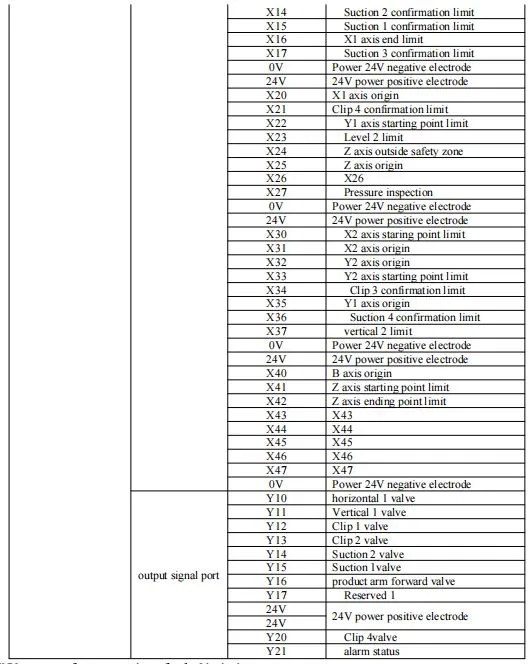
7.1.7 IMM control port signal definition
please take 7.2IMM and robot arm connection as reference


7.1.8 Motor power wire definition


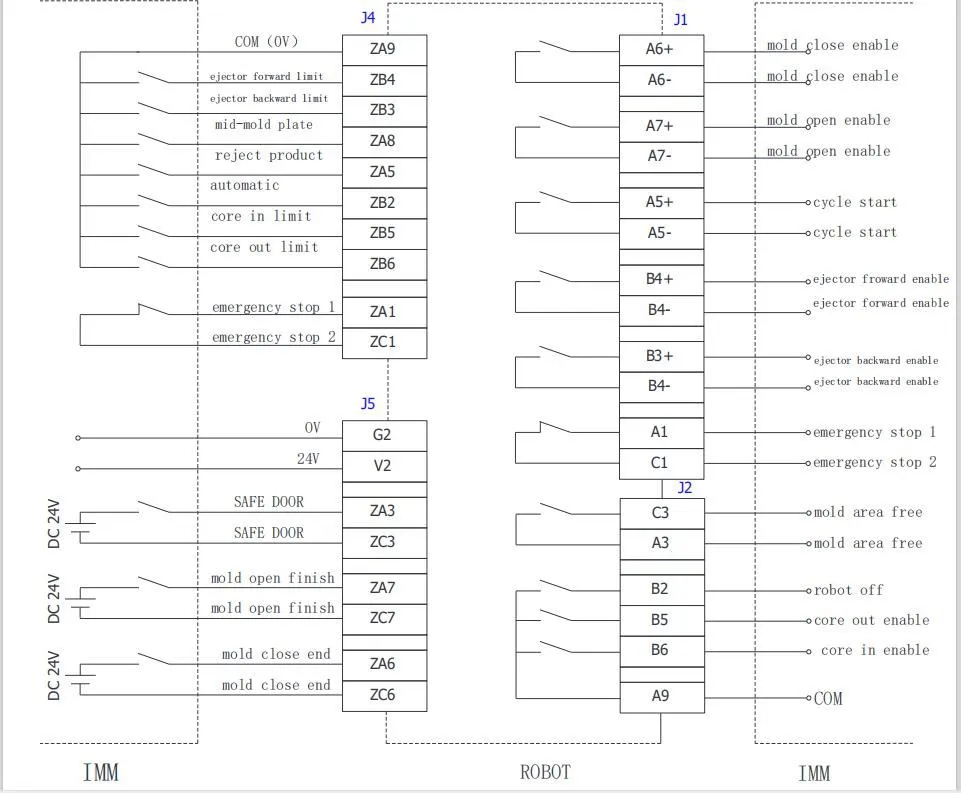
7.3 Peripheral accessories wiring
7.3.1 Analog input and output board connection
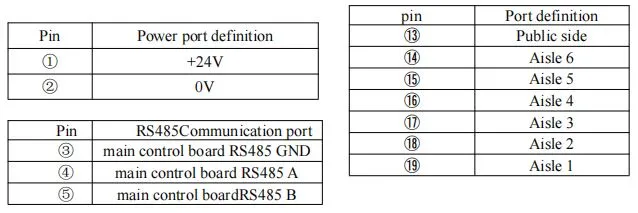
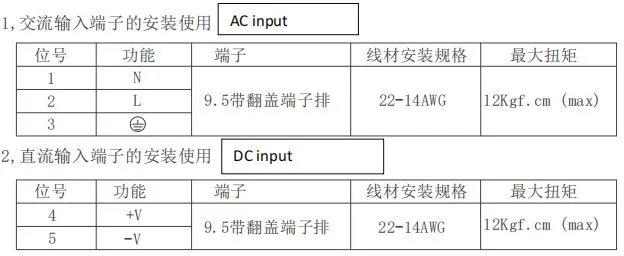
7.3.3 Installation dimensions and connection of dual switching power supply
Note: The dual power supply is separately connected to the logic and IO power supply of the system, and the independent power supply is connected to the holding brake.
7.3.4 Schematic diagram of servo IO connecting coil

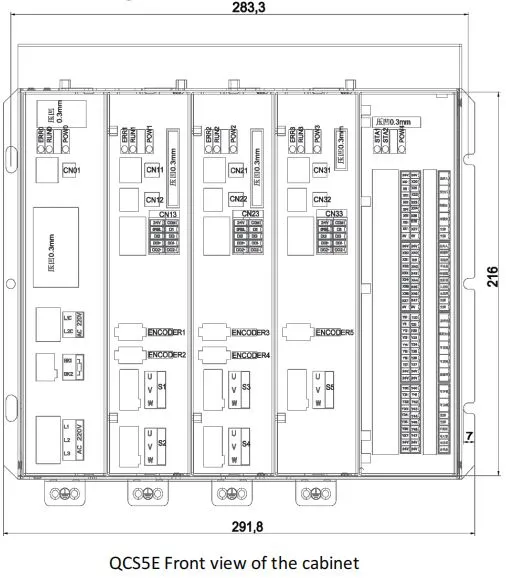

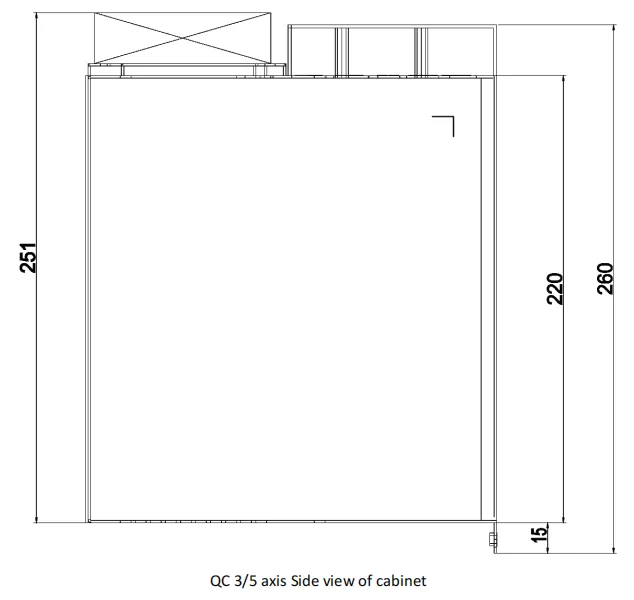
7.3.6 Power line(UVW)And encoder wire size
Encoder line size above 750W
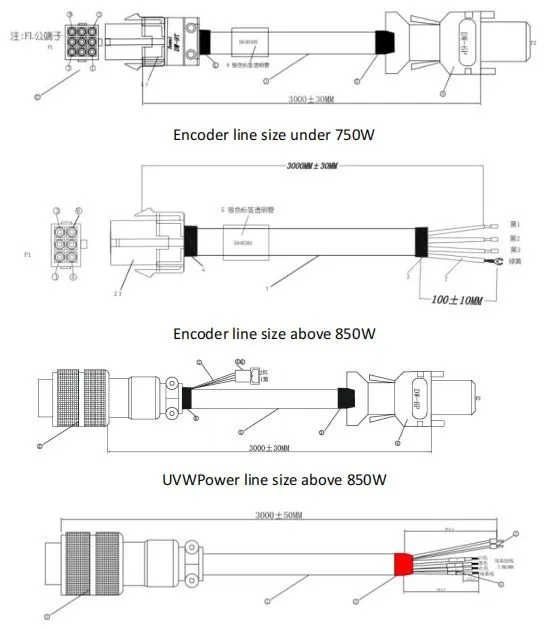
Wire size (optional accessory)
The wire has different lengths, please consult the sales if you need other specifications.
The length shown in this section is the standard wiring length.
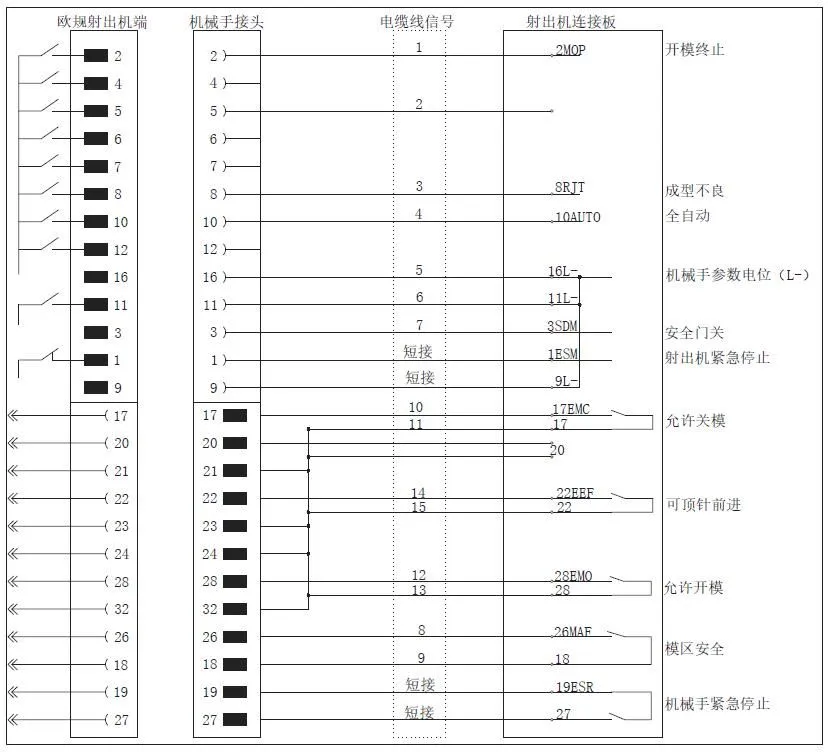
Resetting instructions for injection machine signal
If the manipulator is not in use, the ejector signal can be reset in the following two ways:
1When the manipulator does not turn on the power, you can set "manipulator not used" under the system function.
2. The signal of the injection machine will not be controlled by the robot. If you want to use it, please press the "Reset" button.
3. Remove the metal connector connected to the injection machine and connect it with the "reset connector" attached at random. The circuit diagram of the "reset connector" is as follows.
4. If the manipulator is not used, the machine should be moved to a safe position outside.
5. The air source should be removed if the manipulator is not used.
European jumper joint or round metal joint
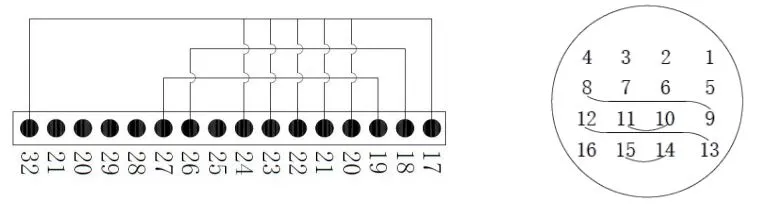
Chapter 9 Wiring Of Euro-map
1 Wiring diagram of Euro map 67
40 core wire European standard 67 connector definition wiring


2. Wiring diagram for Euro map 12
40 core wire European standard 12 connector definition wiring
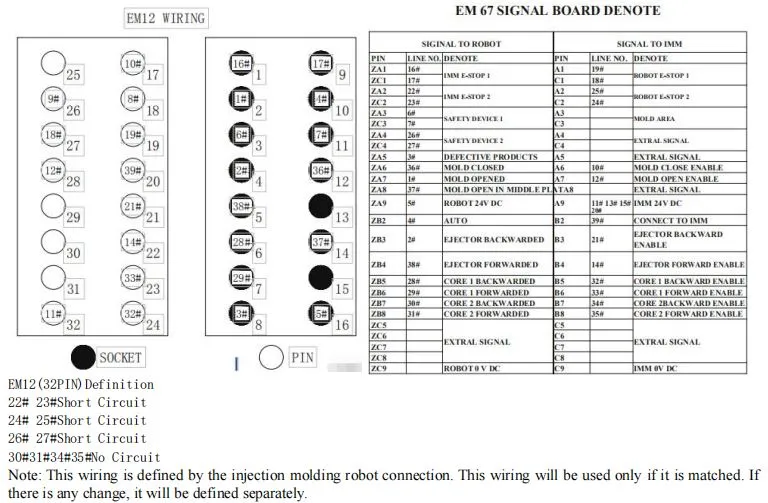

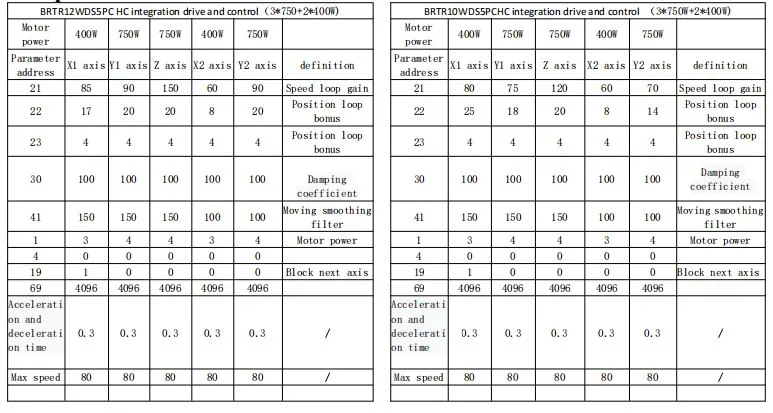
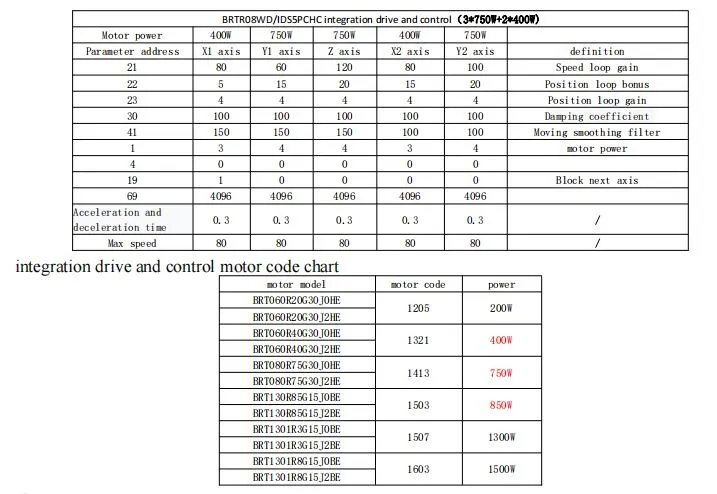
NOTE:
After replacing the motor, please check carefully: The No. 2 parameter in the machine parameters-structure-servo parameter is the corresponding code of the motor, see the motor code marked on the motor nameplate (40G30JOAD: 1302, 75G30J2HE: 1413, 40G30JOHE: 1321, 75G30JOHE: 1413) . If there are other types of motors, please consult our customer service.
Note on debugging parameters:
The above parameter table is a calibrated parameter, for reference only, if there is an exception, it can be fine-tuned:
1. If there is current noise (buzzing), the parameter 21 can be adjusted down by 10 each time, and the parameter 22 can be adjusted down by 3 each time;
2. If there is vibration (return to the origin or when parking), you can increase the No. 21 parameter by 10, the No. 22 parameter jumps by 3, or the No. 41 parameter up to 200.
3. If the deviation is frequently reported, in addition to the appropriate increase in tolerance, the No. 23 parameter can also be appropriately increased according to the actual situation, and the effect is tested after adding 1 each time.
If the above parameters are not fine-tuned, please consult our customer service customer service. Note that in standby mode, if a certain motor is abnormal, please check whether the corresponding parameters are correct, otherwise the motor may be abnormal or the driver module may be abnormal, etc., you can do the same power motor cross test verification.